

You search for one random thing on YouTube. Maybe it’s a sleep sound, a gadget teardown, a medical symptom, or a niche hobby you don’t even care about anymore. Then your homepage starts acting like that one search defines you.
That’s usually the moment people realize YouTube search history isn’t just a convenience feature. It shapes recommendations, affects what the platform thinks you want next, and leaves a trail inside your Google account. If you’re trying to clean up your feed or reduce how much of your behavior gets stored, learning how to delete youtube search is one of the simplest privacy habits you can build.
Table of Contents
- Why Your YouTube Search History Matters
- Deleting Searches on a Desktop Computer
- Clearing Searches from the YouTube Mobile App
- Proactive Privacy Controls You Should Use
- Connecting YouTube History to Your Google Account
- Troubleshooting and Key Questions Answered
- Taking Back Your YouTube Experience
Why Your YouTube Search History Matters
A cluttered YouTube homepage usually starts with a small action. You searched for one product comparison, one celebrity clip, or one problem you were curious about late at night. Days later, your recommendations still look off.
That’s not just annoying. It tells you how much weight YouTube gives to your search behavior. YouTube had over 2.7 billion monthly active users globally as of 2024, and Google introduced dedicated YouTube history controls in 2018 as part of its My Activity expansion, according to YouTube’s official history controls help page. The push came during a period of rising privacy concern, and 78% of users worry about online tracking, based on the same verified data.
A search can linger longer than you expect
Search history works like a signal. When you type in terms like “best budget phone,” “true crime documentary,” or “how to fix router,” YouTube treats those phrases as clues about your interests. That can change:
- What appears on your homepage
- Which videos show up first in suggestions
- What topics keep resurfacing
- How Google understands your preferences across services
That last point matters most for privacy-conscious readers.
Deleting search history isn’t about hiding something dramatic. It’s about reducing the amount of old, unnecessary behavioral data attached to your account.
Why this is digital hygiene
You often don’t clean up search history until your feed gets weird. A better reason is control. If your account keeps months or years of searches, you’re letting old curiosity, accidental taps, and one-off research sessions influence what you see today.
Deleting that history can help in two ways:
- It removes stale signals that no longer reflect what you want.
- It limits stored activity tied to your Google account.
If online privacy is already on your radar, our broader guide to protecting online privacy covers the bigger picture beyond YouTube alone.
The practical takeaway
You don’t need to be an expert to manage this well. You just need to know where YouTube stores search activity, what gets deleted, and what doesn’t. Once you understand that, the settings stop feeling buried and start feeling useful.
Deleting Searches on a Desktop Computer
Desktop gives you the clearest view of your account controls. If you want the most complete way to delete YouTube searches, start there.
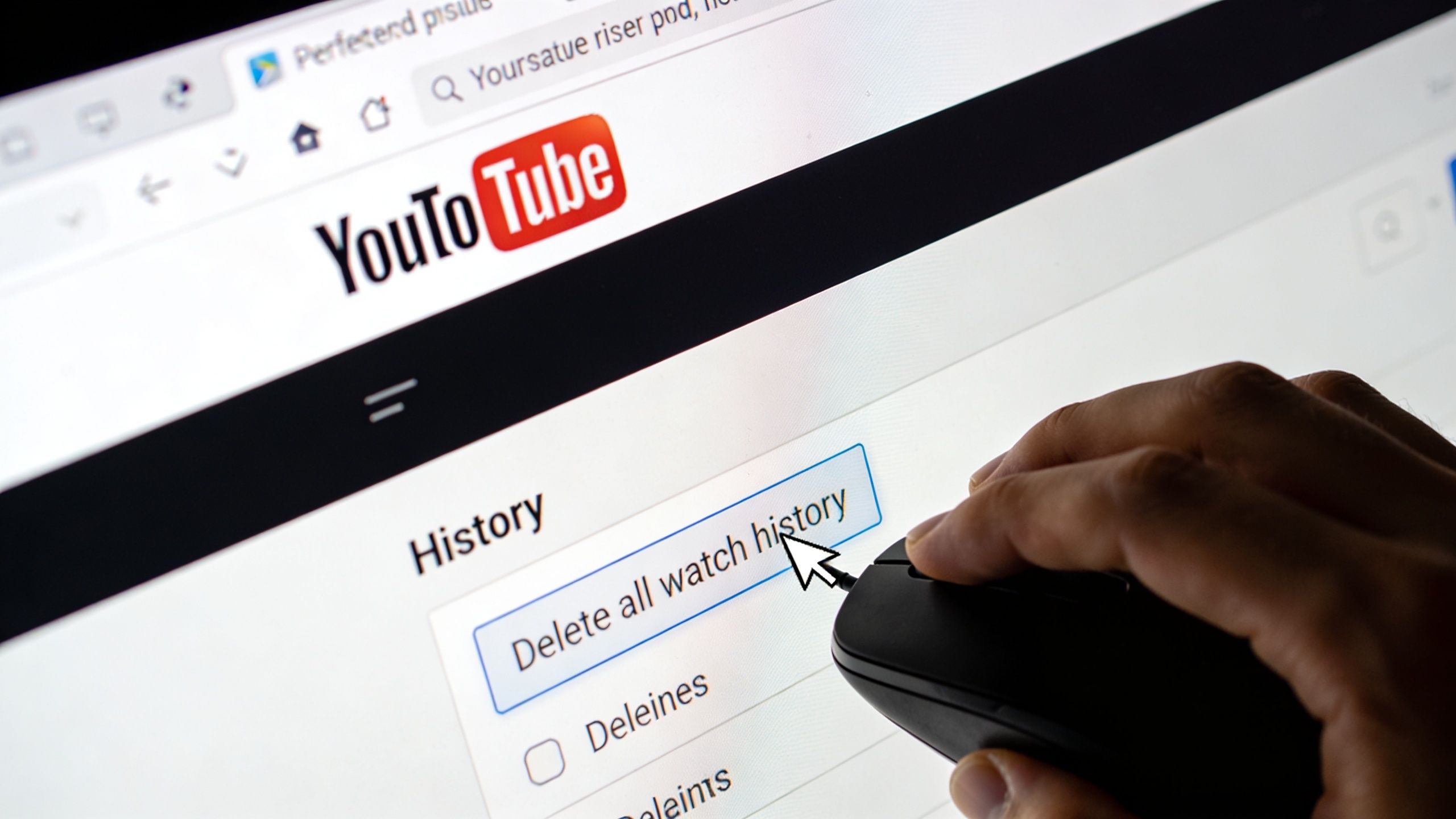
Remove one search or clear everything
You’ve got two common jobs on desktop. One is deleting a single embarrassing or irrelevant search. The other is wiping the slate clean.
For a full cleanup, the important detail is this: the most thorough method runs through Google’s My Activity dashboard, not just the visible YouTube interface. A bulk Delete all time action for a typical user with under 10,000 entries usually completes in under 10 seconds, as noted in this guide to clearing YouTube history through My Activity. The same source also notes that up to 85% of users are unaware bulk deletion can also remove linked watch and interaction history.
Practical rule: Before you click Delete all time, pause for a second and confirm you’re comfortable removing more than just search terms.
How to delete YouTube search history on desktop
Follow these steps in a browser while signed into the Google account you use for YouTube:
- Open YouTube and make sure you’re signed in.
- Click your profile icon.
- Go to Your data in YouTube or open My Activity in your browser.
- In My Activity, look for the filter that lets you narrow activity to YouTube Search History.
- To delete one entry, find the search item and click the X next to it.
- To remove a batch, click Delete and choose Today, a custom range, or Delete all time.
- Confirm the pop-up when Google asks if you’re sure.
If you only want to remove a few bad searches, use the single-entry option. It’s slower, but it preserves the rest of your history and can keep your recommendations more stable.
When desktop is the better choice
Desktop is usually easier when:
- You want date controls and a wider view of your activity
- You need precision for deleting only certain searches
- You’re checking what’s really stored in your Google account
- You suspect mobile app syncing issues
A laptop or desktop browser also makes it easier to spot whether you’re deleting search history alone or activity that overlaps with watch history.
One mistake people make
Some users think deleting visible suggestions from the search bar equals deleting account history. It doesn’t always. Search suggestions and stored account activity can overlap, but they aren’t the same thing.
If you want a true account-level cleanup, use My Activity. That’s the version that follows your account across devices.
Clearing Searches from the YouTube Mobile App
A significant number of searches on YouTube originate from phones, not computers. That makes the app the place where old searches pile up fastest.

If you’re on Android or iPhone, the path is simple once you know where YouTube hides it. On the mobile app, you can clear search history through Profile > Settings > Manage all history, according to the verified guidance tied to this YouTube app walkthrough.
The fastest path inside the app
Open the YouTube app and sign into the account you use. Then:
- Tap your profile icon.
- Open Settings.
- Tap Manage all history.
- Choose whether you want to remove a single search or delete a larger block of activity.
- For individual searches, tap the X or use the app’s delete gesture if it appears on your device.
- For a full cleanup, tap Delete and choose the time range you want.
Android and iOS can look slightly different, especially if your app version is older or your phone maker changes menus visually. The names are usually close enough that Manage all history is the key phrase to look for.
Why deleted searches sometimes come back
People often get confused. They delete searches, refresh the app, and some entries seem to return. Usually that’s not YouTube ignoring your command. It’s a sync or cache issue.
The verified data notes that 15% of deletion failures happen when the app isn’t fully closed and cleared after deletion, because old data can resync from Google servers within minutes, as described in that same mobile deletion reference video.
Try this if your history looks stuck:
- Force close the app: Exit YouTube completely instead of leaving it in the background.
- Reopen after a moment: Give your account a chance to sync the deletion.
- Check the right account: Many people have more than one Google login on the same phone.
- Look in My Activity if needed: If the app still looks wrong, the account-level dashboard is usually clearer.
This short walkthrough may help if you prefer to watch the taps instead of reading them:
A good mobile habit
If you make a lot of one-off searches on your phone, don’t wait until your feed gets messy. Delete them right after the search session ends. That keeps your recommendations cleaner and reduces the chance that a temporary interest follows you around for days.
Proactive Privacy Controls You Should Use
Deleting history manually works. It’s just reactive. If you care about privacy or you’re tired of cleaning up after the fact, YouTube gives you two better tools: Pause history and Auto-delete.
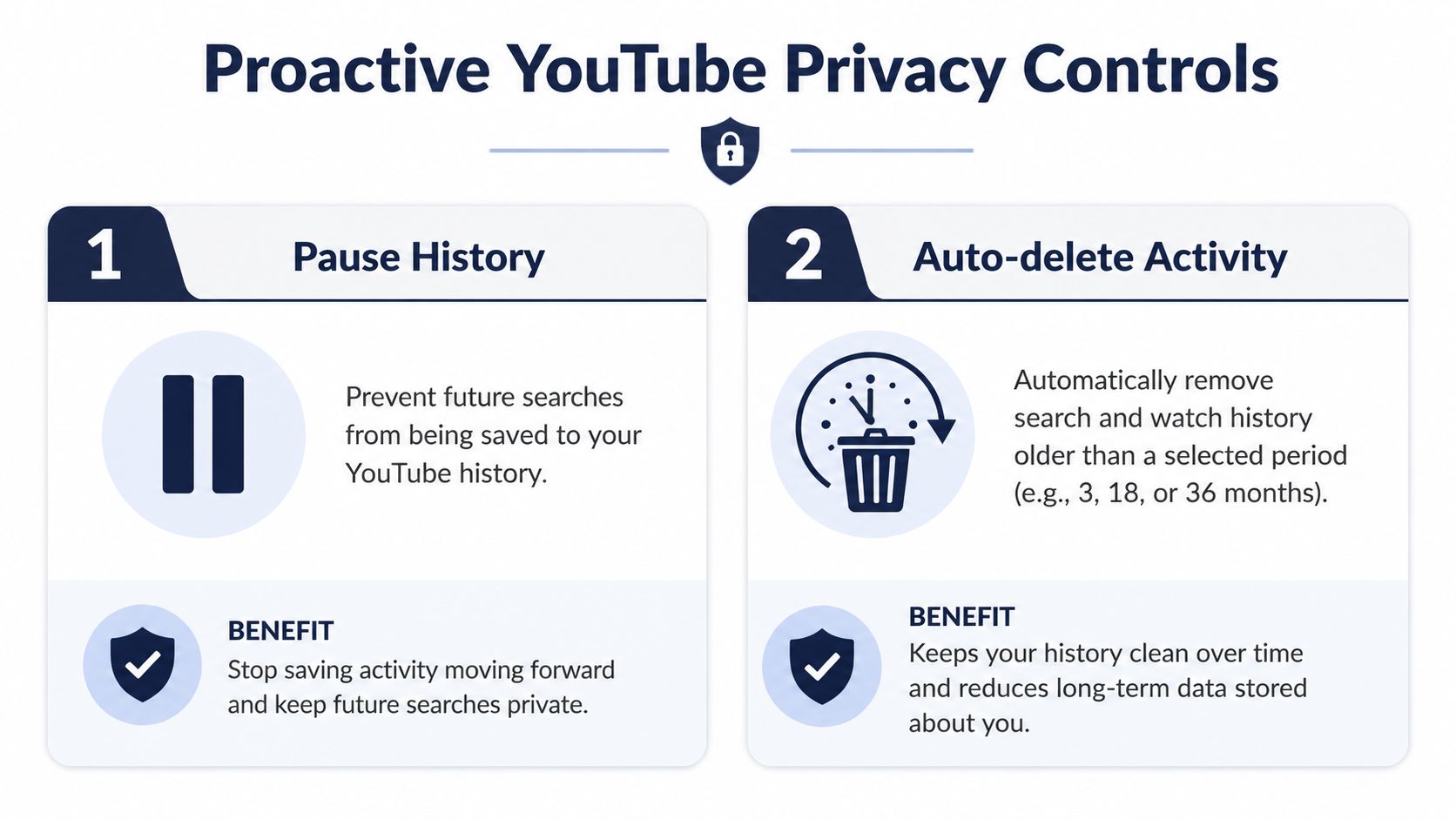
Pause history versus auto-delete
These settings sound similar, but they solve different problems.
| Control | Best for | What it does | Tradeoff |
|---|---|---|---|
| Pause history | People who want less tracking going forward | Stops future YouTube searches from being saved | Recommendations may feel less tailored |
| Auto-delete | People who still want personalization with limits | Removes older activity after a chosen period | Some history still exists until it ages out |
If you want the strongest day-to-day reduction in logged activity, Pause history is the stricter option. If you still like YouTube learning your recent interests, Auto-delete is the more balanced choice.
How to pause YouTube search history
You can find this inside Manage all history and then the Controls area attached to your Google account.
Look for the setting that includes your YouTube searches, then turn that off. In plain terms, you’re telling Google not to keep saving future YouTube search activity.
This helps if you:
- Share a device and don’t want your searches shaping the account
- Research sensitive topics and want less data retained
- Prefer a more neutral feed over a heavily trained one
If you hate having one random search hijack your homepage, pausing future history is often more useful than doing repeated manual deletions.
How auto-delete works
Google added auto-delete in 2019, and the verified data says it can reduce stored data by 40% for opt-in users, based on the source linked through this YouTube history controls video. That same verified set notes user tests showing a complete purge can lead to up to 80% fresher feeds because the recommendation system rebuilds from newer activity.
The available time windows are:
- 3 months
- 18 months
- 36 months
This is the “set it and forget it” option. You still get some personalization, but older searches don’t sit in your account forever.
Which setting makes more sense
Choose based on your goal, not just convenience.
- If your priority is minimum retention, use Pause history.
- If your priority is better recommendations with limits, use Auto-delete.
- If your account already feels polluted by old searches, do a manual cleanup first, then enable one of the two controls.
If you’re tightening up privacy settings across your devices, our guide on how to protect online privacy pairs well with these account-level controls.
Connecting YouTube History to Your Google Account
Most guides stop at the delete button. The bigger privacy issue sits one level above YouTube itself.
Your YouTube searches don’t live in isolation. They sit inside your broader Google activity picture, which means old search behavior can inform more than your next video recommendation.

Why one YouTube search can echo elsewhere
Say you search YouTube for laptop reviews, VPN comparisons, or a health-related topic. Even if your main concern is “why is my YouTube homepage weird,” the larger issue is how that activity contributes to your profile across Google services.
The verified data behind Brave’s overview of deleting YouTube history states that clearing YouTube history does not fully unlink that data from Google’s broader My Activity dashboard, where search patterns can persist and influence ads. It also notes that Google’s AI can use fingerprinting to rebuild recommendation profiles within days, and that combining deletion with a VPN and incognito browsing can help mitigate that process.
Reality check: Deleting YouTube history is useful, but it isn’t the same as becoming invisible to Google’s wider ecosystem.
What deletion helps with and what it doesn’t
A cleaner way to think about it is this short comparison:
| Action | What it helps with | What it doesn’t fully solve |
|---|---|---|
| Delete YouTube search history | Removes stored searches from your visible YouTube activity controls | Doesn’t guarantee complete separation from broader Google profiling |
| Pause future history | Prevents new YouTube searches from being saved in the same way | Doesn’t erase older behavior already linked elsewhere |
| Use incognito and a VPN | Reduces easy account and network-based linkage | Doesn’t make you completely untrackable |
| Review Google account activity broadly | Gives you a fuller picture of what’s stored | Takes more effort than app-only cleanup |
The AI recommendation angle
This part matters if you’re trying to understand results, not just clicks.
Recommendation systems don’t need one perfect profile to make confident guesses. They rebuild from patterns. That’s why a fresh deletion can feel helpful right away, yet your feed may start drifting back toward familiar topics after a while if you keep using the same account, the same device habits, and the same browsing patterns.
If you already use privacy tools, check whether you’re also using the account settings that match them. Many people install a VPN but forget that the Google account itself still holds a deep activity log. The same goes for password tools. A lot of users miss the privacy features bundled into products they already have, which is a good reason to review password manager features people often overlook.
Troubleshooting and Key Questions Answered
Even when you follow the right steps, YouTube history controls can be confusing. The most common problems usually come down to sync, account mix-ups, or misunderstanding what kind of history got removed.
Why do deleted searches reappear
This usually happens because the app or browser is showing cached data, or because you deleted history on one signed-in session while another device still reflects older synced activity.
Try this checklist:
- Confirm the account: Make sure you deleted history from the same Google account that powers your YouTube app.
- Close and reopen the app or browser: Cached screens can look stale.
- Check My Activity directly: It’s the better source of truth when the app view seems inconsistent.
- Wait briefly and refresh: Sync isn’t always instant.
Does deleting search history also delete watch history
Sometimes it can, especially when you use bulk controls through the broader activity dashboard. That’s why people get surprised after a large cleanup.
If you only want to remove search terms, be careful with any option that looks broad or account-wide. Read the confirmation screen before tapping Delete.
Some YouTube controls are narrow, some are account-wide. The label on the confirmation prompt matters more than the button name alone.
What’s the difference between deleting history and using Incognito Mode
Deleting history removes activity that was already saved. Incognito Mode is more about limiting what gets attached to your signed-in session during that browsing period.
They solve different problems:
- Delete history when you want to clean up what’s already stored.
- Use Incognito Mode when you want to avoid building normal history during a session.
- Use both if you want cleanup plus less future tracking.
If you’re trying to reduce broader personal exposure online, services focused on identity theft protection can also help with the non-YouTube side of digital hygiene.
Can you recover deleted YouTube searches
Usually, you should assume no. Once the deletion is confirmed, you shouldn’t count on getting those exact search entries back in a practical way.
That’s why selective deletion is smarter when you only want to remove a few sensitive or irrelevant queries. Use full deletion when you want a real reset.
Taking Back Your YouTube Experience
Deleting YouTube search history is one of those small settings changes that can make your account feel normal again. It helps clean up recommendations, trims old data from your profile, and gives you more control over what YouTube keeps learning from your behavior.
The bigger lesson is simple. Your feed isn’t fixed, and your privacy settings don’t have to stay on autopilot. If you want more protection beyond account cleanup, it also helps to learn how to hide your IP address.
What’s the strangest or most persistent YouTube recommendation you’ve gotten from a single old search?
If you want more practical guides on privacy tools, cybersecurity habits, AI platforms, and consumer tech, visit Tech Verdict.