Your movie starts buffering, your video call turns blocky, and a simple download drags for no obvious reason. It's common to blame the ISP initially. Sometimes that’s right. Sometimes it isn’t.
An unwanted device on your network can do more than slow things down. It can expose shared devices, create privacy risks, and turn your home Wi-Fi into someone else’s free connection. If you’ve been wondering how to know if someone is stealing your wifi, the fastest path is to stop guessing and check the network the same way a security practitioner would. Start with symptoms, confirm with your router, then lock things down.
Table of Contents
- Is Your Slow Internet a Glitch or a Freeloader
- The Telltale Signs of a Wi-Fi Intruder
- Inspecting Your Router's Connected Devices List
- Using Network Scanners for a Deeper Investigation
- Securing Your Network and Evicting Intruders
- Advanced Monitoring and Future-Proofing for Modern Networks
- Frequently Asked Questions About Wi-Fi Security
- Can someone steal my Wi-Fi if I use a strong password
- Is MAC filtering enough to stop intruders
- Should I hide my network name
- What’s the practical difference between WPA2 and WPA3
- Can changing the Wi-Fi channel improve security
- If I change the password, will that kick everyone off
- Why does my router show strange device names
- Am I completely safe after following these steps
Is Your Slow Internet a Glitch or a Freeloader
A lot of Wi-Fi theft starts as a vague feeling. Streaming feels off. Your smart TV takes too long to load. Cloud backups crawl. You reboot the router, things improve for a bit, then the slowdown returns.
That suspicion isn’t paranoid. A dfndr lab survey found that about 33% of American internet users don’t protect their Wi-Fi with any security, and 18% already suspect unauthorized access. In that same survey, slow connection speeds were the top warning sign at 62% according to PSafe’s breakdown of Wi-Fi theft risks.
The tricky part is that bad performance doesn’t prove a thief. Congested bands, weak placement, and ordinary home traffic can look similar. If you follow networking coverage around throughput and latency trends, you already know that “slow internet” can come from several layers at once.
Practical rule: Treat sudden slowdown as a trigger to investigate, not as proof of an intruder.
What’s at stake is bigger than buffering. If someone gets onto your local network, they’re no longer just near your Wi-Fi. They’re inside the environment where your smart speaker, TV, printer, cameras, laptop, and phone all coexist. That raises the risk from inconvenience to exposure.
The Telltale Signs of a Wi-Fi Intruder
Before opening a router panel, look for patterns. One symptom alone can mislead you. A cluster of signs is much more useful.
What you can notice without tools
Some indicators are visible from across the room. Others show up in how your devices behave.
- Streaming or calls degrade at odd times. If your connection tanks during times when your household is mostly idle, that’s more suspicious than a slowdown during a game download or software update.
- The router keeps showing activity when nobody should be using it. Blinking lights don’t identify who is connected, but unexplained activity late at night is worth checking.
- Your casting menu shows unfamiliar device names. If a TV, speaker, or media target appears that nobody in your home recognizes, pay attention.
- Your ISP app shows unusual data use. This matters more if your own habits haven’t changed.
- Your smart home starts acting crowded. Devices may respond slowly when too many clients compete for airtime.
What these signs do and don’t prove
A suspicious sign is not the same as confirmation. Routers often blink because a camera is syncing, a phone is backing up photos, or a game console is downloading in the background. Printers, smart plugs, hubs, and TVs also poll the network when you’re not actively using them.
That’s why skilled troubleshooting separates bandwidth theft from ordinary device noise.
If a slowdown happens every evening, look at your own routine first. TVs, cloud sync, security cameras, and console updates are common false alarms.
A better way to judge the symptoms
Use this quick reality check before you accuse the neighbor.
| Symptom | More likely benign | More suspicious |
|---|---|---|
| Slow browsing | Background updates, poor signal | Persistent slowdown with no local cause |
| Router activity lights | IoT chatter, camera uploads | Heavy activity when known devices are offline |
| Unknown cast target | Nearby device bleed-through, naming confusion | Device also appears in router list |
| Data spike | Backups, streaming, game downloads | Usage jumps when your household is inactive |
The key is consistency. One weird night means little. Repeated odd behavior, especially when your own devices are idle, means it’s time to inspect the actual device list.
Inspecting Your Router's Connected Devices List
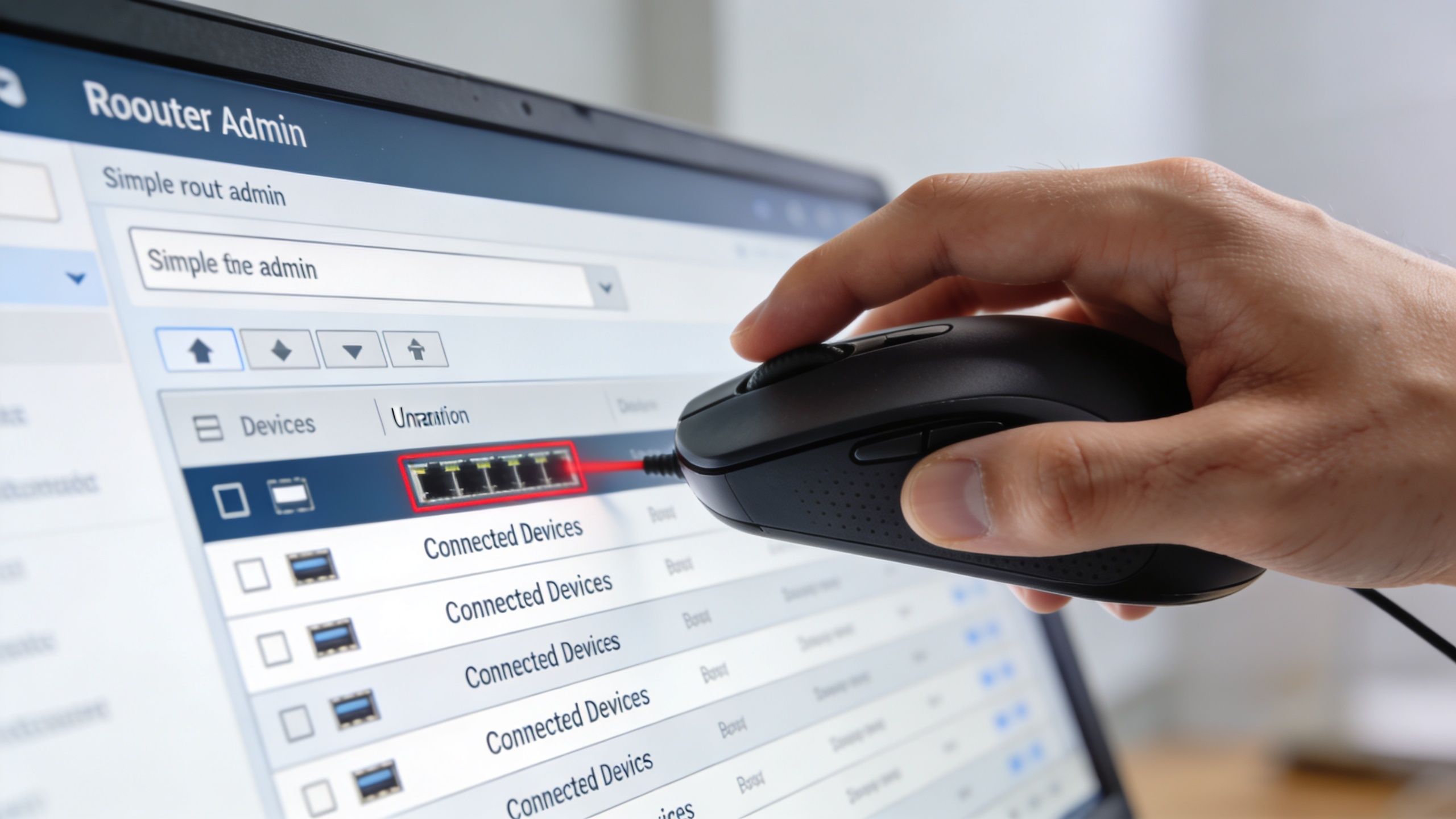
This is the most dependable checkpoint. If you want the answer to how to know if someone is stealing your wifi, start here before trying fancy apps or packet analysis.
According to CompareInternet’s guide to spotting Wi-Fi theft, the most reliable detection method is inspecting the router’s device list. The same guide notes you can find the router gateway through ipconfig, log in, and cross-reference connected MAC addresses with your own hardware. It also states that checking the manufacturer ID in the first three bytes of a MAC address can achieve 90% identification accuracy for unknown IoT gadgets.
If you manage work devices, guest hardware, or family phones on one network, the same discipline used in BYOD security discussions applies at home too. Inventory first. Block second.
Find the router login page
You don’t need enterprise gear for this. Almost every consumer router exposes a local admin page.
- Connect to your Wi-Fi on a laptop or desktop.
- Find the gateway address. On Windows, open Command Prompt and run
ipconfig, then look for the default gateway. - Open a browser and enter that gateway address.
- Log in with the router admin credentials. If you never changed them, check the label on the router or the setup card from your ISP.
- Locate the client list. Depending on the brand, look for Connected Devices, DHCP Client List, Attached Devices, or Wireless Clients.
Different brands hide this in different menus, but the labels are usually straightforward once you’re inside.
Read the device list like a human, not a machine
The device list often looks messy at first. Some entries will be obvious, such as a laptop hostname or a phone brand. Others will be cryptic.
Here’s what to look at:
- Device name. Useful when it’s descriptive, useless when it says “Unknown.”
- IP address. Good for matching sessions, but not enough to identify a device by itself.
- MAC address. This is your strongest clue for identity.
- Connection type. Separate Wi-Fi clients from wired gear like TVs, consoles, or mesh nodes.
A simple method works well. Walk room to room and account for everything that can connect. Phones, laptops, tablets, TVs, printers, streaming sticks, cameras, smart displays, thermostats, speakers, bulbs, vacuums, hubs, and game consoles.
Then make a short list:
- Known and active
- Known but idle
- Unknown
- Unsure, verify later
Avoid the mistakes that trip people up
Most false alarms come from incomplete inventories. People forget smart bulbs, old tablets in drawers, guest networks, mesh satellites, and devices that use privacy features.
Don’t block a device just because the name looks strange. Many legitimate devices advertise generic names or random-looking hostnames.
A few practical checks help:
- Temporarily turn off a device and refresh the list. If the entry disappears, you’ve identified it.
- Check the MAC label in device settings on phones, laptops, and TVs when possible.
- Look up the manufacturer prefix if you only have a MAC address. Seeing that a mystery client belongs to a TV maker or smart-home vendor can narrow it down quickly.
- Review the guest network separately if your router splits primary and guest clients.
If you still have one or two unrecognized entries after a careful pass, that’s when a deeper scan helps. The router list is your ground truth, but it isn’t always the clearest presentation.
Using Network Scanners for a Deeper Investigation
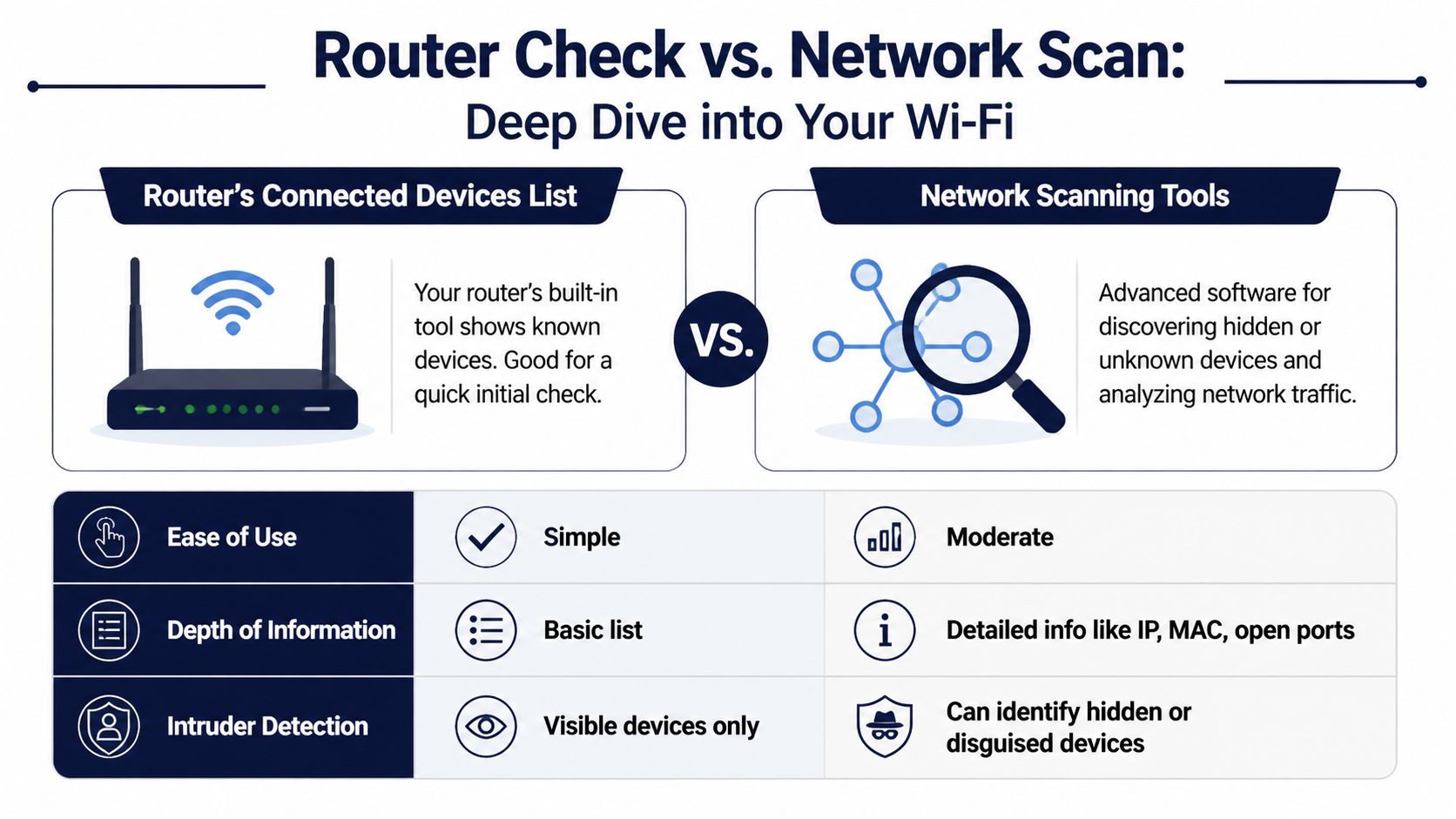
The router list tells you what the network sees. A scanner helps you interpret it. Here, beginners and power users split into two camps. One wants a clean app. The other wants the command line.
Both approaches work. They just solve different problems.
If you regularly test security utilities, the logic is familiar from other cybersecurity tools coverage. Start with the lowest-friction tool that gives a trustworthy answer, then escalate only if needed.
When apps are enough
Apps such as Fing, GlassWire, or vendor-specific router apps are easier to use than an admin panel. They often label devices more clearly and can surface IPs, MACs, and vendor names in a cleaner interface.
They’re especially useful when:
- you want a quick scan from a phone
- the router interface is clunky
- you need an easier way to compare devices over time
- another person in the house needs to verify the list without touching router settings
The trade-off is visibility and precision. A polished app can still miss edge cases, especially on unusual setups or privacy-heavy devices.
When nmap is the better tool
For a deeper pass, nmap is still one of the best options. GeeksforGeeks’ ethical hacking guide notes that sudo nmap -sn 192.168.0.0/24 performs an ARP scan to list live hosts, and reports 92-97% detection success in controlled tests, with up to 15% better performance than many GUI apps against stealthy intrusions.
That matters if you’ve already checked the router and still don’t trust what you’re seeing.
A typical workflow looks like this:
- Install nmap on your system.
- Confirm your local network range from your interface details.
- Run a ping or ARP sweep with
nmap -sn. - Compare the discovered devices against your handwritten inventory from the router check.
- Investigate the outliers, especially devices that stay online at unusual hours.
You don’t need to get fancy with ports or scripts to answer the basic theft question. A simple host discovery scan is often enough.
A network scanner is a second opinion, not a replacement for the router’s own client list.
A quick comparison
| Tool type | Best for | Strength | Limitation |
|---|---|---|---|
| Router device list | Confirming who is connected | Authoritative local view | Often messy and brand-dependent |
| Mobile or desktop scanner | Fast visual checks | Easier identification | Can miss odd setups |
nmap |
Power users and small offices | Strong visibility into live hosts | Less friendly for beginners |
A practical note from the field. If a scanner finds “unknown” clients but your router doesn’t, don’t panic immediately. Check whether you’re seeing mesh components, virtual adapters, or stale entries. If the router shows a device and nmap does too, your confidence goes up fast.
Securing Your Network and Evicting Intruders
Once you’ve confirmed an unknown device, the goal shifts. You’re no longer diagnosing. You’re containing access and preventing a repeat.
Before you change everything, keep one nuance in mind. HighSpeedInternet’s discussion of suspicious Wi-Fi activity says 35% of “Wi-Fi theft” complaints come from unmonitored IoT bandwidth hogs or masked VPN traffic, not outside intruders. That’s why I prefer a short verification pass before the lockout. You don’t want to kick your own camera hub or work tunnel off the network by mistake.
Start with the password resets that matter
The first move is simple. Change the Wi-Fi password. This disconnects everyone and forces a clean rejoin.
Then change the router admin password. A lot of people remember the wireless password and forget the one that protects the control panel. That’s a mistake. If someone knows the admin credentials, they can just come back.
Here’s the priority order I recommend:
- Change the Wi-Fi password to something long and unique.
- Change the router admin login right after.
- Reconnect only trusted devices one by one.
- Rename the network if needed so you know every reconnect is deliberate.
Tighten the wireless settings
After the passwords, fix the protocol settings. Many home networks often remain weak for years due to these.
- Use WPA3 if your router and devices support it. If they don’t, use WPA2-AES.
- Turn off WPS. It’s convenient, but convenience is the wrong priority when you’re closing a security gap.
- Update router firmware. Many routers hide the update option under system or administration menus.
- Review remote management settings. If you don’t need router access from outside your home, disable it.
These changes reduce the chance that the next unauthorized device gets in with the same old weakness.
This short walkthrough is useful if you want a visual refresher before editing router settings:
If privacy is part of your home setup, especially on shared or travel-heavy connections, it’s also worth comparing the options in Tech Verdict’s guide to the best VPNs of 2026 for privacy, speed, and streaming. A VPN won’t stop someone from joining your Wi-Fi, but it can reduce what they can infer from traffic on a poorly segmented network.
Use containment, not just denial
Blocking by MAC address can help, but it isn’t magic. It works best as a deterrent and management tool, not as your only defense.
A stronger setup looks like this:
- Enable a guest network for visitors so they don’t join the same segment as your main devices.
- Move smart-home gear to guest or IoT isolation if your router supports it. Cameras, plugs, and bulbs don’t need the same trust level as your laptop.
- Use MAC filtering for repeated nuisances if you know exactly which device you want to deny.
- Audit saved passwords in the household. If you shared the Wi-Fi with an old tenant, neighbor, contractor, or visitor, assume the password traveled.
The best eviction method is usually broad and boring. Change the Wi-Fi password, tighten encryption, and reconnect only what belongs.
A lot of people ask whether hiding the SSID helps. It can reduce casual discovery, but it won’t stop anyone determined. It's akin to keeping curtains closed. Useful for privacy, not a lock.
Advanced Monitoring and Future-Proofing for Modern Networks
Basic router checks still matter, but modern home networks are getting harder to read. If you run a busy smart home or a small office with dozens of devices, yesterday’s methods can feel incomplete.
Why Wi-Fi 7 changes visibility
Wi-Fi 7 gear introduces features that can make connected-device views less intuitive. Aggregated links and client steering can blur what “one device” looks like from the admin panel.
According to Acrylic WiFi’s discussion of finding who is stealing Wi-Fi, a 2025 Wi-Fi Alliance report noted that 68% of users with new Wi-Fi 7 routers report device visibility issues in dense IoT setups. If your client list seems inconsistent on a new router, it may be a visibility problem rather than proof that a scanner failed.
That matters because older advice assumes every device appears neatly as a single client with a stable identity. Newer networks don’t always behave that way.
Matter homes need a baseline
Matter helps devices interoperate. It also means many homes now have more endpoints than the owner can easily remember. Hubs, bridges, lights, plugs, sensors, and speakers all chatter in the background.
The answer isn’t to stare at the router more often. It’s to build a baseline.
A practical baseline includes:
- A list of expected devices by room
- A note of each device type and vendor
- Which devices should be always on
- Which devices generate routine traffic
- Which devices use randomized identifiers
If you own Aqara, Homey, or similar ecosystems, keep that baseline outside the router interface too. A spreadsheet is fine. So is a password manager note. The point is to know what “normal” looks like.
AI-style monitoring is really anomaly monitoring
The phrase sounds futuristic, but the job is simple. Watch for behavior that deviates from your baseline.
It's vital to recognize that not every slowdown comes from a thief. As noted earlier, some suspicious behavior comes from your own devices. AI-driven or analytics-heavy tools are useful when they answer one practical question: which device used the bandwidth, and was that expected?
For advanced users, tools such as ntopng, Zabbix, or router platforms with better logging can help track:
- new client appearances
- sustained bandwidth spikes
- device-level traffic patterns
- repeated reconnect behavior
- usage changes after firmware updates
That’s also where VPN visibility becomes relevant. Encrypted traffic protects privacy, but it can make attribution harder if your monitoring is too shallow. If you want the privacy side explained in plain English, Tech Verdict’s breakdown of Edge’s VPN and how to better protect your data is a useful companion read.
Modern Wi-Fi security isn’t just access control. It’s inventory, segmentation, and noticing when a “normal” device starts behaving abnormally.
If your setup is still small, don’t overbuild. A router check and occasional scan are enough. If your network has become a small ecosystem, continuous monitoring starts making sense.
Frequently Asked Questions About Wi-Fi Security
Can someone steal my Wi-Fi if I use a strong password
It’s harder, not impossible. A strong password combined with WPA3 or WPA2-AES is a solid foundation. Weak admin credentials, old firmware, or unsafe settings can still leave openings.
Is MAC filtering enough to stop intruders
No. It’s a helpful barrier, but not a complete defense. Use it as an extra layer after you’ve changed passwords and fixed your wireless security settings.
Should I hide my network name
You can, but don’t expect much from it alone. Hiding the SSID reduces casual visibility. It doesn’t replace strong encryption and credential hygiene.
What’s the practical difference between WPA2 and WPA3
WPA3 is the better option when your router and devices support it. In practice, it gives you a stronger modern baseline. WPA2-AES is still acceptable if WPA3 isn’t available, but older standards should be retired.
Can changing the Wi-Fi channel improve security
Not really. Changing channels can improve performance in crowded areas, which may make your network feel better, but it doesn’t meaningfully secure access by itself.
If I change the password, will that kick everyone off
Yes. That’s one reason it’s the most effective cleanup move after you confirm an unknown device. Be ready to reconnect your phones, TVs, cameras, and smart-home gear manually.
Why does my router show strange device names
Because many devices report generic hostnames, vendor labels, or privacy-protected identifiers. That’s normal. Verify with MAC addresses, device power-off tests, and your own inventory before you block anything.
Am I completely safe after following these steps
No network is ever “done.” Home Wi-Fi security is maintenance. Good settings, regular checks, updated firmware, and a clean device inventory reduce risk a lot, but they don’t eliminate it.
If you want more practical guides that translate security jargon into clear buying and setup advice, visit Tech Verdict. We cover privacy tools, VPNs, smart-home security, and the networking gear that makes everyday protection easier. What’s the strangest device name you’ve ever found on your router’s connected devices list?