Your computer probably isn’t “dying.” Most of the time, it’s doing exactly what neglected systems do. It’s carrying too many startup apps, too much temporary junk, too many browser add-ons, and in older machines, a storage drive that can’t keep up anymore.
That matters because random fixes rarely work for long. If you want to know how to speed up a slow computer, the right approach is to diagnose the bottleneck first, apply the free software fixes that remove obvious drag, and then decide whether your hardware is still worth investing in. That last part is where most guides fall short. A three-year-old PC and a seven-year-old PC shouldn’t get the same advice.
Table of Contents
- From Frustration to Fast Performance
- First Responders Identifying the Bottleneck
- The Software Deep Clean and Digital Decluttering
- Advanced OS Tweaks for Peak Performance
- Hardware Upgrades The Ultimate Speed Boost
- The Decision Point When to Upgrade or Replace
- Frequently Asked Questions
From Frustration to Fast Performance
You click the browser. Nothing. You open Excel. It bounces for a while, then appears half-frozen. You restart, lose a few minutes, and promise yourself you’ll deal with it later. That cycle is how a “slightly slow” computer turns into a daily drain on work.
In practice, slow systems usually fall into two camps. The first is software drag. Too many programs load at startup, temporary files pile up, the desktop becomes a dumping ground, and browser extensions consume memory. The second is hardware limitation, especially in systems still running on older storage or trying to multitask with too little RAM.
The fix isn’t to mash every “speed up your PC” tip you can find. It’s to work in order.
Practical rule: Don’t buy parts until you know whether your slowdown is coming from CPU load, memory pressure, disk activity, or plain old clutter.
That order saves time and money. Free maintenance can make a noticeable difference on a healthy machine. It can also reveal when software tweaks have reached their limit and the solution is a hardware upgrade.
A good troubleshooting path looks like this:
- Check what’s overloaded using built-in system tools.
- Remove obvious waste like startup junk, temporary files, and unused apps.
- Tune the operating system so it spends fewer resources on visual extras and broken background behavior.
- Upgrade strategically if the machine is older and still held back by slow storage or limited memory.
- Determine whether the computer is worth upgrading at all.
That last step matters more than people think. Some machines just need cleanup. Some need an SSD and become pleasant again. Some are old enough that every fix buys only a little more time.
First Responders Identifying the Bottleneck
When a user tells me “my computer is slow,” I don’t start by uninstalling things. I look for the choke point. Slow is a symptom. The machine is usually telling you where it hurts, if you check the right panel.

Intel’s performance guidance is the cleanest starting point here. The three hardware components that most directly determine speed are RAM, CPU, and disk drive performance, and systems that run above 80 percent usage on those resources consistently will slow down, according to Intel’s guide to diagnosing a slow computer.
Watch the three resources that matter
On Windows, press Ctrl + Shift + Esc to open Task Manager. If it opens in the simplified view, click More details. Then look at the Processes tab and the top of the columns for CPU, Memory, and Disk.
On macOS, open Activity Monitor from Applications > Utilities. Review the CPU, Memory, and Disk tabs.
On Linux, a terminal command like top or htop gives you the same broad picture. You’re looking for the resource that stays pinned or repeatedly spikes during normal use.
A few minutes of observation is enough. Don’t just open the tool and stare at idle numbers. Recreate the problem. Open the apps that feel slow. Switch tabs. Launch the file explorer. Then watch what jumps.
For users who work across remote systems, the same habits apply. If you live inside remote access tools, performance issues can also be amplified by session overhead and display load, which is why good remote setups matter. Tech Verdict recently looked at Deskin’s approach to remote desktop performance and workflow, and that’s worth considering if slowness appears mainly during remote work.
What each bottleneck usually means
If CPU is constantly high, one app or background process is likely hogging compute time. That can be a browser with too many tabs, a runaway sync client, antivirus activity, indexing, or a stuck update.
If Memory stays near full, the system is running out of room for active work. You’ll notice app switching gets sticky, browser tabs reload, and the machine starts leaning harder on storage as overflow.
If Disk remains hammered, especially on older drives, everything feels delayed. Apps don’t open promptly. Boot takes ages. File operations stall. In these conditions, older hard drives expose their age.
A machine with a disk bottleneck often feels worse than its specs suggest. On paper it may still be “usable.” In real use, every wait gets multiplied.
Use this quick interpretation guide:
| Resource under pressure | What you’ll notice | Most likely next move |
|---|---|---|
| CPU | Fans spin up, apps freeze during active work | Find and stop the heavy process, then update or remove it |
| Memory | Slow multitasking, browser tab reloads | Reduce startup load, close background apps, consider more RAM |
| Disk | Long boot, slow app launches, file lag | Clean storage first, then strongly consider an SSD |
A video walkthrough can help if you’ve never used these tools before:
One caution. Don’t treat a single spike as proof. Look for patterns. A process that briefly peaks while opening is normal. A process that sits there grinding away long after you’ve stopped doing anything is where you start.
The Software Deep Clean and Digital Decluttering
Once you know the bottleneck, it’s time to remove the junk that accumulates on almost every everyday machine. This is the part many people skip because it feels boring. It’s also the part that often restores responsiveness without spending a cent.
A neglected operating system behaves a lot like an overstuffed desk. Nothing is technically impossible, but every task takes longer because there’s friction everywhere.
Start with the easiest wins
The first fix is simple and underrated. Restart the computer properly, then start checking what launches and what lingers. Security guidance from ESET’s WeLiveSecurity recommends restarting every two to three days so the OS can complete updates, close background applications, and clear temporary memory use, as explained in their PC slowdown maintenance guidance.
That same guidance also points to browser cache clearing and disabling unnecessary extensions as practical ways to fix sluggish web use. That matters because many people say “my computer is slow” when what they really mean is “my browser is bloated.”
Start here:
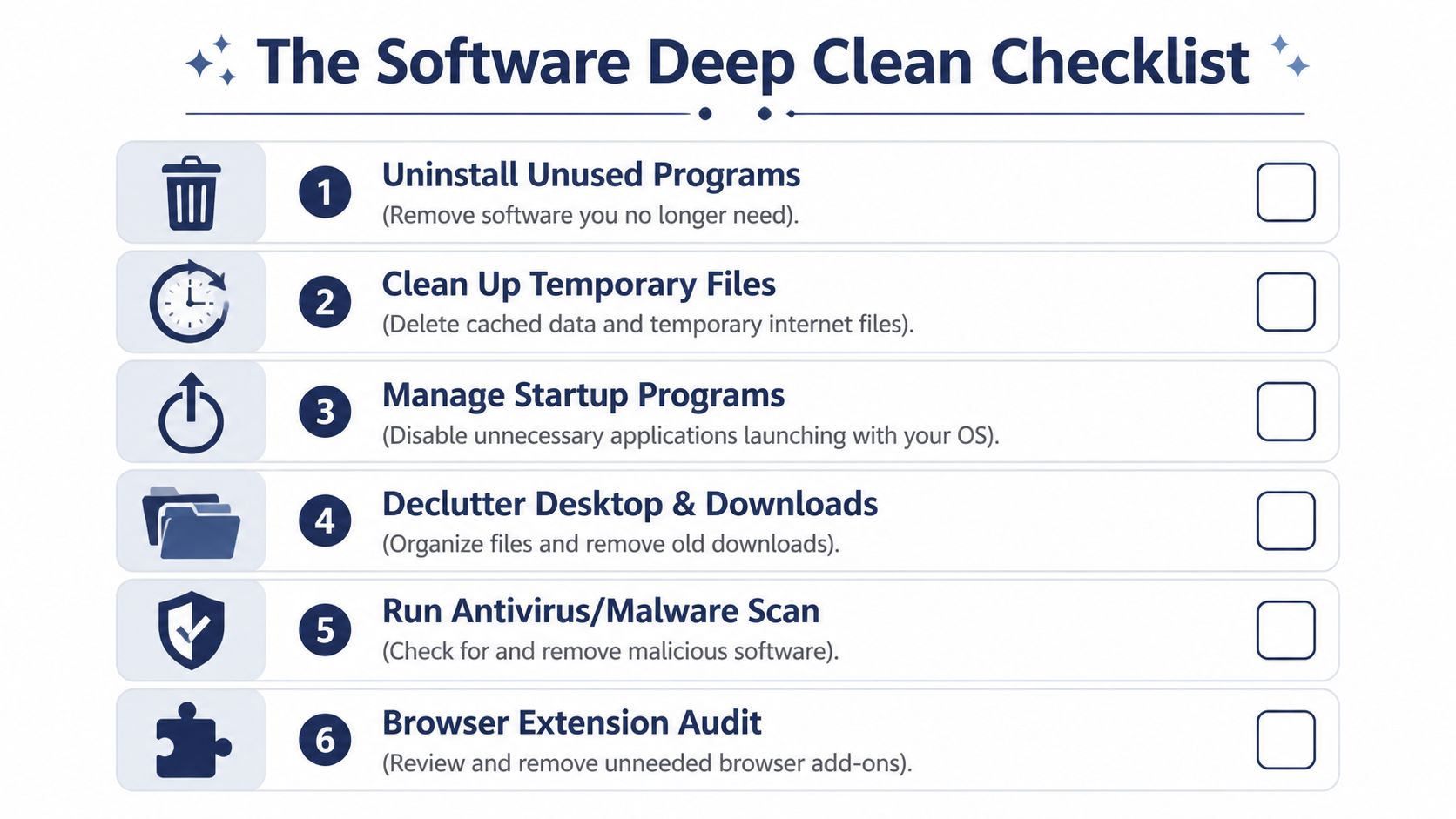
- Restart first: Don’t sleep the machine for days at a time and expect it to behave.
- Empty obvious clutter: Old downloads, duplicate installers, random files left on the desktop.
- Audit startup apps: Most systems load far more than the user needs.
- Clear temporary files: Cached leftovers, update debris, and app temp folders all add up.
- Run a malware scan: Slowness can be a side effect of something you didn’t intend to install.
If you’re worried about scareware and fake security tools while doing cleanup, avoid random “PC cleaner” downloads. Tech Verdict has covered how deceptive security apps can turn into a threat in this breakdown of fake antivirus delivering Android malware. The same basic lesson applies on desktops. Stick to built-in tools and trusted vendors.
Remove the apps and files that keep coming back
On Windows, open Settings > Apps > Installed apps and sort by app name or size. Remove software you don’t use. Be careful with hardware utilities and drivers, but don’t keep three media players, old game launchers, trial software, and duplicate cloud clients “just in case.”
Then check startup behavior. Open Task Manager > Startup apps and disable anything you don’t need the second Windows loads. Chat apps, game launchers, printer helpers, and update agents are common culprits.
For storage cleanup on Windows:
- Open Settings > System > Storage.
- Review what’s consuming space.
- Use Temporary files to remove safe leftovers.
- Run Disk Cleanup if you want the old-school view.
- Turn on Storage Sense if you want ongoing maintenance.
On macOS, open System Settings and review General > Login Items. That’s the Mac equivalent of startup control. Then go to Apple menu > About This Mac > Storage or the current storage management view in your version of macOS and review large files, unused apps, and old documents.
On Linux, package managers make uninstalling unused software straightforward, but the exact path depends on your distribution and desktop environment. Even without distro-specific commands here, the principle stays the same. Remove what you don’t use, trim what autostarts, and clear package cache only if you understand what you’re deleting.
Keep your desktop light. A crowded desktop isn’t just ugly. It can increase background overhead and make the system feel messier than it is.
A short checklist for digital decluttering helps:
| Area | What to remove or reduce |
|---|---|
| Startup | Launchers, updaters, sync tools you don’t need immediately |
| Applications | Trialware, duplicate utilities, software you forgot you installed |
| Desktop | Loose files, giant folders, old screenshots, installers |
| Downloads | ZIP files, setup files, duplicates, exported reports you already archived |
Clean the browser because it shapes how fast your PC feels
Browsers are now one of the biggest sources of perceived slowness. If Chrome, Edge, Firefox, or Safari is where you spend most of your day, browser cleanup has outsized impact.
Do three things:
- Remove extensions you don’t trust or no longer use. Extensions can consume memory constantly, not just when clicked.
- Clear cache and temporary internet files. If pages stall or behave oddly, stale cache can be part of the problem.
- Reduce tab overload. A browser with dozens of active tabs can pressure memory even on decent hardware.
Also check whether one website is the problem rather than the whole machine. If video calls lag but local apps open fine, that points you in a different direction than system-wide slowdown.
If you want a plain maintenance rhythm that works for many users, use this:
- Restart every few days.
- Review startup items monthly.
- Clean downloads and temporary files regularly.
- Audit browser extensions whenever browsing feels off.
- Scan for malware if the slowdown appears suddenly.
That won’t turn old hardware into new hardware. It does stop healthy hardware from acting old before its time.
Advanced OS Tweaks for Peak Performance
A computer can feel slow for reasons that have nothing to do with storage space or startup clutter. I see this a lot on machines that are a few years old. The PC is clean enough, but Windows or macOS is still wasting effort on visuals, bad driver behavior, or conservative power settings.
That matters because age changes the value of each fix. On a three-year-old laptop, OS tuning can buy back a noticeable amount of responsiveness. On a ten-year-old machine with weak hardware, these tweaks help, but they usually confirm that you are close to the point where an SSD upgrade or replacement makes more sense.

Cut visual effects first
This is one of the fastest tests you can run because it takes only a minute and the result is obvious.
Older PCs, budget laptops, and systems using integrated graphics often spend too much effort rendering animations, transparency, shadows, and other interface effects. Those features are fine on stronger hardware. On weaker systems, they add delay to window switching, Start menu opens, and general desktop movement.
On Windows, search for advanced system settings, open Performance Settings, and choose Adjust for best performance. If that looks too plain, turn a few visual options back on one at a time.
On macOS, reduce motion and transparency in Accessibility and Display settings.
The trade-off is simple. The system looks less polished and feels faster. For a work machine, that is usually the right choice.
Update drivers and review startup behavior
If the machine stutters, pauses during redraws, drops frames in video, or feels erratic online, check the parts that control those jobs directly. Focus on graphics drivers, network drivers, and current OS updates. Windows Update handles a lot of this. Systems with dedicated GPUs may also need the vendor tool from NVIDIA, AMD, or Intel.
Boot speed deserves its own check because slow startup is not the same problem as slow all-day use. A PC that takes forever to reach the desktop but runs fine afterward often has a startup configuration issue, not a general performance limit. If you are comparing operating systems with fewer traditional maintenance headaches, Tech Verdict's guide to whether Chromebooks need antivirus software gives useful context on why ChromeOS avoids some of the slowdown patterns common on Windows PCs.
Fast Startup in Windows can help some systems boot quicker. It can also cause odd behavior on some machines, especially after updates or on dual-boot setups. If startup remains unreliable, test with it off and compare.
Repair what is broken before changing obscure settings
Some computers are not slow because they are old. They are slow because part of the OS is damaged, a driver is unstable, or the power profile is too restrictive.
Start with the safe fixes:
- Choose an appropriate power mode. On a desktop or a plugged-in laptop, use a higher-performance setting instead of an aggressive battery-saving profile.
- Run built-in system repair tools. On Windows, tools like System File Checker and DISM can repair damaged system files.
- Be careful with services and background tasks. Disable only what you recognize and can explain.
- On Linux, consider a lighter desktop environment. Older hardware often runs much better with a less demanding interface.
Here is the practical way to decide what is worth doing:
| Tweak | Best for | Trade-off |
|---|---|---|
| Reduce visual effects | Older PCs, integrated graphics, lower-end laptops | Less visual polish |
| Higher performance power mode | Plugged-in desktops and work laptops | More heat, shorter battery life |
| Driver updates | Stutter, display glitches, inconsistent network behavior | Occasional update problems |
| System file repair | Slowdowns paired with crashes or strange errors | Time, reboots, and some patience |
If your computer is under five years old, these OS tweaks are often worth doing before spending money. If it is much older and still struggles after this step, treat that result as a decision signal. You are probably dealing with a hardware limit, not a settings problem.
Hardware Upgrades The Ultimate Speed Boost
A computer can feel fine after cleanup and still waste your time every day. You click, wait, hear the drive grind, and watch simple tasks queue up behind slow storage or too little memory. At that point, settings work is no longer the highest-return fix.
For many aging PCs, the first part worth upgrading is the drive.
Why SSDs usually deliver the biggest improvement
HP’s upgrade guidance is clear on the point that matters most to everyday users. Replacing a traditional hard drive with a solid-state drive often produces the biggest noticeable speed increase in an older system. Their cited benchmark data shows boot times dropping from 60 to 90 seconds on HDD to 10 to 15 seconds on SSD, and app launches becoming 5 to 7 times faster, according to HP’s SSD upgrade breakdown.
You feel that change everywhere. Startup is shorter. Programs open faster. File searches stop hanging. Updates install with less waiting. Sleep and wake are less frustrating.
I usually recommend an SSD first when the computer still has a hard drive, the machine is otherwise stable, and the user wants another year or two out of it. That is especially true for systems in the middle of the age curve. A four to seven year old PC often responds well to an SSD. A much older machine can still benefit, but the upgrade only makes sense if the rest of the hardware and your workload are modest.
There is real work involved. Back up the machine first. Then either clone the old drive or reinstall the operating system from scratch. Cloning is faster, but a clean install tends to produce fewer odd issues on systems that have been heavily used for years. On some laptops, opening the case is easy. On others, storage access is awkward or blocked entirely.
An SSD removes waiting caused by slow storage. It does not fix every weakness in an old computer.
When adding RAM makes more sense
RAM helps with a different problem. If the computer boots reasonably well but slows down after you open a browser, email, chat, spreadsheets, and a few tabs, memory is often the limit.
Intel notes that RAM is one of the major factors in system speed and that adding memory can be a cost-effective improvement for people who run several applications at once, in Intel’s hardware performance overview. In plain terms, more RAM reduces the need to dump active work onto the drive, which is exactly what makes multitasking feel sluggish.
Symptoms provide important clues. Long boot times and constant disk activity usually point to storage. Slowdowns that show up after an hour of work, especially with lots of browser tabs or Office apps open, often point to memory pressure.
Desktop upgrades are usually straightforward. Many laptops are not. Some accept a simple RAM upgrade. Some have one open slot and one soldered module. Some have fully soldered memory and give you no upgrade path at all. Check the exact model before buying anything.
CPU upgrades are rarely the first answer
Processor upgrades sound appealing and often disappoint outside a desktop with a known upgrade path. You have to match socket type, chipset support, cooling, power limits, and BIOS compatibility. By the time you price the part and your time, the math often stops working for a general home or office PC.
For an everyday machine that feels slow, storage first, RAM second, CPU last is the order that makes sense most often.
Match the upgrade to the computer’s age
In this situation, age helps you decide instead of guess.
| Computer age | Best hardware move | Why it usually makes sense |
|---|---|---|
| Under 5 years | Upgrade only if diagnostics point to a clear limit | Newer systems often respond well to targeted fixes and may already have an SSD |
| Around 5 to 7 years | SSD first if still on HDD, then RAM if multitasking is tight | This is often the best value range for extending life without overspending |
| Older than 7 years | Upgrade selectively, only if the machine still fits light workloads | Performance gains can be real, but other aging parts and security limits start to matter more |
That framework keeps people from overspending on parts for a machine that is already near the end of its useful life.
Cost and payoff at a glance
| Fix | Estimated Cost (2026) | Estimated Time | Performance Impact |
|---|---|---|---|
| Restart, cleanup, startup trim | No cost | Short session | Good first step if the machine is cluttered |
| Browser cleanup | No cost | Short session | Noticeable if browsing feels slow |
| SSD upgrade | Around $100 for many older systems | Moderate project | Highest impact for HDD-based systems |
| RAM upgrade | Varies by system | Short to moderate project | Strong for multitasking and memory pressure |
| Full replacement | Higher cost | Migration project | Best when the old system has multiple limits |
If you are comparing upgrade cost against replacement cost, it helps to look at current systems side by side. A shortlist of desktop computers for home office use gives you a practical baseline for what a modern replacement buys before you spend money extending an older PC.
The Decision Point When to Upgrade or Replace
A slow computer creates a familiar trap. You spend an hour cleaning files, disabling startup apps, and hoping one more tweak will fix it, when the essential question is whether the machine still deserves your time and money.
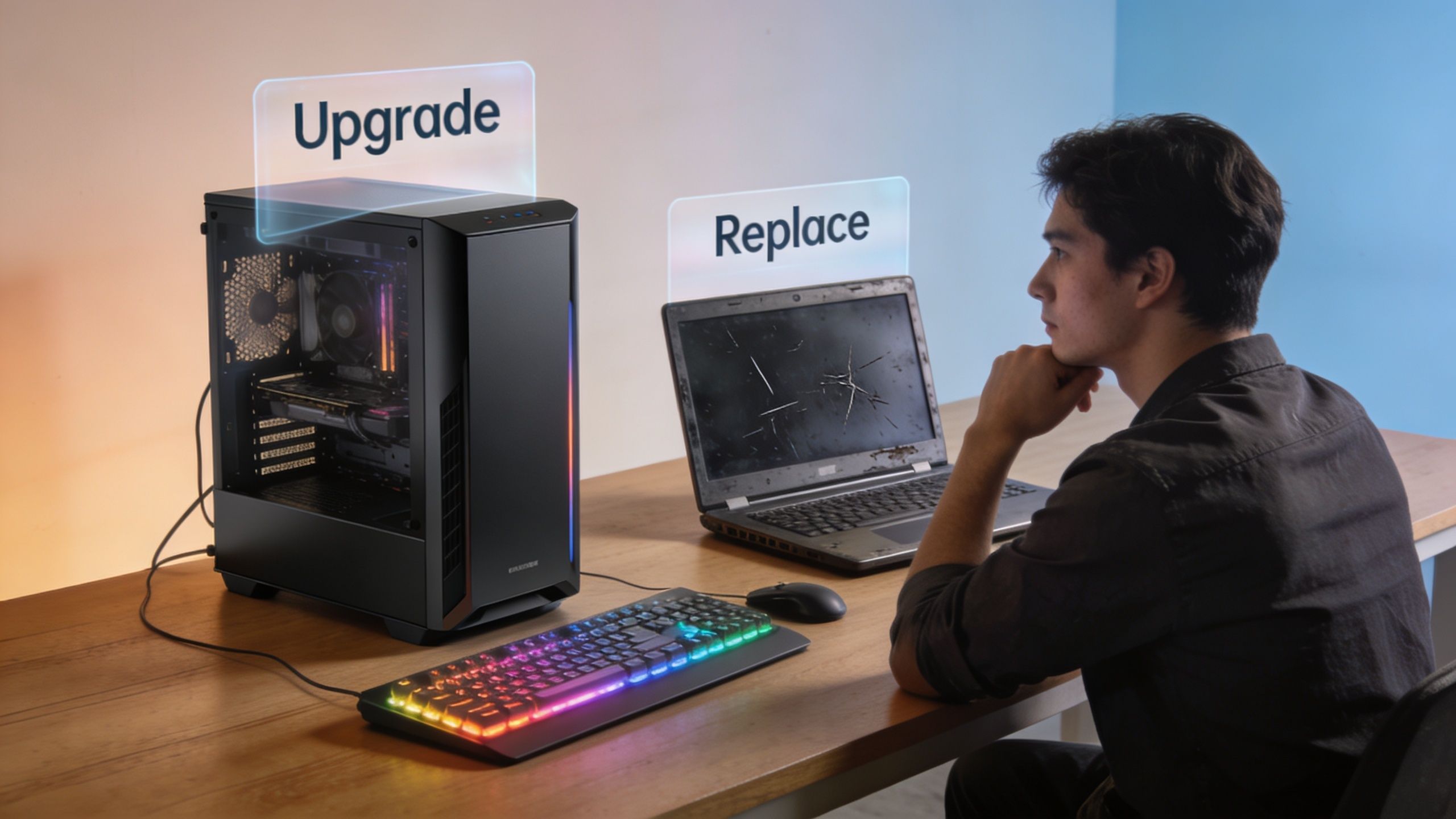
The decision gets easier if you judge the computer by age, current bottleneck, and how well it still fits your daily work. That matters more than chasing every possible fix. A newer system with one obvious weak point often responds well to an upgrade. An older system with several weak points usually does not.
A practical age based framework
Use this rule of thumb.
If the computer is only a few years old and still handles your apps reasonably well, keep it. Put money into it only when you can point to one clear limit, such as a hard drive that makes boot times painfully slow or too little memory for your normal workload.
If the computer is in the middle of its life, upgrades often give the best return. This is the range where an SSD or a RAM increase can still make the machine feel meaningfully better without turning into a sinkhole for time and parts.
If the computer is old enough that several things are wrong at once, slow storage is only part of the story. Weak battery life, aging Wi-Fi, limited ports, noisy fans, spotty reliability, and shorter software support all start to matter. At that point, a successful upgrade can still leave you with a computer you do not enjoy using.
I use a simple test with clients and family members:
- Upgrade it if one part is holding back an otherwise usable computer.
- Replace it if the whole experience feels dated, unreliable, or restrictive.
- Stop investing if you need the machine for work, school, or anything else where downtime costs more than the repair.
When replacement is the smarter move
Replacement makes sense when the computer is both slow and poorly matched to what you need now. Maybe video calls heat it up, browser tabs push it to a crawl, the battery no longer lasts, and the ports or screen no longer suit your setup. Fixing one of those problems will not solve the rest.
That is the trade-off many guides skip. An SSD can rescue the right machine. It does not turn an aging laptop into a modern one.
This matters even more for buyers who are about to spend money on a machine for school or shared home use. If you are comparing repair costs with the price of something current, a shortlist of student laptops with practical everyday value gives you a realistic baseline for what a replacement buys.
Some slow computers need maintenance. Some need one smart upgrade. Some have reached the point where replacement is the cheaper decision in practice, even if the upfront price is higher.
Frequently Asked Questions
Will speeding up my computer put my files at risk
Software cleanup is usually low risk if you stick to built-in tools and review what you’re deleting. The risk rises when you start uninstalling unfamiliar utilities, changing startup behavior without checking what an item does, or replacing storage.
If you plan to upgrade to an SSD or reinstall the OS, back up your files first. That isn’t optional. A good backup turns a stressful upgrade into a manageable one.
How often should I do maintenance
Use a simple routine. Restart the system every few days, review startup apps occasionally, and clear browser clutter when web performance starts feeling off. Full decluttering doesn’t have to be constant, but it shouldn’t wait until the machine is miserable either.
If you download lots of files, install and remove software often, or use the PC for work all day, do maintenance more regularly than a casual user would.
How do I know if my computer is slow or my internet is slow
Open a local app that doesn’t depend on the web, such as File Explorer, Finder, Settings, or a document editor. If those feel responsive but websites crawl, your problem is more likely browser-related or network-related.
If everything is laggy, including opening folders and switching between apps, the slowdown is local to the machine.
Slow browsing can make a healthy computer feel broken. Check local performance before blaming the whole system.
Is an antivirus scan worth doing
Yes, especially if the slowdown appeared suddenly or after installing something questionable. Use trusted security software, not random “optimizer” tools that promise one-click miracles.
What’s the single best upgrade for an older PC
If it still uses a hard drive, the best first upgrade is usually an SSD. If boot is already acceptable but multitasking collapses, RAM may be the more relevant fix.
If you want more practical buying advice, security coverage, and plain-English troubleshooting like this, visit Tech Verdict. What finally fixed the slowest computer you’ve owned: cleanup, an SSD, more RAM, or full replacement?