You’re probably in the same spot most new smart home owners hit first. You’ve seen smart bulbs, locks, cameras, speakers, plugs, thermostats, and hubs from a dozen brands, and every box says it’s “easy.” Then you get home, open three apps, and realize easy only happens when the parts work together.
That’s why learning how to set up a smart home starts long before you plug in the first device. A good setup isn’t a pile of gadgets. It’s a plan, a stable network, a few carefully chosen starter devices, and routines that solve everyday problems without creating new ones. If you approach it that way, your home stays useful, secure, and expandable instead of turning into a collection of half-working experiments.
Table of Contents
- Planning Your Smart Home Ecosystem
- Building a Rock-Solid Network Foundation
- Understand the connections before you troubleshoot them
- Place the router like it matters, because it does
- Decide early whether you need mesh Wi-Fi
- Segment smart devices for security and stability
- Do not overlook hubs, bridges, and border routers
- Build with accessibility in mind from the network stage
- Choosing and Installing Your First Devices
- Creating Automations and Smart Routines
- Securing Your Smart Home and Protecting Privacy
- Future-Proofing and Advanced Smart Home Setups
- Frequently Asked Questions About Smart Home Setup
Planning Your Smart Home Ecosystem
Feeling overwhelmed at the planning stage is normal. The market is crowded, and many first-time buyers make the same mistake. They shop by product category instead of deciding how the whole system will work together.
That decision matters more now because smart homes are no longer niche. Over 57% of U.S. households are expected to have at least one smart device by 2025, and the average home is projected to contain 15 to 20 connected devices, according to this smart home market report. When a home grows to that many devices, compatibility stops being a nice bonus and becomes a daily requirement.
Start with your real goal
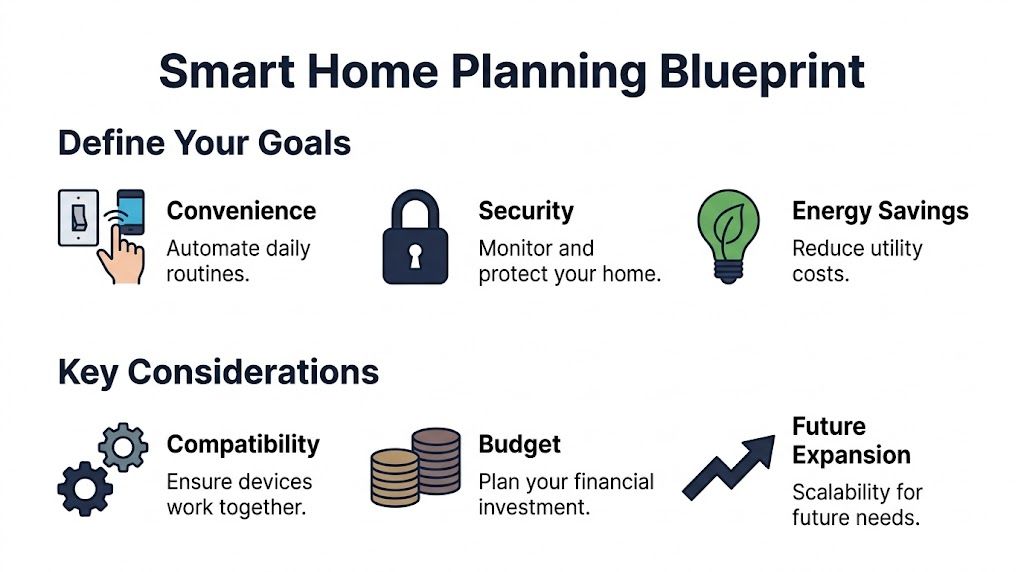
Most homeowners start with one of three priorities. You may care about all of them, but one should come first because it will guide your first purchases.
- Convenience: You want lights, plugs, speakers, and routines that reduce the number of little tasks you do every day.
- Security: You care most about cameras, door locks, sensors, alerts, and remote visibility.
- Energy savings: You want control over heating, cooling, lighting, and devices that stay on when they shouldn’t.
Write down two or three things that annoy you at home right now. Maybe you always forget the porch light, the hallway is dark at night, or the thermostat schedule never matches your day. Those pain points are better buying guides than marketing pages.
Practical rule: If a device doesn’t solve a repeating problem, it probably belongs later on your shopping list.
A good first smart home doesn’t try to automate everything. It fixes friction. That could mean one lamp on a schedule, one lock you can check remotely, or one thermostat you can adjust from your phone.
Pick your main ecosystem
You don’t need blind loyalty to one brand, but you do need a primary control platform. For most homes, that means choosing between Apple Home, Amazon Alexa, or Google Home as the main place where devices, rooms, and automations live.
A simple comparison helps:
| Ecosystem | Best for | What to watch for |
|---|---|---|
| Apple Home | People already deep in iPhone, iPad, Apple TV, or HomePod | Some device support can be narrower than broad Alexa or Google catalogs |
| Amazon Alexa | Voice control, wide device support, flexible routine building | Some homes end up relying heavily on the Alexa app |
| Google Home | Android users and households that already use Google services heavily | Device support and automation logic can vary by product category |
Your choice doesn’t mean every device must come from that company. It means you’re choosing your home base. That’s the app your family will open first and the voice assistant that's commonly used.
For a broader look at how connected living is evolving, Tech Verdict’s piece on designing tomorrow’s smart homes gives useful context before you buy.
Why Matter should shape your buying list
If I were guiding a new homeowner room by room, I’d say this early and often. Buy with Matter in mind whenever you can.
Matter is designed to improve interoperability across major smart home platforms. In plain English, it gives you a better chance of adding a device once and seeing it play nicely across compatible ecosystems instead of being trapped inside one brand’s app forever.
That doesn’t mean every non-Matter device is bad. Plenty of older products work well. It does mean a Matter-first strategy reduces one of the most common beginner headaches, buying a device that works perfectly on the box photo and awkwardly in your actual home.
Here’s the buying order I usually recommend:
- Choose the control platform first.
- Prefer Matter-certified devices for lights, plugs, sensors, and other basics when possible.
- Check the exact compatibility label before checkout, not just the brand family.
- Avoid duplicate functions early on. One lighting app, one camera app, one main automation platform is easier than five.
A future-proof smart home isn’t the one with the most devices. It’s the one where adding the next device doesn’t create a mess.
If you get this planning step right, every later step gets easier. App setup is cleaner. Automations make more sense. Troubleshooting gets shorter. Most important, your home grows like a system instead of a collection.
Building a Rock-Solid Network Foundation
A smart home can look perfectly planned on paper and still feel unreliable in daily life. The usual pattern is familiar. A camera loads slowly when someone rings the doorbell. A lock responds a few seconds late. A speaker says a device is offline even though it worked yesterday.
In homes like that, I start with the network.
Your router, Wi-Fi coverage, and device layout decide whether the rest of the system feels dependable or frustrating. PCMag’s advice on setting up a stronger home network lines up with what installers see in real houses. Router placement, signal coverage, and choosing the right hardware affect whether connected devices stay reachable throughout the home.
Understand the connections before you troubleshoot them
A smart home may use several connection types at once, which often confuses beginners because product pages flatten everything into “works with Wi-Fi.”
Here’s the simpler way to read it.
- Wi-Fi is what many cameras, speakers, plugs, and appliances use to reach your router and the internet.
- Zigbee is a low-power mesh system often used by bulbs, sensors, and some hubs. Nearby devices can pass signals along.
- Z-Wave is another mesh protocol commonly used for locks, sensors, and automation gear, usually through a compatible hub.
- Thread matters more now because many newer Matter devices use it for fast, low-power local communication.
That last point matters for future-proofing. If you want a home that grows cleanly over time, Matter support is only part of the picture. You also want to know whether a Matter device runs over Wi-Fi, Thread, or Ethernet, because that affects speed, battery life, and reliability.
A good beginner rule is simple. Do not ask every device to do the same job over Wi-Fi if a lower-power mesh option would do it better.
Place the router like it matters, because it does
Router placement solves a surprising number of smart home complaints. If the router is tucked into a cabinet, pushed into a far corner, or crowded by a TV and other electronics, your devices are already starting from a weaker position.
Put it in an open, central location as high as is practical.
Then make these changes before you pair your first wave of devices:
- Update router firmware so you start with current security fixes and compatibility improvements.
- Use clear network names so you can tell your main network from your guest or IoT network during setup.
- Check whether your router combines 2.4 GHz and 5 GHz automatically. Some older smart devices pair more easily when 2.4 GHz is available and stable.
- Turn on QoS if your router offers it, especially if you plan to use cameras, doorbells, or voice assistants.
- Walk the home and test weak spots before you install a lock, camera, or hub in the area with the poorest signal.
QoS is easier to understand than it sounds. It works like traffic control at a busy intersection. If someone in the house starts a large download, QoS can keep that traffic from crowding out time-sensitive devices like a video doorbell or smart display.
If your home office shares the same network, this step matters even more. Video calls, cloud backups, cameras, and smart speakers all compete for airtime.
Decide early whether you need mesh Wi-Fi
Single-router setups work well in smaller homes and apartments. Larger homes, thick walls, detached offices, and multi-floor layouts often need more coverage than one box can provide.
That is where mesh Wi-Fi earns its place. A mesh system uses multiple nodes to spread coverage more evenly through the house, which is often better for smart devices than having one powerful router shouting from the corner of the building.
I usually suggest reconsidering your setup if you notice any of these problems:
- Devices work near the router but drop in back rooms
- Video doorbells stutter at the front of the house
- Smart locks or garage controllers disconnect near exterior walls
- Upstairs devices pair inconsistently
- You already rely on range extenders and still have dead zones
A stable network is not flashy. It is quiet. Devices stay online, automations fire on time, and you stop thinking about the connection.
Segment smart devices for security and stability
For a SOHO household, network design is not only about speed. It is also about risk.
Smart bulbs, cameras, speakers, and appliances do not need the same level of access as your work laptop, tax records, client files, or family photo archive. Keeping them separate is one of the smartest changes you can make early, even in a beginner setup.
A practical layout looks like this:
| Network area | Good candidates |
|---|---|
| Main network | Laptops, phones, tablets, work machines, network storage |
| IoT or guest network | Smart bulbs, plugs, displays, speakers, cameras, robot vacuums |
| Wired connections where possible | Hubs, bridges, desktop workstations, stationary devices near your router |
Some routers label this as a guest network. Others offer IoT network, device isolation, or VLANs. Use the simplest version your router supports. A separate guest network for smart devices is a strong start if the advanced options feel too technical.
If your household also wants stronger privacy habits for remote work and connected devices, this guide to privacy-focused VPN options for home and small office use is a useful companion to your network plan.
Do not overlook hubs, bridges, and border routers
Beginners often assume every device talks directly to the phone app and router. Many do not.
Some ecosystems depend on a hub or bridge to keep devices connected reliably. Matter over Thread devices also need a Thread border router, which may already be built into certain smart speakers, displays, routers, or platform hubs.
This confuses people because the device may say “Matter compatible” on the box, but the best experience still depends on having the right controller in the home. Before you buy, check whether your platform already includes Thread border router support or whether you need to add it.
That one detail can save you from random disconnects and frustrating setup loops later.
Build with accessibility in mind from the network stage
Accessibility rarely gets mentioned this early, but it should. Network choices affect whether your smart home is usable for every person in the house.
Reliable coverage helps voice assistants hear and respond consistently. Stable local connections help lights and routines trigger without delay. Clear room naming makes voice control easier for children, older adults, and anyone using assistive technology.
If accessibility is part of your plan, a few habits help right away:
- Place hubs and border routers where signal reaches bedrooms, bathrooms, and entryways, not just the living room
- Use simple, distinct room and device names that are easy to pronounce
- Prefer devices that support app control, voice control, and physical control together
- Test routines from the places where they matter most, such as bedside lamps, entry lights, and door locks
A smart home is easier to live with when the network supports everyone, not just the person who installed it.
If the setup starts to feel too technical, keep the goal in view. You are building a home system that stays dependable as you add more Matter-ready devices, work from home, and rely on automations every day. That starts with coverage, clean device separation, and the right hardware in the right places.
Choosing and Installing Your First Devices
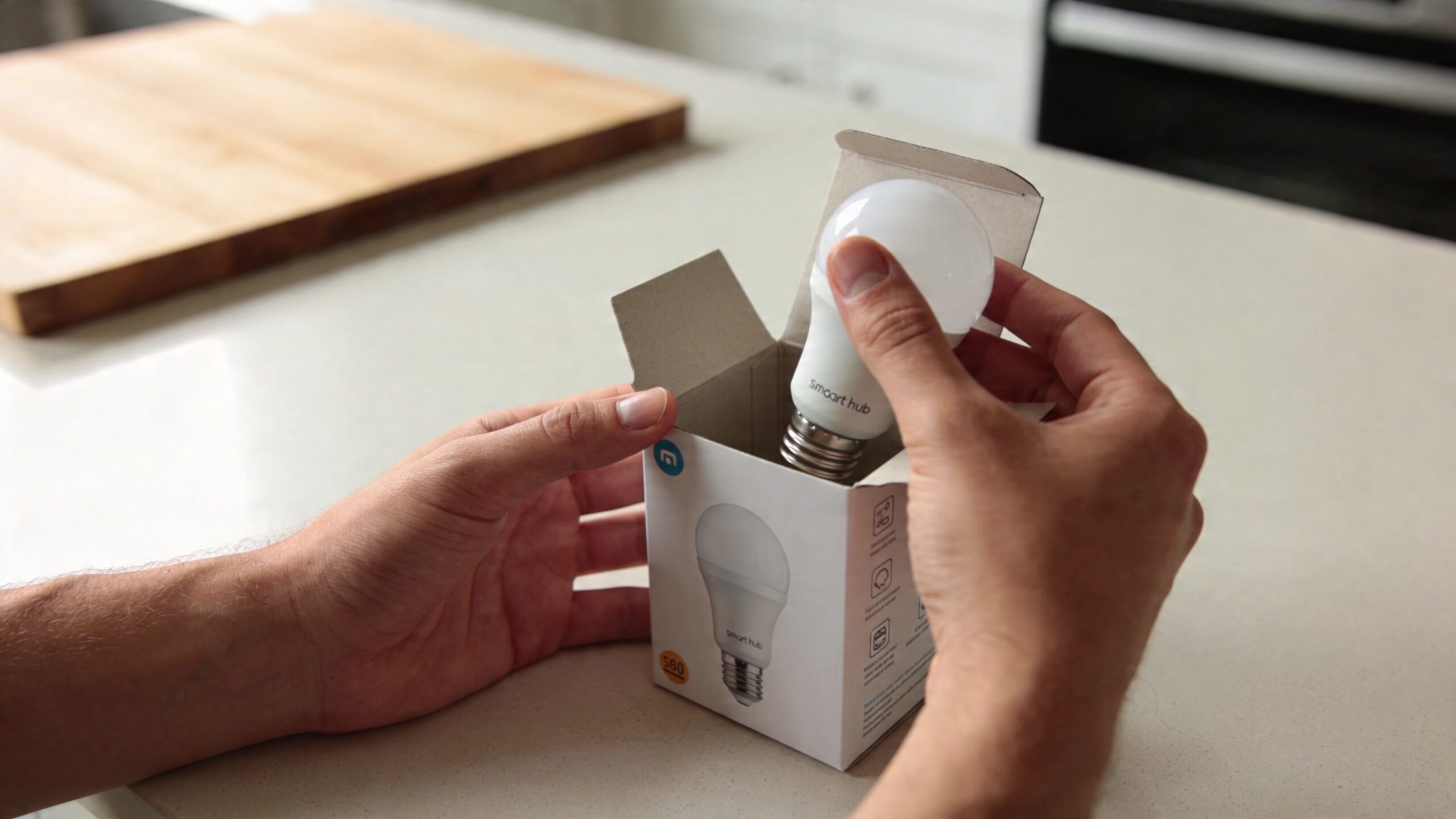
This is the fun part, and it’s also where people overspend. New smart home owners often buy a camera, three bulbs, a lock, a speaker, a thermostat, and two random sale items in one weekend. Then they spend the next week juggling apps and reset buttons.
Start smaller. You’ll learn the setup flow faster, and your mistakes will be cheaper.
Start small and learn the workflow
Your first device teaches you the recurring pattern you’ll use again and again. Open the app. Sign in. Put the device in pairing mode. Scan a code. Name the device. Assign it to a room. Test voice control. Add it to a routine.
Once you’ve done that successfully once or twice, the whole category becomes less mysterious.
A good first project is usually one of these:
- A smart plug for a lamp, fan, coffee maker, or seasonal lights
- A smart bulb in a room you use every day
- A smart speaker or display if you want voice control at the center of the house
If you’re adding products from IKEA into a broader setup, this guide on how to connect your IKEA smart home can help you avoid common compatibility confusion.
A simple starter kit that makes sense
Beginners don’t need a wall of dashboards. They need a few devices that clearly show the value of the system.
I usually recommend this order:
One smart speaker or one main control app
This gives the household a clear command point. Even if you prefer phone control, a shared app structure matters.Two smart plugs or two smart bulbs
These are low-risk, easy to test, and great for learning scheduling and room assignment.One higher-value device
That could be a thermostat, video doorbell, lock, or sensor, depending on your main goal.
What you’re building here is confidence. You want a setup that works often enough that everyone in the house trusts it.
How to pair a Matter smart plug step by step
Matter makes first-time setup less fragmented when your gear supports it. A smart plug is the cleanest place to learn because it’s simple, visible, and easy to test.
Use this sequence:
Unbox the plug and keep the QR code nearby
Don’t throw away the insert or sticker too quickly. Matter setup usually depends on that code.Plug it into an outlet near your router or main hub area
For first pairing, remove distance as a variable.Open your chosen control app
That might be Apple Home, Google Home, Alexa, or another compatible platform.Tap the option to add a new device
Look for wording like Add Device or Set Up Device.Scan the Matter QR code
The app should recognize the device type and begin the onboarding flow.Name the plug by function, not by product
“Living Room Lamp” is better than “Smart Plug 1.”Assign it to the correct room
This matters later when you use voice commands like “turn off the living room.”Test it manually in the app
Turn the plug off and on.Test voice control
Ask your assistant to toggle the device.Create one simple schedule or automation
For example, have a lamp turn on in the evening.
Here’s a visual walkthrough that pairs well with that process:
A few installation habits save a lot of frustration:
- Name by location and purpose: “Entry Lamp” beats “Plug A.”
- Add one device at a time: If two things fail at once, you won’t know which caused it.
- Test before mounting or hiding: Pair first, place permanently second.
- Keep packaging until the device works: Setup codes often live there.
Installer habit: Don’t build routines until the basic on and off control works reliably for a few days.
That patience pays off. Once your first few devices behave predictably, adding sensors, locks, and more advanced gear stops feeling risky.
Creating Automations and Smart Routines
Voice control is useful, but it’s still a command. Real convenience starts when your home does the right thing without waiting for you to ask.
The first routine often built is basic. A lamp turns on at sunset. That’s a good start. The better routines combine time, location, device state, and a clear household habit.
The routines that save the most effort
Think about two moments in the day when everyone repeats the same actions. Morning is one. Leaving home is another.
A Good Morning routine might do this:
- turn on bedroom or kitchen lights gradually
- adjust the thermostat
- start a coffee maker connected to a smart plug
- play news, radio, or a weather update on a smart speaker
A Goodbye routine can be even more useful:
- switch off selected lights
- turn off smart plugs that power nonessential devices
- lock compatible doors
- arm cameras or notifications
- adjust the thermostat for an empty home
Those routines work because they reflect a real pattern. They aren’t there to show off. They remove a chain of small chores.
Here’s another one I recommend often. Put a motion sensor in a hallway, landing, or bathroom path and use it to trigger a low-level light at night. That kind of automation feels minor on paper and excellent in practice.
How to build a routine without overcomplicating it
Most platforms follow the same basic logic. You choose a trigger, then one or more actions.
A beginner-friendly formula looks like this:
| Trigger | Action | Why it works |
|---|---|---|
| Time of day | Turn on lights | Predictable and easy to test |
| Voice phrase | Run several device actions at once | Fast way to replace a multi-step habit |
| Motion detected | Turn on dim hallway light | Helpful at night without being harsh |
| Leaving home | Turn off lights and arm devices | Good for security and energy habits |
Use one trigger first. Resist stacking too many conditions on day one. If you create a routine with time, occupancy, weather, multiple devices, and exception rules all at once, troubleshooting becomes annoying fast.
A clean workflow inside Alexa or Google Home usually goes like this:
- Open the routines or automations area.
- Choose one trigger.
- Add one or two actions only.
- Save it and test it the same day.
- Live with it for a few days before adding more steps.
Google Home has been improving parts of this experience, and Tech Verdict covered some of those changes in its report on how Google Home is addressing older shortcomings.
Start with routines that answer one question: “What do I always do next?” That’s where automation feels natural.
The homes that feel polished rarely start with complex logic. They start with a handful of routines people use. After that, expansion becomes obvious. Movie time. Bedtime. Guest mode. Vacation mode. Those come later, once the basics are dependable.
Securing Your Smart Home and Protecting Privacy
A smart home adds convenience, but it also adds accounts, microphones, cameras, apps, cloud services, and more devices that can be forgotten after setup day. That’s why security needs to be part of the installation, not a task you postpone until “sometime later.”
I’ve seen plenty of homes with strong front door locks and weak digital habits. Reused passwords, old firmware, default privacy settings, and cameras nobody has checked in months are common. The fix isn’t complicated, but it does require routine.
Your smart home needs a security baseline
If you only do a few things, do these first:
- Use unique passwords for every account connected to your smart home
- Turn on two-factor authentication where the service offers it
- Update firmware regularly for routers, hubs, cameras, locks, and speakers
- Remove devices you no longer use from apps and account dashboards
- Review shared household access so former roommates, installers, or old family profiles don’t linger
A password manager helps because smart homes often involve more accounts than people realize. Camera app. Router login. Voice assistant account. Brand-specific light app. Lock account. Video doorbell account. If you reuse the same password across them, one weak link can expose the rest.
A privacy checklist for Alexa Google Home and cameras
Security protects access. Privacy controls what gets stored, shared, or retained.
When I help someone lock down a setup, I ask them to open each app and check four things:
Voice recording history
Review whether the assistant stores recordings and whether you want to delete them regularly.Data sharing settings
Turn off optional usage sharing when it doesn’t benefit you.Camera permissions and retention
Check who can view feeds, what gets recorded, and how long clips remain available.Third-party integrations
Remove services you tested once and forgot about.
This is also where brand trust matters. A camera inside your home should get more scrutiny than a lamp in the garage.
For a reminder of how sensitive connected camera access can be, Tech Verdict reported on an incident involving recovered footage in its story about FBI access to Nest Cam footage. It’s a useful prompt to think carefully about cloud storage, permissions, and retention policies before placing cameras indoors.
A simple security routine to keep
Individuals don’t need enterprise-level management. They need a short checklist they’ll follow.
Try this once a month:
| Monthly check | What to do |
|---|---|
| App audit | Open each main smart home app and look for unfamiliar devices or integrations |
| Update sweep | Install pending firmware and app updates |
| Access review | Confirm who has shared access to locks, cameras, and household controls |
| Device cleanup | Remove old test devices, duplicate entries, and unused automations |
A secure smart home isn’t the one with the most settings turned on. It’s the one someone actually reviews.
If you run a small business from home or handle client data on the same network, this step matters even more. Your smart speaker may sit in the kitchen, but your security habits affect the whole property.
Future-Proofing and Advanced Smart Home Setups
Once the basics work, your next job is resisting the urge to rebuild everything every time a new product trend appears. Future-proofing is less about predicting the next big thing and more about making sure your current choices don’t box you in.
That usually means three habits. Stick with interoperable products where possible, avoid unnecessary app sprawl, and leave room for your home to serve different people with different needs over time.
Build for change not just for launch day
A smart home should handle new rooms, new devices, new family routines, and even a change in preferred assistant without forcing a total reset. That’s where open standards and modest planning win.
If you add advanced gear later, think in layers:
- Control layer: your main platform and household voice assistant
- Device layer: lights, plugs, locks, sensors, thermostats, cameras
- Automation layer: routines triggered by time, presence, or sensor events
- Access layer: who in the home can control what
This keeps expansion orderly. You’re not just adding gadgets. You’re adding them into a structure.
Some newer setups also lean more heavily on learning behavior, such as thermostats that adapt to routines or systems that surface likely automations based on usage. Those features can be helpful, but they work best when your naming, rooms, and baseline setup are already clean.
Accessibility deserves a place in every setup
This is one of the most overlooked parts of smart home design. Guides often miss how useful smart homes can be for people with low vision or mobility needs. Voice commands like “Alexa set lights to 50%” and motion detectors for automatic activation can create a hands-free environment, as highlighted in this accessibility-focused smart home guide.
That matters beyond disability-specific use cases. Good accessibility often creates a better home for everyone.
Consider these practical choices:
- Voice-first lighting control in bedrooms, hallways, and entry areas
- Motion-based activation for bathrooms, corridors, and late-night routes
- Simple room names that are easy to remember and speak
- Large-button apps or shared voice control for users who don’t want to manage complex menus
Smart home tech becomes more valuable when it reduces physical effort, not just when it adds novelty.
If you’re setting up a home for aging parents, someone recovering from surgery, or anyone who benefits from less reaching, less walking, or less screen dependence, accessibility should move near the top of your planning list. Consumer devices can do a lot here without requiring a highly custom installation.
Frequently Asked Questions About Smart Home Setup
How much does it cost to start a smart home?
A starter setup can be modest if you begin with one problem and solve that first. For example, many new homeowners start with lighting in the entryway, a smart plug for a lamp, and one voice assistant or platform controller. That gives you a real test case without filling the house with devices you may replace later.
Costs rise fast when you buy products that need separate bridges, paid monitoring, or professional wiring. A practical budget approach is to choose a Matter-ready device where possible, add one or two high-use items, and live with them for a week or two before buying more.
Can I mix brands in one smart home?
Yes, and that is one of the best reasons to prioritize Matter early.
A smart home works a lot like a household where everyone needs to agree on a shared language. Without that shared language, each device may still work, but you spend more time translating between apps, hubs, and voice assistants. Matter reduces that friction by giving supported devices a common way to connect across major platforms.
You still need to check the product details. A device may support Matter for basic on and off control but not every advanced feature in every app.
Do I need a hub?
Sometimes you do, sometimes you do not.
If your setup is small, app-based Wi-Fi devices and a single platform can be enough. If you want better reliability, support for Zigbee or Z-Wave devices, or more local control during internet outages, a hub, bridge, or smart speaker with Thread border router support can make the system more stable.
For a SOHO household, this choice also affects security and maintenance. Fewer apps and fewer cloud connections usually make the home easier to manage over time.
What’s the most common beginner mistake?
Buying devices before choosing the rules of the house.
By that, I mean the control platform, naming system, network plan, and compatibility standard. If you skip those decisions, you can end up with four apps for five devices, voice commands nobody remembers, and products that technically connect but do not work together in useful ways.
That cleanup is harder than starting smaller.
What should I buy first?
Start with something low-risk and high-visibility. A smart plug, a lamp bulb, or a smart speaker is usually the best first step because you can learn pairing, grouping, voice control, and scheduling without touching in-wall wiring.
If future-proofing matters to you, a Matter-compatible plug or bulb is a smart first purchase. It is a small test, but it tells you a lot about how the rest of the home will behave.
Is smart home tech hard for guests, kids, or older adults to use?
It can be, if the setup only makes sense to the person who installed it.
Good systems are easy to explain in one sentence. “The hallway light turns on by motion.” “Say ‘good night’ to lock doors and turn off downstairs lights.” “The kitchen button controls the main lights.” That kind of setup helps everyone, including people with low vision, limited mobility, or little interest in using an app.
Accessibility is not an extra feature. It is part of good planning.
Will my smart home still work if the internet goes down?
Some parts will, some will not. It depends on whether your devices and automations rely on cloud services or run locally through a hub or supported platform.
If this matters in your home office or small business setup, look closely at local control before you buy. Lights, locks, sensors, and basic routines are much more dependable during outages when the system does not need to ask a remote server for every action.
If you’re comparing hubs, Matter devices, privacy tools, or smart home platforms, Tech Verdict is a solid place to keep researching before you buy. What’s the first problem you want your smart home to solve?