Your smart home is leaking money – try these 9 no drama settings to cut waste
Your smart home is supposed to make life easier, but after months of winter, it can also be quietly expensive.
A smart thermostat that starts heating a little too early, smart lights that trigger when you don’t need them to, and gadgets sipping power on standby all add up, even if everything feels like it’s working “normally”.
The good news is you don’t need to buy new kit, or overhaul your routines, to rein it in and make your home more efficient. I’ve compiled nine no-drama settings you can tweak in a few minutes across the biggest platforms.
1. Set Eco Temps properly on your Nest thermostat

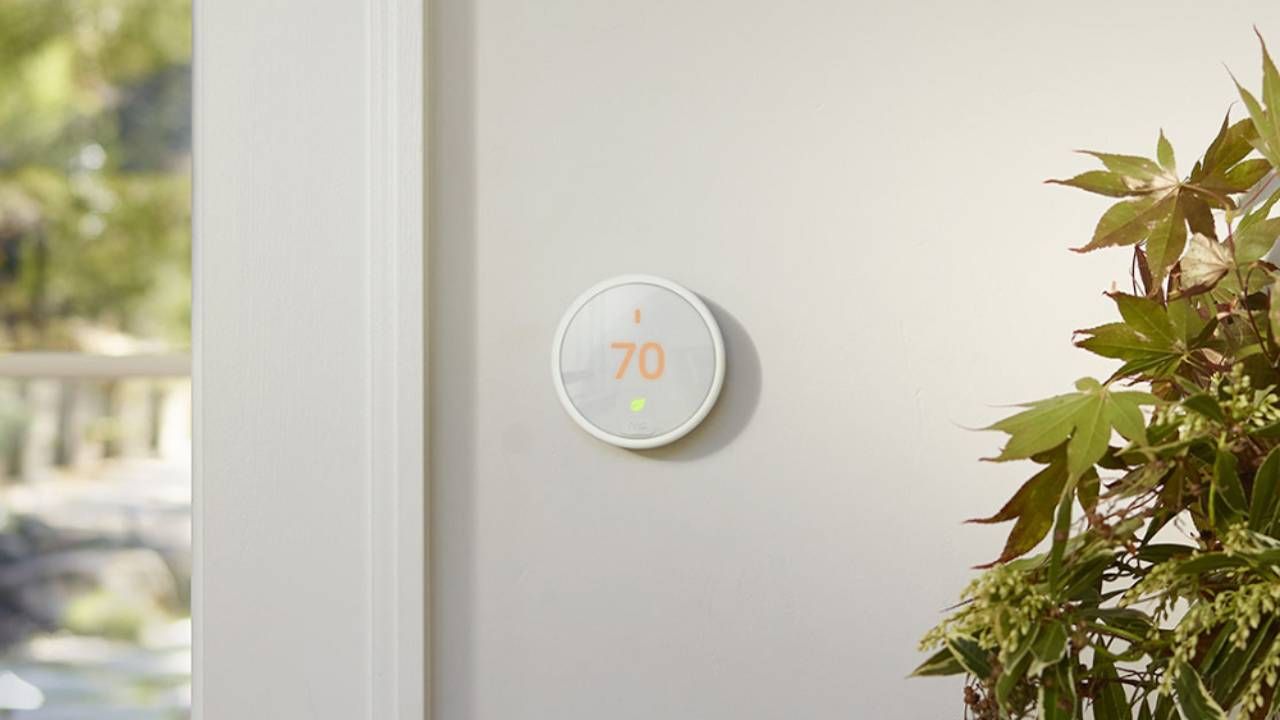
Eco mode only saves you money if the temperatures are actually “eco”. When we tested the Nest Learning Thermostat, the appeal was how quickly it can slip into a set-and-forget routine, but Eco Temps are the bit you should actively set, rather than leave as a vague default.
In the Google Home app (or the Nest app on older setups), choose an away-range that’s comfortably lower than your usual daytime temperature, while still being sensible for your home, pets, and pipes.
2. Set Away to actually trigger Eco mode
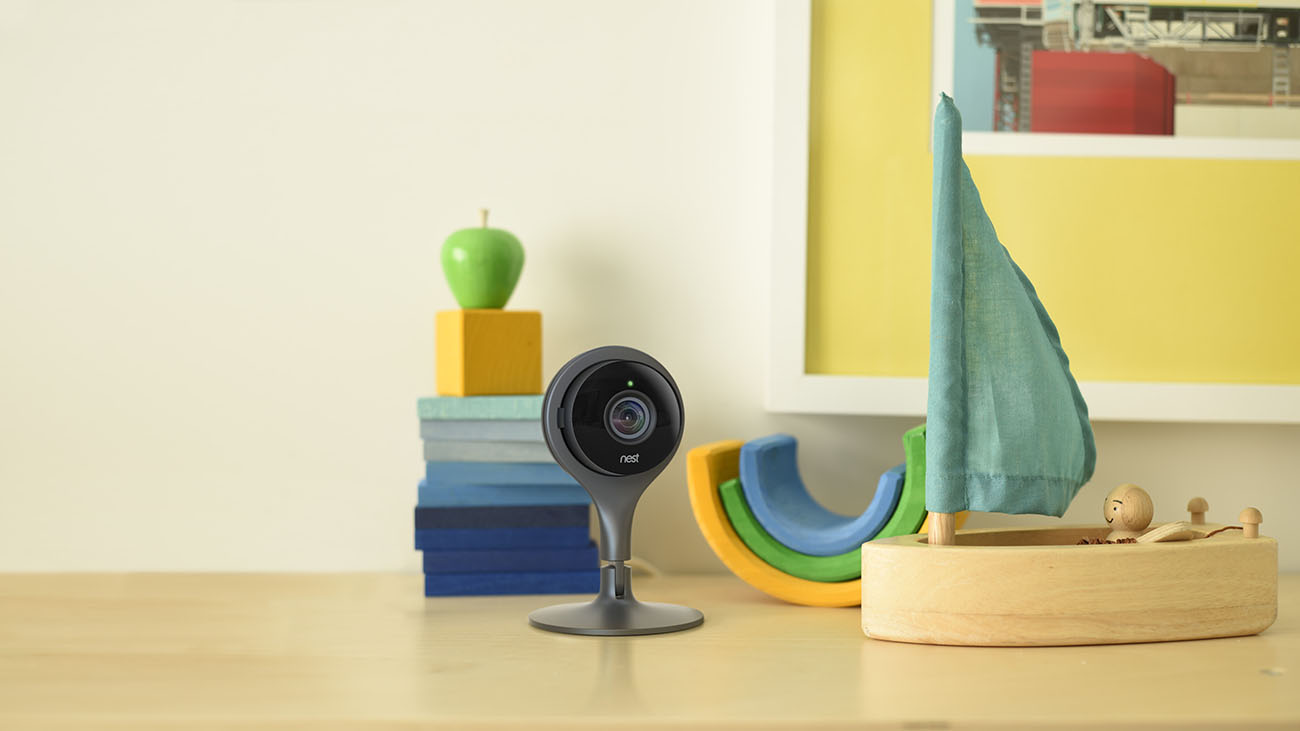
Eco Temps are only half the story – the other half is whether your Nest ever decides you’re away. In our Nest thermostat tests, the promise was simple: you stop thinking about the heating, and it stops heating an empty home.
To make that happen, open Home/Away Assist (or the Google Home presence settings), and check that your thermostat is set to use Eco Temperatures when your home is Away.
Then pick the presence method you’ll actually trust day to day. We found phone location tends to be the most consistent, while motion can be a helpful backup if you don’t always have your phone on you.
3. Disable Early-On if it’s warming the house too soon
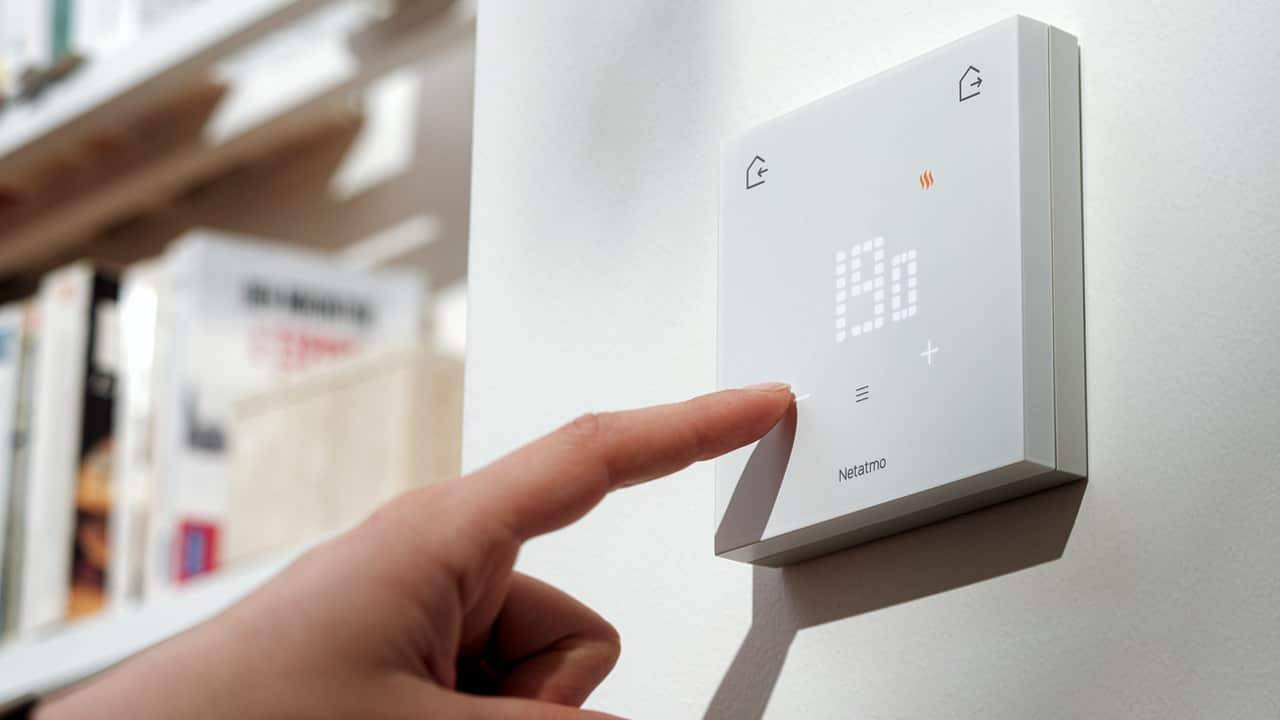
Early-On is designed to have your home at the right temperature by the time your schedule says 7am, which sounds perfect – until you realise it can start heating earlier than you’d choose.
You may like, If you’re happy for the house to begin warming at 7:00 (rather than quietly preheating from 6:15), switch Early-On off, or tighten your schedule so it’s doing less guesswork.
It’s a tiny toggle, but it can stop “invisible” extra heating time.
4. Use Presence sensing
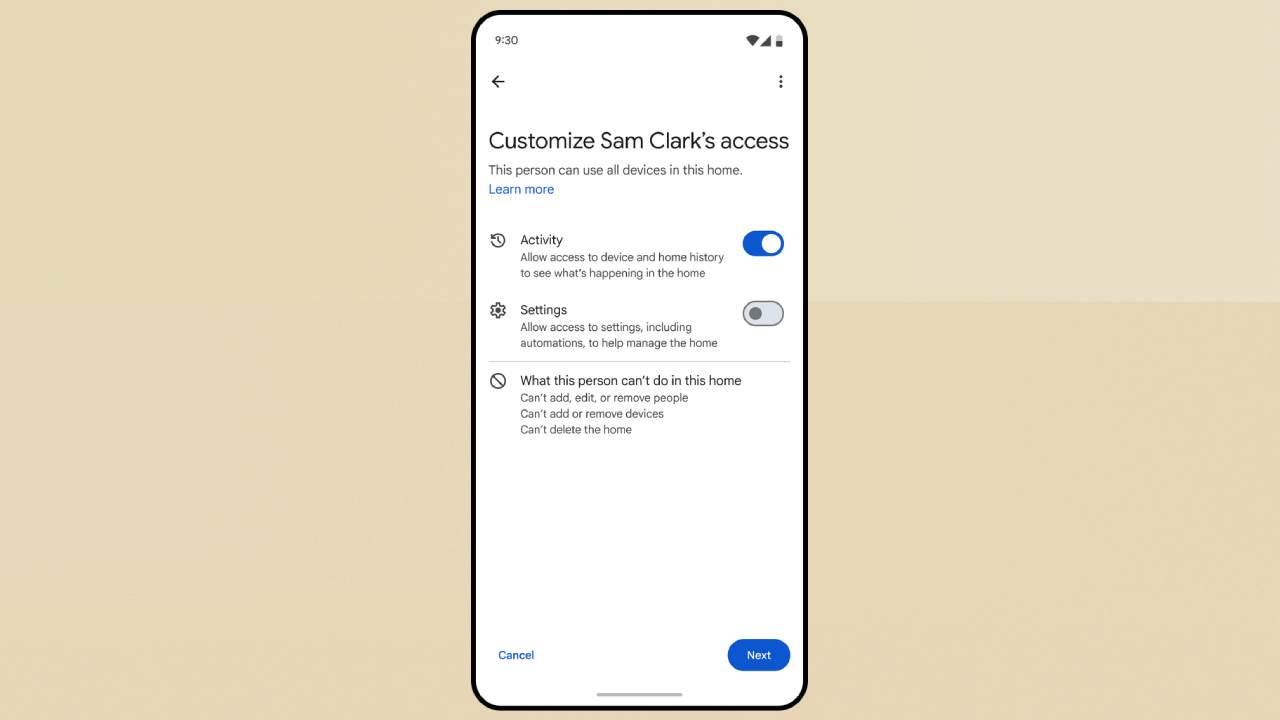
If you use Google Home for lights, plugs, and heating, Presence sensing is the setting that turns “smart” into “automatic”.
Once it’s enabled, you can build a simple Away automation that turns off the usual culprits – lamps, smart plugs, and anything non-essential – the moment the last person leaves, then reverses it when someone gets back.
It’s cleaner than schedules, because it still works when your day changes, and it quietly cuts waste without you noticing.
5. Tune Alexa Hunches so it turns off the right things

Alexa Hunches can be a sneaky money-saver, because they handle the boring stuff you forget – switching off lights you’ve left on, or powering down a device when it looks like you’ve gone to bed.
The trick is to be picky. In the Alexa app, enable Hunches, but limit what they control to low-stakes kit, like lamps and hallway lights, rather than anything that could be annoying.
Done right, it’s a set-and-forget tidy-up that chips away at waste every day.
6. Set a “when the last person leaves” automation
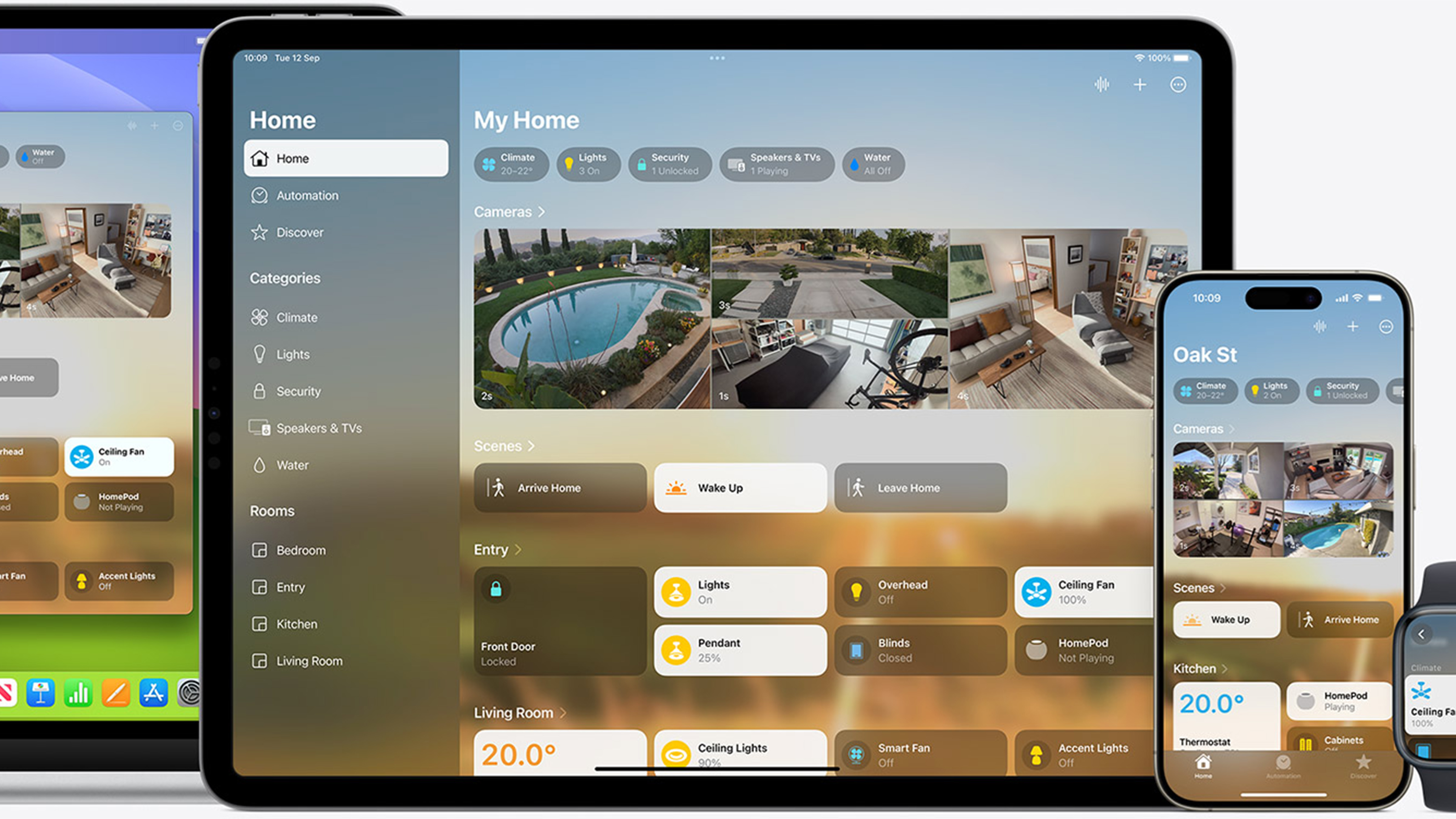
Apple Home makes it easy to plug the gaps that drain money. Create a location-based automation for When the last person leaves, and choose exactly what should power down (lights, smart plugs, and non-essential accessories).
Then add a second one for when the first person arrives that brings back a simple “home” scene, so you’re not walking into a dark flat. It’s low effort, habit-proof, and it works quietly in the background.
7. Schedule standby killers overnight with smart plugs
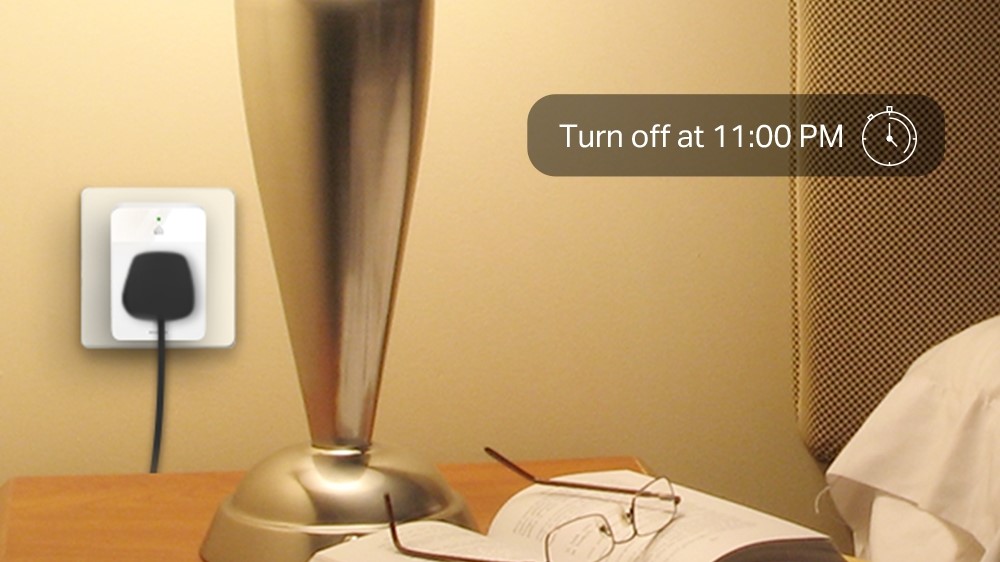
Smart plugs are the easiest way to stop paying for “off, but not really off”. When we tested the best smart plugs, the big takeaway was how quickly they earn their keep on anything that sits on standby.
Set a simple overnight schedule (for example, off from midnight to 6am), then add a daytime window if you’re usually out. You still use everything normally, but you stop feeding the silent trickle of wasted power.
8. Turn on Philips Hue’s daylight sensitivity
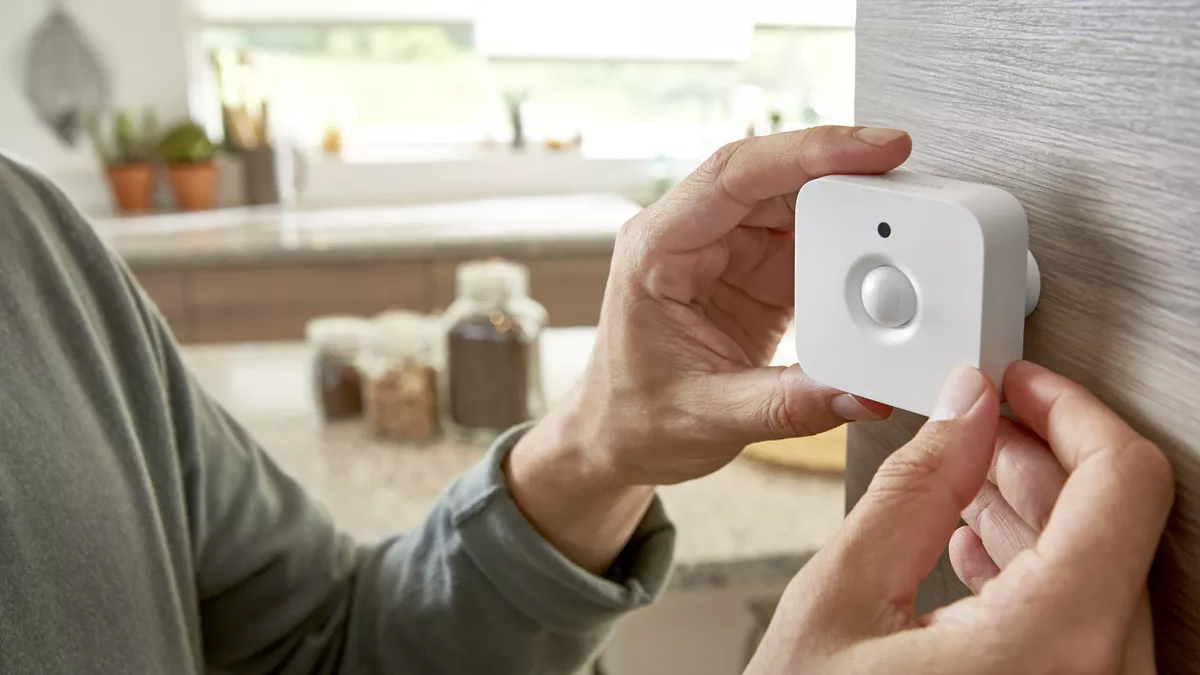
Motion lighting is brilliant, right up until it starts switching on lights you didn’t need, therefore consuming more power.
If you use Philips Hue sensors, the fix is usually a single setting: daylight sensitivity (or the brightness threshold in your motion sensor’s settings).
Dial it in so the sensor only turns lights on when the room is genuinely dim, rather than on bright winter mornings or in a naturally lit hallway.
9. Shorten the “no motion” timeout with motion sensors
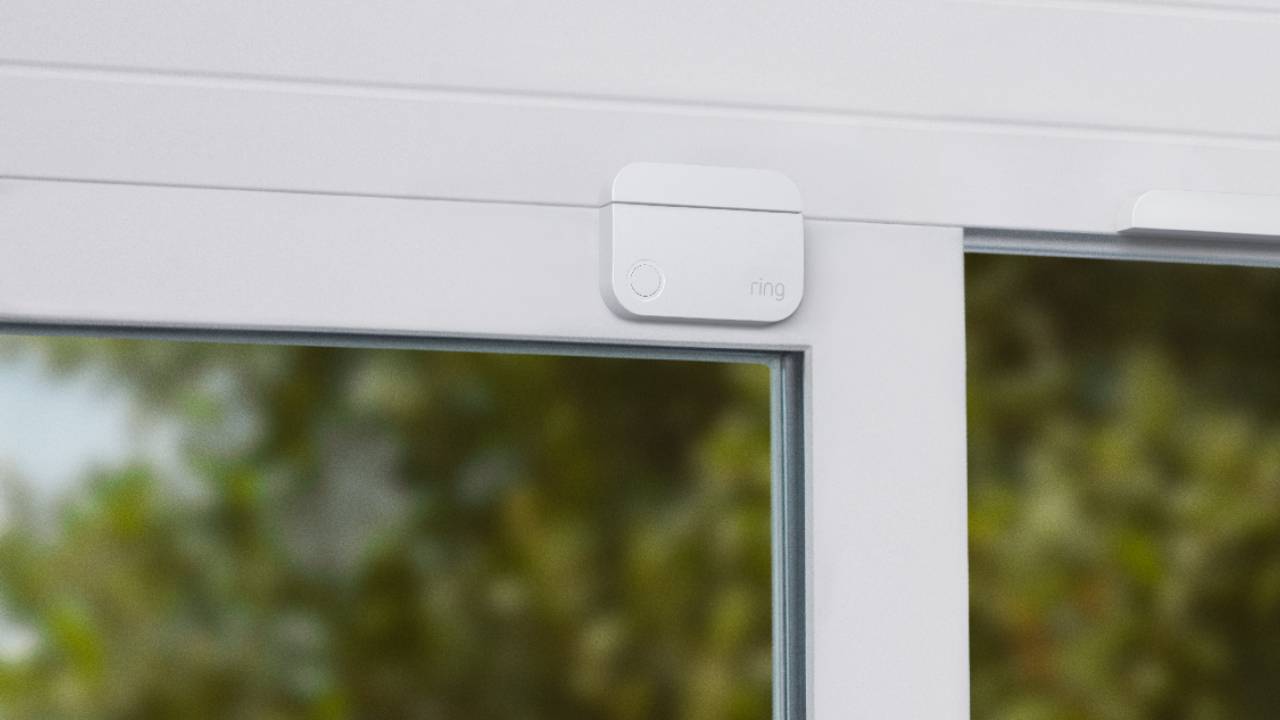
The other easy win with motion lighting is cutting the tail end.
Lots of setups from Ring and others are configured so lights stay on for ages after the last movement, which is great if you’re worried about being plunged into darkness, but not so great for your bill.
In your sensor settings, reduce the no motion delay so lights switch off sooner in quick in-and-out spaces. You can always keep a longer timer in rooms where you’re likely to sit still, like a living room, so it stays practical rather than fussy.