
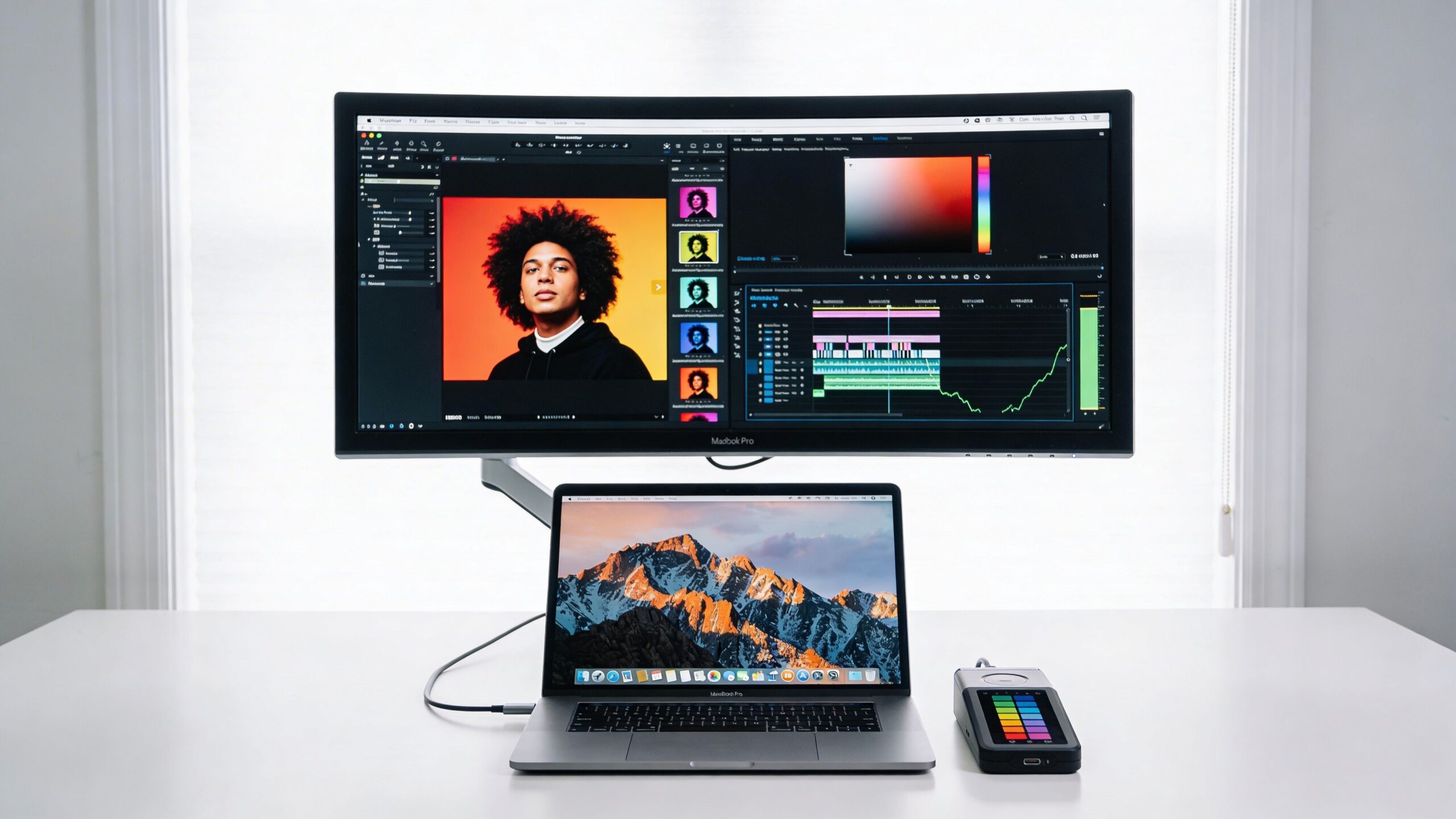
You bought a Mac because the screen looked right the moment you opened the lid. Text was crisp. Colors were balanced. UI elements felt precise, not approximate.
Then you plugged that same Mac into an external monitor and something broke. Not catastrophically. Enough to annoy you all day. Menus looked a little soft. Text in Safari or Word felt less clean than on the laptop. Whites looked slightly different. You kept adjusting scaling, brightness, and profiles, but the setup never felt native.
That’s the core problem with shopping for the best monitor for mac. Most buying guides treat every display like a Windows display with a USB-C port. macOS doesn’t. Macs are far pickier about pixel density, scaling behavior, color matching, and single-cable connectivity than spec-sheet comparisons usually admit. If you write, code, edit video, design interfaces, or spend all day in documents, those details matter more than flashy marketing.
A good Mac monitor should feel like your Mac grew a larger screen. A bad one reminds you, every few minutes, that you compromised.
Table of Contents
- Why Your New Mac Deserves a Better Monitor
- Quick Picks The Best Mac Monitors for 2026
- Understanding Mac-Specific Monitor Requirements
- Best Overall Monitor for Mac Professionals ASUS ProArt PA32QCV
- Best 5K Monitor for Mac Users ViewSonic VP2788-5K
- Best Budget-Friendly Monitor for Mac Dell UltraSharp U2723QE
- Frequently Asked Questions About Mac Monitors
Why Your New Mac Deserves a Better Monitor
Many people make the same mistake. They buy a powerful MacBook Pro, then pair it with a decent-looking 27-inch 4K monitor because the box says sharp, color accurate, and USB-C.
On paper, that sounds sensible. In practice, it often feels slightly wrong.
The MacBook’s internal display has already trained your eyes to expect clean font rendering and predictable scaling. When an external monitor misses that target, the problem shows up first in boring tasks. Email. Spreadsheets. Browser tabs. Long writing sessions. You start leaning forward because text doesn’t feel as settled as it should.
That’s why Mac monitor shopping isn’t just about buying the highest resolution you can afford. It’s about buying the right density and the right connection path so macOS can render the interface the way it wants to.
Practical rule: If a monitor looks great in a retailer’s promo image but makes document text feel hazy on your desk, it’s the wrong monitor for your Mac workflow.
Creative users notice it too. Video editors see interface elements that don’t look as refined as the MacBook panel. Designers notice color mismatch between screens. Photographers start distrusting what they’re seeing. The setup works, but it never feels integrated.
A better external display fixes that immediately. Text looks calm again. Icons snap into place. Color feels closer. One cable handles charging, video, and accessories. You stop thinking about the monitor and get back to working.
That’s the standard. Not “good enough for a monitor.” Good enough for a Mac.
Quick Picks The Best Mac Monitors for 2026
If you want the short version, these are the displays I’d narrow down first. They all solve the problem differently.
The best choice depends on whether you care most about a large pro canvas, a tighter 27-inch Retina-like setup, or the most sensible compromise when 5K and 6K pricing is too steep. If you also compare docks, desktop setups, and other workstation gear, Tech Verdict’s desktop coverage is worth bookmarking.
Top Monitor Recommendations for Mac Users (2026)
| Monitor | Resolution & Size | Key Feature | Best For |
|---|---|---|---|
| ASUS ProArt Display 6K PA32QCV | 6016×3384, 32-inch | 218 PPI with Thunderbolt 4 and 90W power delivery | Video editors, designers, photographers, Mac professionals |
| ViewSonic VP2788-5K | 5120×2880, 27-inch | 218 PPI in a more compact 27-inch format with 100W USB-C power delivery | Writers, developers, photographers, hybrid creative work |
| Dell UltraSharp U2723QE | 4K, 27-inch | Practical 4K USB-C option with strong everyday usability | Budget-conscious Mac users who need a solid all-rounder |
The first two are strong Mac-native picks. They hit the density that makes macOS look right.
The Dell is the sensible fallback. It won’t fully match a Retina-class Mac display, but it can still be a smart purchase if you understand the trade-off and set it up properly.
If text clarity is your top priority, skip the usual “4K is enough” advice and start with 27-inch 5K or 32-inch 6K.
Understanding Mac-Specific Monitor Requirements
People often assume Macs are “picky” with monitors in some vague way. They are, but not for mysterious reasons. The issue is mostly mathematical.
macOS looks best when the display aligns with Apple's interface rendering expectations. A lot of external monitors don’t.
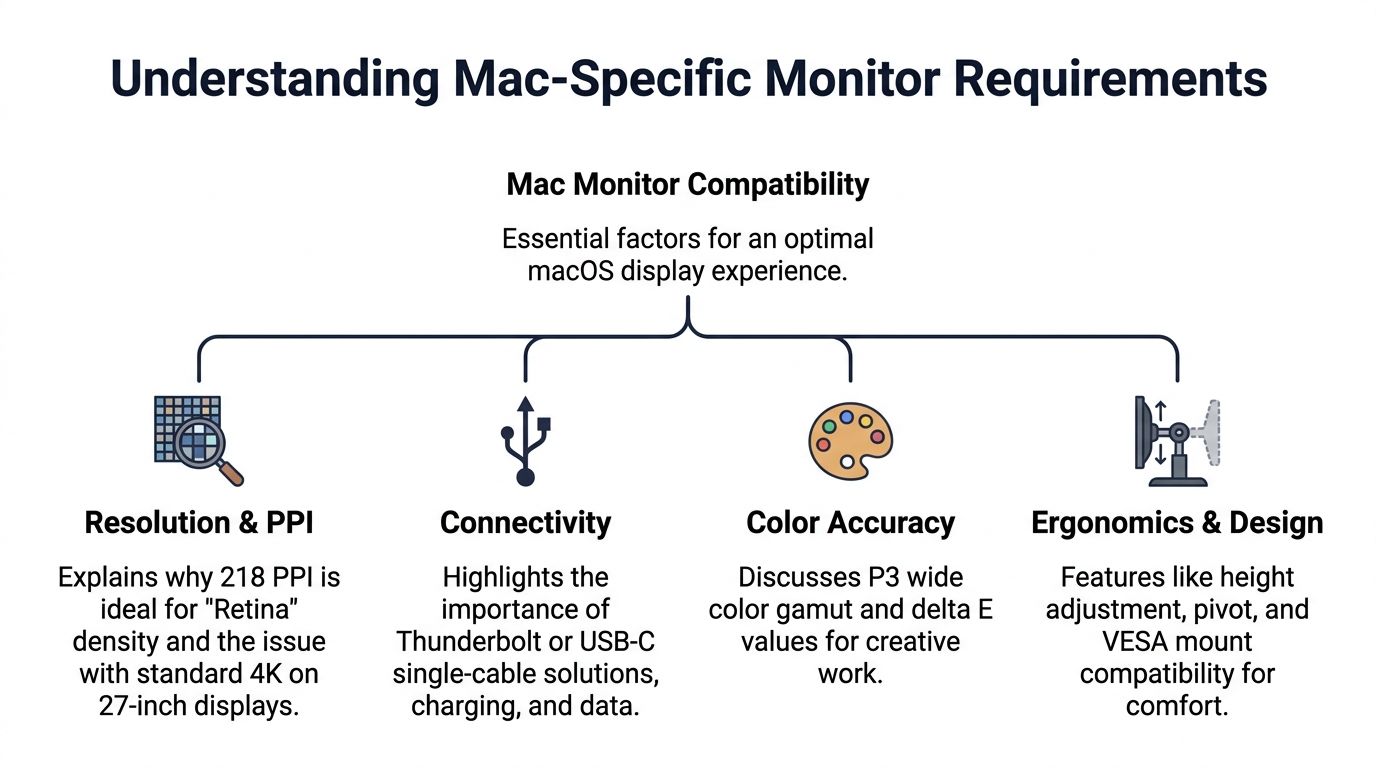
Why 218 PPI matters more than raw resolution
For Mac users, the key spec isn’t just resolution. It’s pixel density.
MacWorks360 notes that 27-inch 5K displays at 218 ppi and 32-inch 6K displays deliver the Retina-class clarity macOS is built around, because the system renders crisply at 200+ ppi and these panels align with that behavior naturally (MacWorks360’s monitor guide for Mac users).
That’s the part many generic monitor guides miss. A 4K monitor can have a respectable resolution and still not feel right on a Mac if the density and scaling combination lands in the awkward middle.
The common trap is the 27-inch 4K panel. It looks fine from a distance. It often looks even fine in video playback. But text-heavy work exposes the weakness. Word documents, browser text, coding editors, and UI chrome don’t have the same calm sharpness you get on a proper Retina-class panel.
Forum discussions around Mac monitor choices show exactly how confusing this gets. Some users expect 4K to automatically mean better text, then discover that macOS scaling choices can make the result feel less clean than expected. Some even prefer lower-resolution setups depending on how scaling behaves in their workflow, which says a lot about how poorly this topic is usually explained (discussion of Mac text clarity and scaling confusion).
Why color and connectivity still matter
Once text clarity is handled, the next two essential considerations are color coverage and single-cable connection quality.
A MacBook display has already set expectations for wide-gamut color. If your external monitor can’t get close, your desk setup feels mismatched every time you move a window from one screen to the other. For creative work, that’s frustrating. For client work, it can become risky.
Then there’s connectivity. A Mac monitor should ideally connect over Thunderbolt or USB-C with enough power delivery to charge the laptop while carrying video and peripheral data. One cable is not just neat. It changes how the setup feels day to day.
I’d also pay attention to ergonomics. A great panel on a bad stand becomes tiring fast.
- Height adjustment matters: Your display should sit at a natural eye line, not force you to look down for hours.
- VESA support matters too: If the included stand is mediocre, a monitor arm can save the setup.
- USB hub quality matters more than brands admit: If you regularly plug in storage, card readers, or audio gear, a better hub reduces desk friction.
A side note on the broader Mac hardware ecosystem. Apple’s desktop strategy keeps shifting, which makes third-party monitor choices even more important for people building flexible workstations around Mac minis and MacBooks. If you’ve followed Apple shifting Mac mini desktop production, you already know the desktop side of the Mac world keeps evolving.
What works and what usually disappoints
After testing and using a lot of displays with Macs, the buying rules are pretty simple.
What usually works well
- 27-inch 5K displays: This is the sweet spot for many people who want excellent text and a familiar desktop feel.
- 32-inch 6K displays: Best for larger pro layouts, especially for editing timelines, large design canvases, and multitasking.
- USB-C or Thunderbolt monitors with meaningful power delivery: They make MacBooks feel like desktops with a single plug.
What often disappoints
- 27-inch 4K if your work is mostly text: It’s usable, but it rarely feels Mac-native.
- Spec-heavy gaming monitors with weak scaling fit: Great refresh rate doesn’t fix soft-looking text.
- Displays chosen only for price: Cheap compromises stay visible all day.
The best monitor for mac isn’t the panel with the longest spec list. It’s the one that makes macOS look normal again.
Best Overall Monitor for Mac Professionals ASUS ProArt PA32QCV
Open Final Cut, Photoshop, or Resolve on a MacBook Pro, then move that project to the wrong external display and the first thing you notice is not color. It is text. Menus look a little off, interface elements feel less settled, and long editing days get more fatiguing than they should. The ASUS ProArt Display 6K PA32QCV avoids that problem better than most monitors in this class, which is why it is my top pick for Mac professionals who want one display that gets the basics right.
Why this one earns the top spot
RTINGS rates the ASUS ProArt Display 6K PA32QCV among the best picks for MacBook Pro use because it combines a 6016×3384 resolution, 218 PPI on a 32-inch panel, 98% DCI-P3 coverage, and Thunderbolt 4 with 90W power delivery in one package (RTINGS review of the best monitors for MacBook Pro).
Its advantage is not just the spec list by itself. It is how those specs line up with macOS.
At 218 PPI, macOS scaling behaves the way Mac users expect. Text looks properly resolved, UI elements feel natural, and you can run a large desktop without the slightly soft look that often shows up on 27-inch 4K panels. That is the Mac monitor paradox a lot of reviews miss. A lower-priced 4K display can look fine for video playback, but still feel wrong all day in Finder, Figma, Premiere, Xcode, or any app where you read and click more than you watch.
The 32-inch size also matters here. You get a larger working area for timelines, palettes, scopes, and side-by-side documents without giving up Retina-class sharpness. That combination is rare. A lot of big monitors give you space. Far fewer keep text clarity at a level that feels Mac-native.
Color is the other reason this display makes sense for paid creative work. RTINGS notes strong factory calibration along with 99% Adobe RGB and 98% DCI-P3 coverage. For video editors, photographers, and designers delivering work across Apple devices, that means less second-guessing and less correction after export.
Thunderbolt 4 with 90W charging keeps the setup simple. One cable handles display output, charging, and hub duties, which matters if your MacBook leaves the desk every day.
For readers tracking ASUS hardware launches more broadly, the company’s creator-focused push has expanded beyond displays too, as seen with the ASUS ProArt GoPro edition PX13 launch.
A good Mac monitor should fade into the background. If you keep noticing odd scaling, soft text, or cable clutter, the display is getting in the way.
Who should buy it and who should skip it
This monitor fits editors, designers, and photographers who spend enough hours in macOS to notice when scaling and text rendering are off.
It is especially well suited to:
- Video editing: A 32-inch 6K canvas gives you more room for timelines, viewers, bins, and scopes without making the interface look coarse.
- Design work: Typography, tool panels, and dense layouts stay crisp, which matters during long sessions in Figma, Photoshop, and Illustrator.
- Photo workflows: Wide-gamut coverage and strong calibration make it a credible choice for serious image work.
A brief look at the monitor in action helps too.
Skip it if your desk is shallow, your apps are mostly email and browser tabs, or you prefer the proportions of a smaller display. In those cases, a 27-inch 5K monitor often feels more comfortable and more cost-effective.
Pros & Cons
| Pros | Cons |
|---|---|
| 218 PPI matches the Retina density Mac users notice immediately | 32-inch size is too much for some desks and viewing distances |
| 6K resolution gives real workspace without compromising text clarity | More monitor than many office users need |
| Strong DCI-P3 and Adobe RGB coverage for serious creative work | Best value shows up only if your workflow benefits from the extra space and accuracy |
| Thunderbolt 4 with 90W charging supports a clean one-cable Mac setup | Premium pricing puts it in pro territory |
My verdict is straightforward. If your Mac is a work machine and text clarity matters as much as color, the ASUS ProArt PA32QCV is the best overall monitor for mac in 2026.
Best 5K Monitor for Mac Users ViewSonic VP2788-5K
Not everybody wants a 32-inch display dominating the desk. A lot of Mac users want something closer to the proportions Apple itself has favored for years. That’s where the ViewSonic VP2788-5K makes a lot of sense.
Why 27-inch 5K is such a strong Mac fit
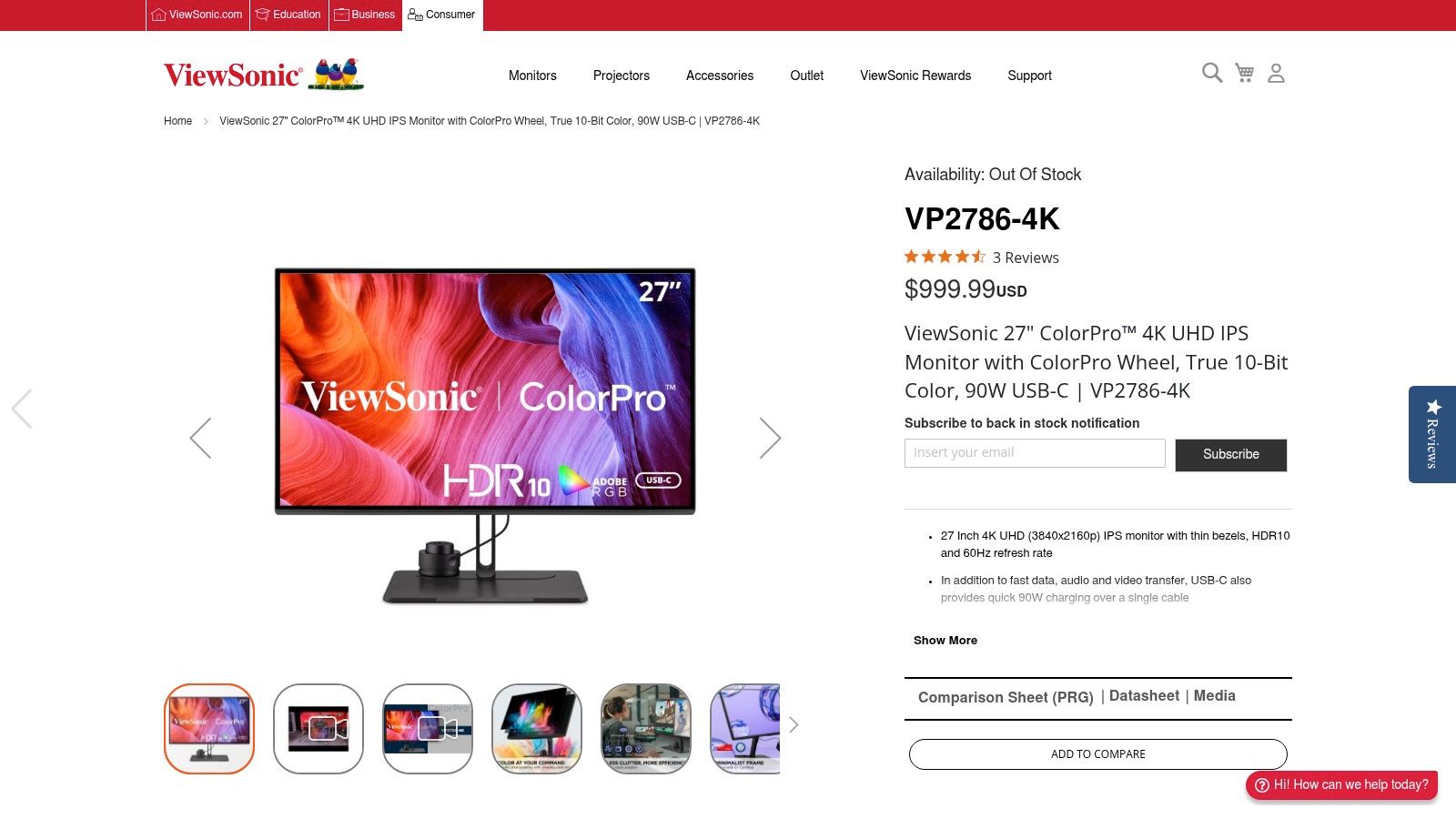
The ViewSonic VP2788-5K offers a 27-inch 5K panel at 5120×2880, hitting the ideal 218 PPI target for Mac HiDPI scaling. It also includes 100W USB-C power delivery and 99% DCI-P3 coverage, which puts it directly in the conversation for creative and productivity workflows on Mac (ViewSonic VP2788-5K overview video).
This is the monitor I’d recommend to the broadest group of Mac users who care about text quality.
Why? Because 27-inch 5K feels proportionate. It gives you the Retina-style clarity you want without asking you to reorganize your workspace around a larger panel. For writers, developers, and photographers, that balance is hard to beat.
It’s also a more natural jump from a MacBook display. The interface scale feels familiar. Windows don’t feel oversized. Text looks settled instead of aggressively sharpened or slightly blurred by compromise scaling.
Where it beats larger displays
Compared with a 32-inch 6K option, the ViewSonic wins on footprint and simplicity. It suits smaller desks better, and many users prefer the tighter field of view for concentrated work.
It also has a practical edge for hybrid users who bounce between productivity and creative apps.
- For coding: The 27-inch size keeps multiple panes readable without constant head movement.
- For writing and office work: The sharp text advantage pays off most clearly.
- For photo editing: 99% DCI-P3 coverage gives it genuine creative credibility.
The additional USB hub functionality is useful too. It offers better USB hub integration, which can make a desk setup feel tidier if you connect accessories frequently.
If you want the cleanest Mac experience without stepping up to a large professional panel, 27-inch 5K is the easiest answer.
Pros & Cons
| Pros | Cons |
|---|---|
| Ideal 218 PPI for macOS text and UI sharpness | 60Hz ceiling won’t appeal to gaming-first buyers |
| 100W USB-C power delivery is great for MacBooks | Older Macs may face connectivity limitations |
| Strong DCI-P3 coverage for creative work | Smaller workspace than a 32-inch 6K panel |
| Compact format suits more desks | More specialized than generic 4K office monitors |
This is the best 5K monitor for Mac users who want the sharpness story solved first and everything else second. In day-to-day use, that priority is usually the right one.
Best Budget-Friendly Monitor for Mac Dell UltraSharp U2723QE
A proper 5K or 6K display is the ideal answer. Often, this is not a realistic option.
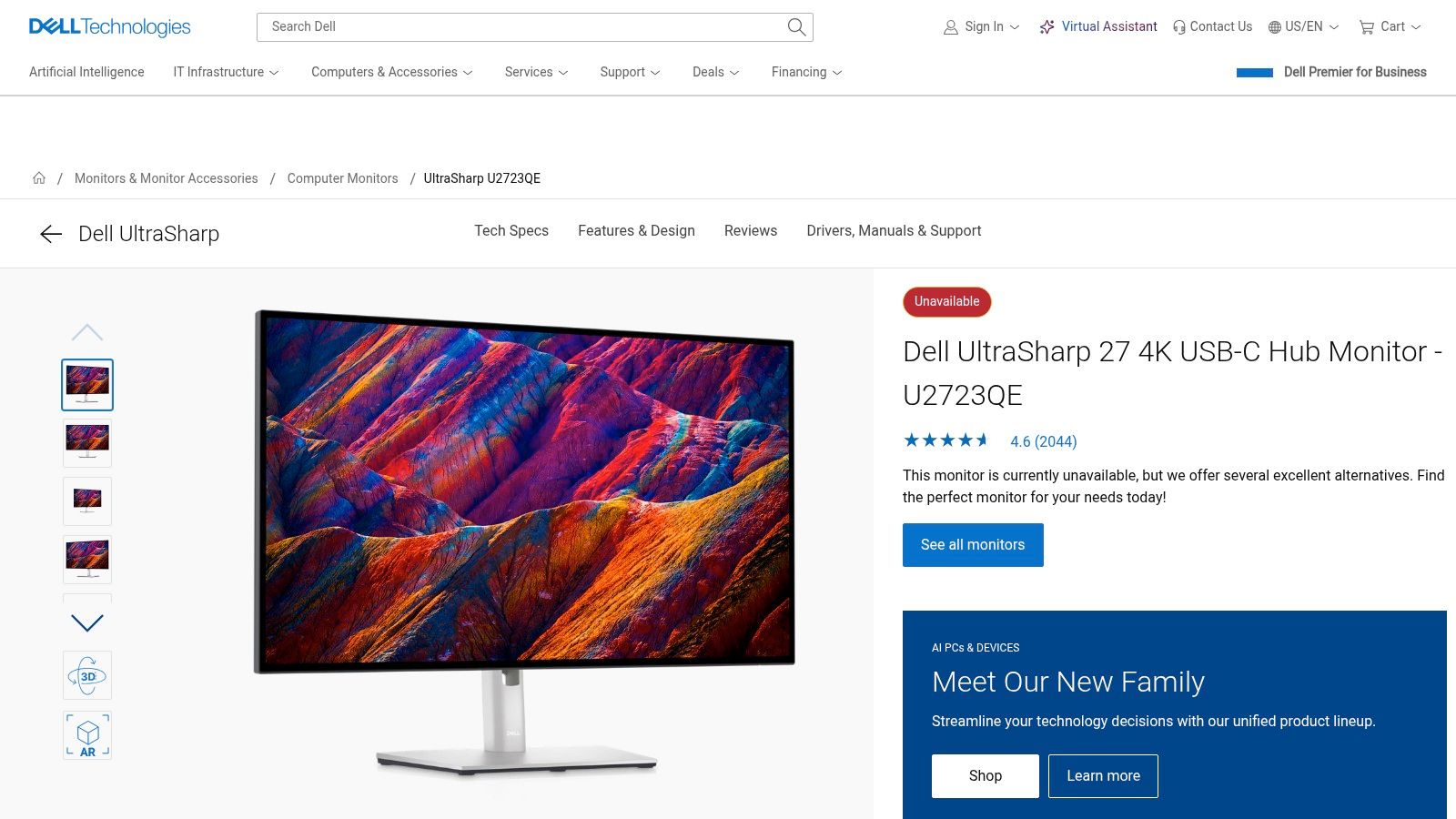
If you need a capable Mac monitor without entering premium Retina-class territory, the Dell UltraSharp U2723QE remains one of the safer compromises. The key word is compromise.
The compromise you are making
The verified data used earlier compares this Dell’s 163 PPI at 27 inches against the sharper Mac-aligned options. That tells you the whole story. This monitor can be good. It just can’t be Retina-like at this size.
That means the Dell is best for buyers who prioritize practical value, dependable build quality, and a flexible USB-C desk setup over perfect text rendering. If your workload mixes documents, browser tabs, meetings, admin work, and occasional creative tasks, that can still be a smart call.
What you should not do is buy this expecting it to look like a Studio Display replacement. It won’t.
I still like this class of Dell UltraSharp for three reasons:
- The stands are good: Height, tilt, and general ergonomics are seldom the weak point.
- The connectivity is practical: USB-C integration makes MacBook docking easier.
- The build quality is dependable: Dell makes office monitors that behave predictably over time.
If you compare portable Macs and desktop pairings regularly, Tech Verdict’s laptop coverage is useful context for building around MacBooks.
How to set up a 4K Mac monitor the smart way
If you buy a 27-inch 4K monitor for Mac, setup matters more than usual. The wrong scaling choice can make the purchase feel worse than it is.
Here’s the practical approach:
Open System Settings, then Displays.
Don’t leave scaling on whatever macOS picks if text looks off.Try the setting that looks like 2560×1440 first.
MacWorks360 notes that 4K at 27 to 32 inches often scales to “Looks like 2560×1440,” which is usable but still not true Retina fidelity.Test with the apps you use.
Don’t judge sharpness from wallpaper or video. Judge it with email, documents, spreadsheets, your browser, and your editing interface.Disable bad assumptions.
If everything feels too large, don’t immediately choose the smallest UI option. Tiny interface elements can look sharp while becoming annoying to use.Match your working distance.
A monitor that looks fine at showroom distance may look less comfortable after a full workday at your desk.
Basic calibration that helps
You don’t need a complicated hardware workflow to improve a new monitor on day one.
- Set brightness first: Match it loosely to your MacBook display so neither screen looks louder than the other.
- Pick the right color profile: If the monitor provides a sensible wide-gamut mode, start there. Don’t bounce between presets constantly.
- Use Display Calibrator Assistant: macOS still includes a useful built-in tool for basic tuning.
- Recheck at night: A monitor that seems fine in daylight can feel too bright after sunset.
The fastest calibration win is often brightness, not exotic color tweaking.
For remote and hybrid workers, this matters even more because your monitor often becomes the center of your full workstation. Clean display behavior, clean scaling, and a simple cable setup pair well with a more stable desk computing flow, especially if you’re also relying on remote-access tools like those discussed in this Deskin remote desktop piece.
A final practical note. Calibrate after you’ve chosen scaling, not before. If the display mode changes, your visual impression of sharpness and contrast changes with it.
Frequently Asked Questions About Mac Monitors
Is a high refresh gaming monitor a good Mac monitor
It can be, if video playback, motion work, or gaming sits high on your list.
For a Mac used mainly for writing, coding, spreadsheets, or layout work, I would still put pixel density and macOS scaling ahead of refresh rate. A 144Hz panel feels nicer when you scroll. A properly matched high-density panel keeps text cleaner for ten hours a day, and that usually matters more.
This is the part many spec sheets miss. On macOS, the best text experience still centers on Retina-style density, roughly 218 PPI. That is why 27-inch 5K displays feel so natural with a Mac, while many 27-inch 4K monitors look sharp at first glance but never quite look as settled for text-heavy work. You can get a 4K high-refresh screen that is enjoyable. You usually cannot get around the scaling compromise.
Are ultrawide monitors good for Mac
Ultrawides work well for timelines, large spreadsheets, and side-by-side apps. They are less convincing if your day is mostly text.
The problem is not width by itself. The problem is that many ultrawides land at pixel densities and scaling options that feel awkward on macOS. Menus, type, and UI elements can end up looking slightly soft or slightly cramped, depending on how you set them. Windows users often tolerate that more easily. Mac users tend to notice it fast.
I like ultrawides for editing and audio work, where horizontal space pays off immediately. For long writing sessions, coding, and design review, I would still rather use a 5K or 6K display with cleaner scaling and more predictable text rendering.
Is Apple Studio Display still worth it
Yes, if you care most about 27-inch 5K sharpness, reliable macOS behavior, and a display that feels native to the platform.
Apple’s Studio Display, the 27-inch 5K monitor launched in 2022, captured a meaningful share of the premium external monitor market among Mac users by 2024, according to IDC figures summarized by MacWorks360. Its market share signaled strong demand for 5K and 6K Mac-friendly displays.
That demand also made the alternatives better. The Studio Display is no longer the only serious answer if you want Retina-class text clarity. Third-party options now give Mac users more flexibility on ports, price, calibration controls, and panel size. Apple still wins on integration and consistency. It does not automatically win on value for every workflow.
A good Mac monitor disappears during work. Text looks right. Scaling feels natural. Color is believable. Cable management stays simple. What's your required feature in a Mac monitor?
If you want more practical buying guides, workstation advice, and verdict-style tech coverage, visit Tech Verdict. It’s a solid place to compare the gear that earns desk space.