Your current computer probably still turns on. That’s the trap.
For a home office, the true cost of an aging desktop isn’t the startup delay. It’s the dropped video call, the frozen accounting app, the fan noise during client meetings, and the creeping habit of avoiding work that your machine handles badly. Small business owners often shop for a replacement only after the pain becomes constant, then buy based on processor branding and price alone.
That’s how people end up with the wrong machine. The best desktop computers for home office work aren’t just fast. They fit the work you do, leave room to grow, and don’t create security headaches the day after setup. If you’re choosing between a tower, all-in-one, or mini PC, the decision should start with workflow, desk space, and risk tolerance, not marketing labels.
If your office relies on remote access tools, shared files, and cloud apps all day, your desktop becomes part of your business infrastructure. That’s why I’d treat this purchase less like consumer electronics and more like operational equipment. If remote access is central to your setup, this look at Deskin and the changing remote desktop environment is worth reading alongside your hardware shortlist.
Table of Contents
- Your Home Office Deserves a Better Computer
- Towers vs All-in-Ones vs Mini PCs
- Defining Your Performance Needs by Use Case
- Our Top Desktop Recommendations for 2026
- Protecting Your Business with a Secure Desktop
- Ergonomics Peripherals and Future-Proofing
- Frequently Asked Questions About Home Office PCs
Your Home Office Deserves a Better Computer
A home office computer should disappear into the background. You shouldn’t have to think about it.
When the machine is right, email opens instantly, browser tabs stay responsive, video calls don’t stutter, and file syncing runs in the background. When it’s wrong, every task gets a little heavier, and that drag adds up across the week.
The buying mistake I see most often is treating all desktops as interchangeable. They aren’t. A tower gives you the most flexibility and the longest runway for upgrades. An all-in-one cleans up the desk and simplifies setup, but usually limits repairs and expansion. A mini PC is compact and efficient, yet it asks you to be realistic about workload and ports.
Practical rule: Buy for the work you do on your busiest day, not the work you do on your easiest one.
A small business owner usually needs three things at once. Stable performance, a quiet workspace, and less technical drama over time. That pushes many buyers toward boring-looking systems with good cooling, serviceable internals, and enough ports to support dual displays, wired networking, backup drives, and older accessories without a chain of adapters.
What doesn’t work is chasing style first or buying the cheapest desktop that checks a few headline boxes. A machine can look modern and still be a bad business purchase if storage is cramped, memory is fixed, or the vendor loads software you’ll spend the first afternoon removing.
Use this guide the way an IT consultant would. Match the form factor to your space, match the internal hardware to your workload, and treat security as part of the buying decision from day one.
Towers vs All-in-Ones vs Mini PCs
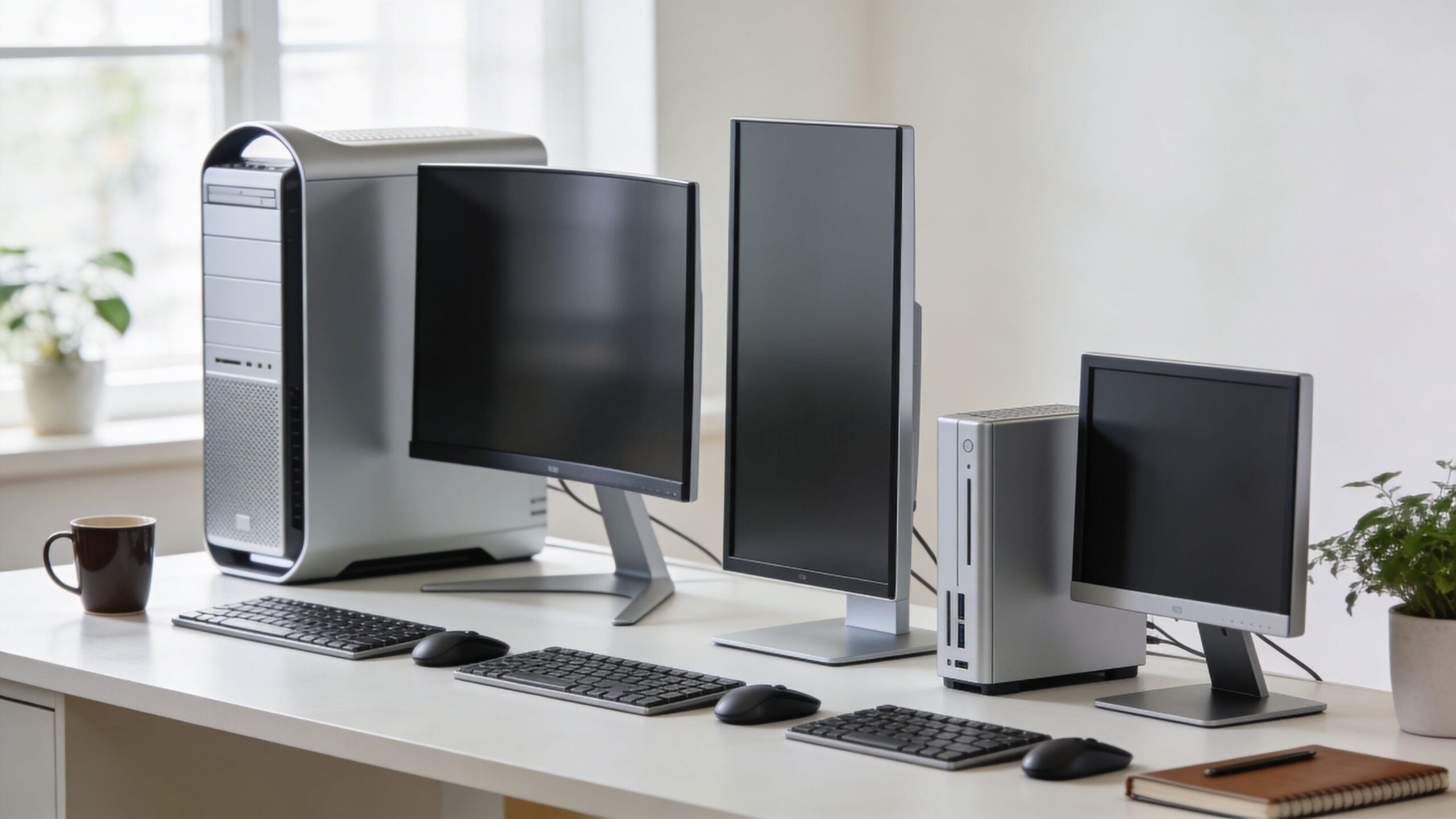
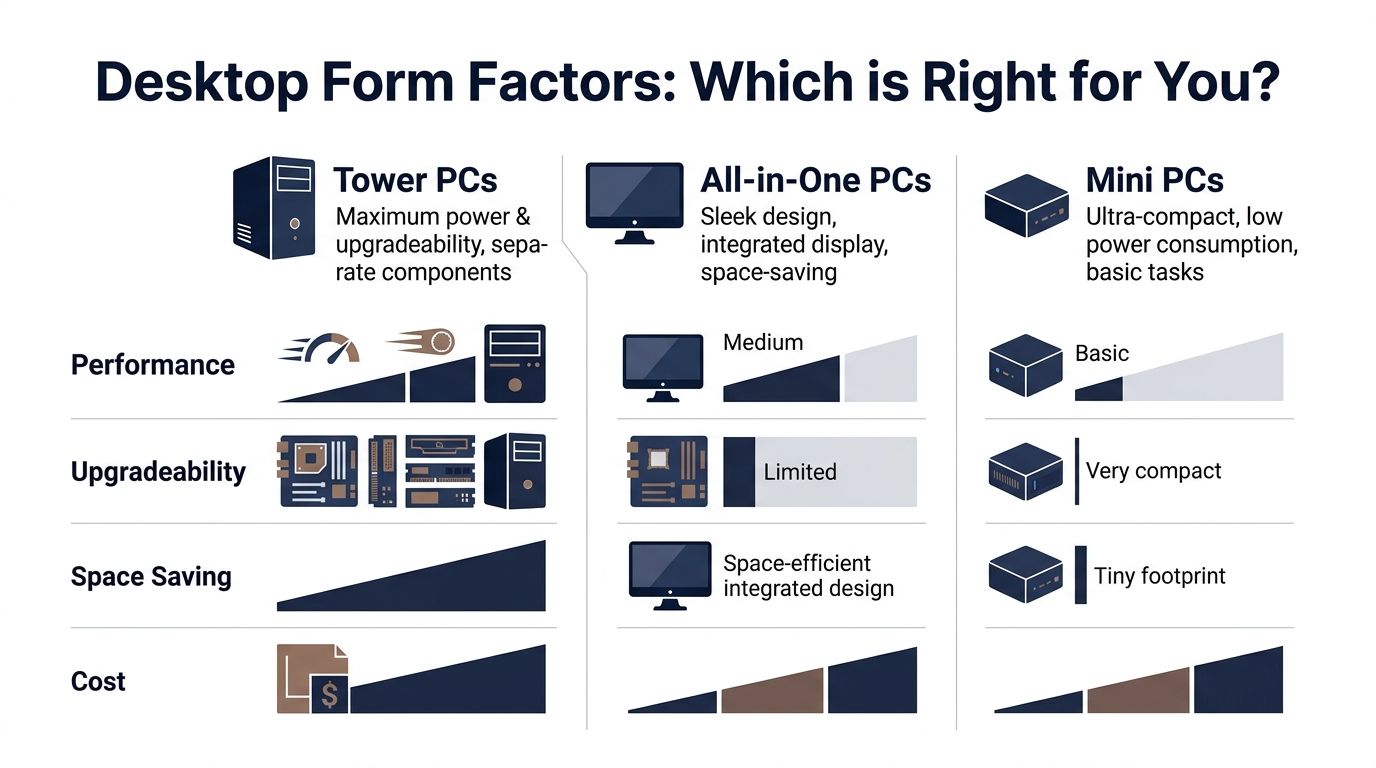
Before you compare brands, compare shapes. Form factor decides more than desk aesthetics. It affects cooling, upgrade options, repairability, ports, noise, and how long the system stays useful.
Desktop Form Factor Comparison
| Form Factor | Upgradability | Footprint | Performance/Price | Best For |
|---|---|---|---|---|
| Tower | High | Large | Strong | Small business owners who want longevity, more ports, and room to grow |
| All-in-One | Low | Medium | Fair | Clean desks, reception areas, shared family-office spaces |
| Mini PC | Limited | Very small | Good for light to moderate work | Tight spaces, basic office tasks, simple deployments |
| Workstation | High | Large | Best for specialized work, weaker value for basic use | CAD, 3D, large datasets, heavy creation workloads |
How each form factor behaves in real use
A tower is still the safest recommendation for those buying their first serious home office desktop. You get better airflow, easier repairs, more expansion slots, and fewer compromises on ports. If you need to add storage later, swap graphics, or move from one display to several, a tower makes that easy instead of painful.
That’s why towers age better in business settings. They’re not glamorous, but they’re forgiving.
An all-in-one works best when the desk itself is part of the selling point. If the computer sits in a visible client-facing room, or you want less cable clutter, an AIO can make sense. The trade-off is simple. Once you buy it, you’re mostly committed to that display, that internal thermal design, and that vendor’s service path.
A mini PC is the most underestimated option for straightforward office work. For email, documents, browser-based apps, video meetings, and light admin tasks, a good mini PC can feel quick and quiet. It also disappears on a shelf or behind a monitor. If you’ve followed manufacturing shifts around compact desktops, this report on Apple moving Mac mini desktop production adds useful context to where this category is heading.
Small desktops work best when the workload is predictable. They work worst when buyers assume tiny size means zero compromise.
There’s also the question of support. Towers usually give local repair shops and in-house admins more room to work. AIOs and some mini PCs can become vendor-dependent very quickly if a display panel, proprietary board, or tightly packed cooling system fails.
Use this simple decision filter:
- Choose a tower if you expect your needs to expand, want the best value, or need several accessories and displays.
- Choose an all-in-one if visual simplicity matters more than upgrades.
- Choose a mini PC if desk space is limited and your work is mostly browser, office suite, communication, and cloud apps.
- Choose a workstation only if your software demands it. Most home office buyers don’t need workstation-class hardware.
The wrong move is buying a compact machine and then asking it to behave like a full tower. The second wrong move is buying a large tower for basic email and bookkeeping when a smaller, quieter machine would’ve done the job with less fuss.
Defining Your Performance Needs by Use Case
Specifications matter. They just matter in context.
Most bad desktop purchases happen because buyers either overspend on power they won’t touch or underspend on memory and storage, then feel the slowdown within months. The easiest fix is to tie hardware choices to the way you work, not to a component list.
Productivity Pro
This is the most common home office profile. You live in email, office apps, accounting software, web dashboards, chat tools, cloud storage, and constant browser tabs. You also spend a big part of the day on video calls.
For this user, the machine doesn’t need flashy graphics. It needs consistent responsiveness. Prioritize a modern processor from a mainstream business line, enough memory to stop tab and app churn, and fast solid-state storage so the system boots quickly and opens apps without hesitation.
The buying priorities are straightforward:
- Processor balance: Aim for a current midrange or higher business-oriented CPU, not the cheapest chip in the lineup.
- Memory headroom: Don’t buy the minimum offered if you regularly juggle many apps at once.
- Fast primary storage: NVMe SSD storage matters more to perceived speed than many buyers realize.
- Ports and networking: Dual monitor support, USB-A for old accessories, USB-C for newer devices, and stable wired networking if your workspace allows it.
This user also benefits from quiet cooling. In a home office, fan noise is more noticeable than people expect, especially during calls.
Creative Dabbler
This profile covers people who split time between standard office work and occasional creative tasks. Think marketing content, photo editing, light video work, product mockups, podcast editing, or social media assets.
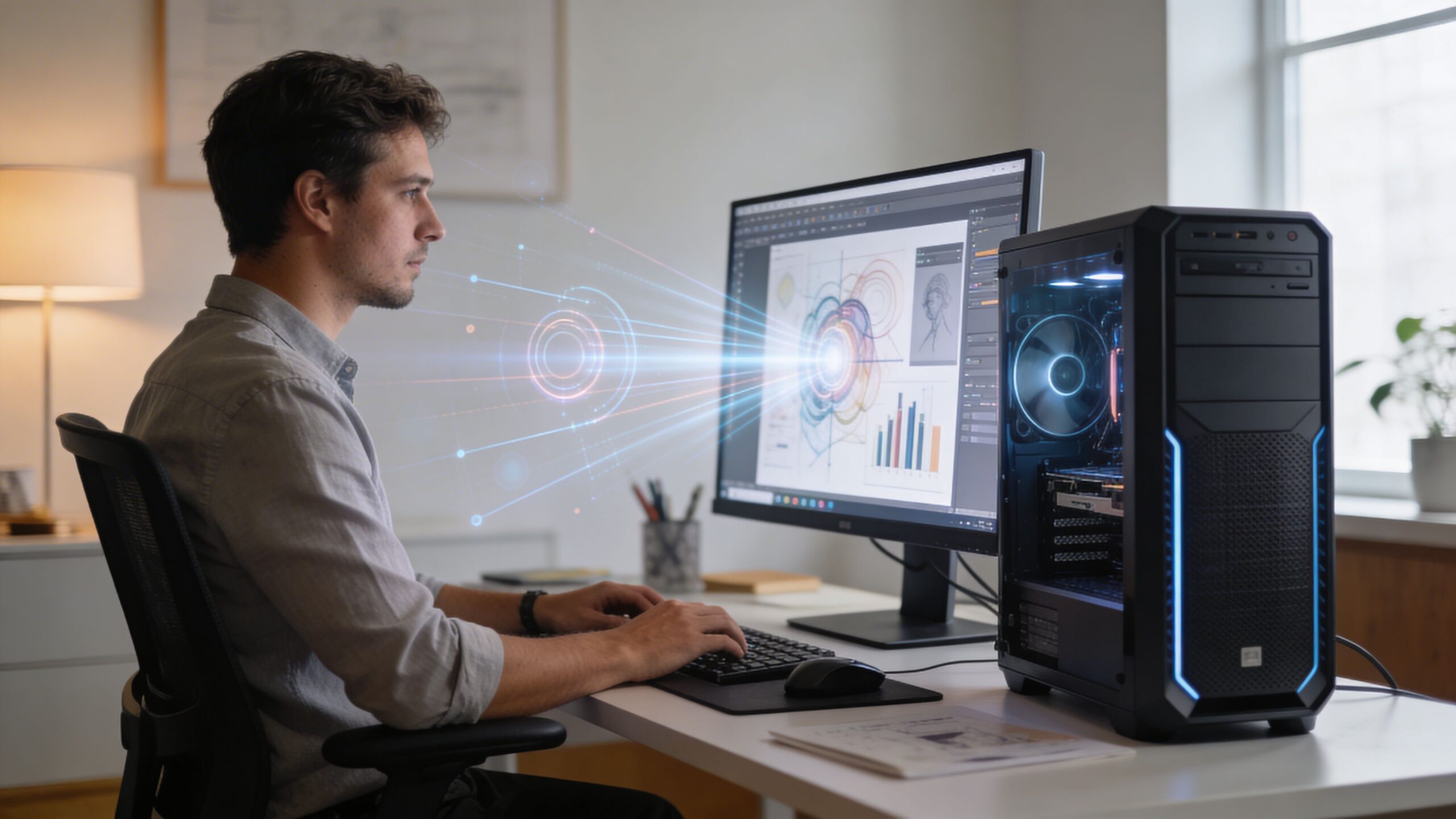
Here, the desktop needs stronger burst performance and more thermal breathing room. You may not need a full workstation, but you’ll notice weak hardware quickly when exporting video, handling layered graphics, or switching between editing tools and normal business apps.
The sweet spot is usually a tower or a more capable all-in-one with:
- Stronger CPU performance: Creative apps often reward better multi-core behavior.
- More memory than a basic office machine: Creative workflows pile pressure on RAM fast.
- Larger SSD space: Media files chew through storage faster than spreadsheets ever will.
- Optional dedicated graphics: Helpful for certain editing, rendering, and display-heavy workflows.
If you’re also experimenting with automation, content generation, or transcription, your desktop choice now overlaps with software strategy. This roundup of the best AI tools for business is useful when you’re mapping hardware purchases to the apps you’ll run.
Buy the machine for the heaviest app you open every week, not the one you open once a quarter.
Power User
This group includes architects, engineers, 3D modelers, video-heavy creators, developers running virtualized environments, and analysts handling larger datasets. These buyers often know they need more performance, but they still face the same form factor question.
For them, a proper tower or workstation-class desktop is usually the sensible route. The reason isn’t only raw speed. It’s heat, expandability, and serviceability.
Look for:
- A higher-tier CPU that can sustain demanding workloads without bogging down.
- Substantial memory capacity with the ability to expand later.
- Fast SSD storage with room for additional drives so active projects and archives don’t compete.
- Dedicated graphics if your applications lean on GPU acceleration, 3D work, or rendering.
- A chassis with cooling room so performance stays stable over longer sessions.
What doesn’t work here is buying a slim all-in-one because it looks tidy, then discovering your rendering or modeling software turns every project into a waiting game. Power users should favor airflow and component access over minimalist design.
A final note on buying behavior. Many people describe themselves as power users because they want a machine that feels “future proof.” That’s fair, but it can push them into expensive hardware they never exploit. If your daily workflow is email, spreadsheets, CRM, and meetings, you are not a workstation buyer. If your software makes your current computer heat up, lag, or stall during production work, you probably are.
Our Top Desktop Recommendations for 2026
If you want the short version, buy the desktop that matches your workload and gives you the fewest long-term constraints. In practice, that usually means a tower for most small business owners, an all-in-one for clean shared spaces, and a mini PC for compact desks with lighter demands.
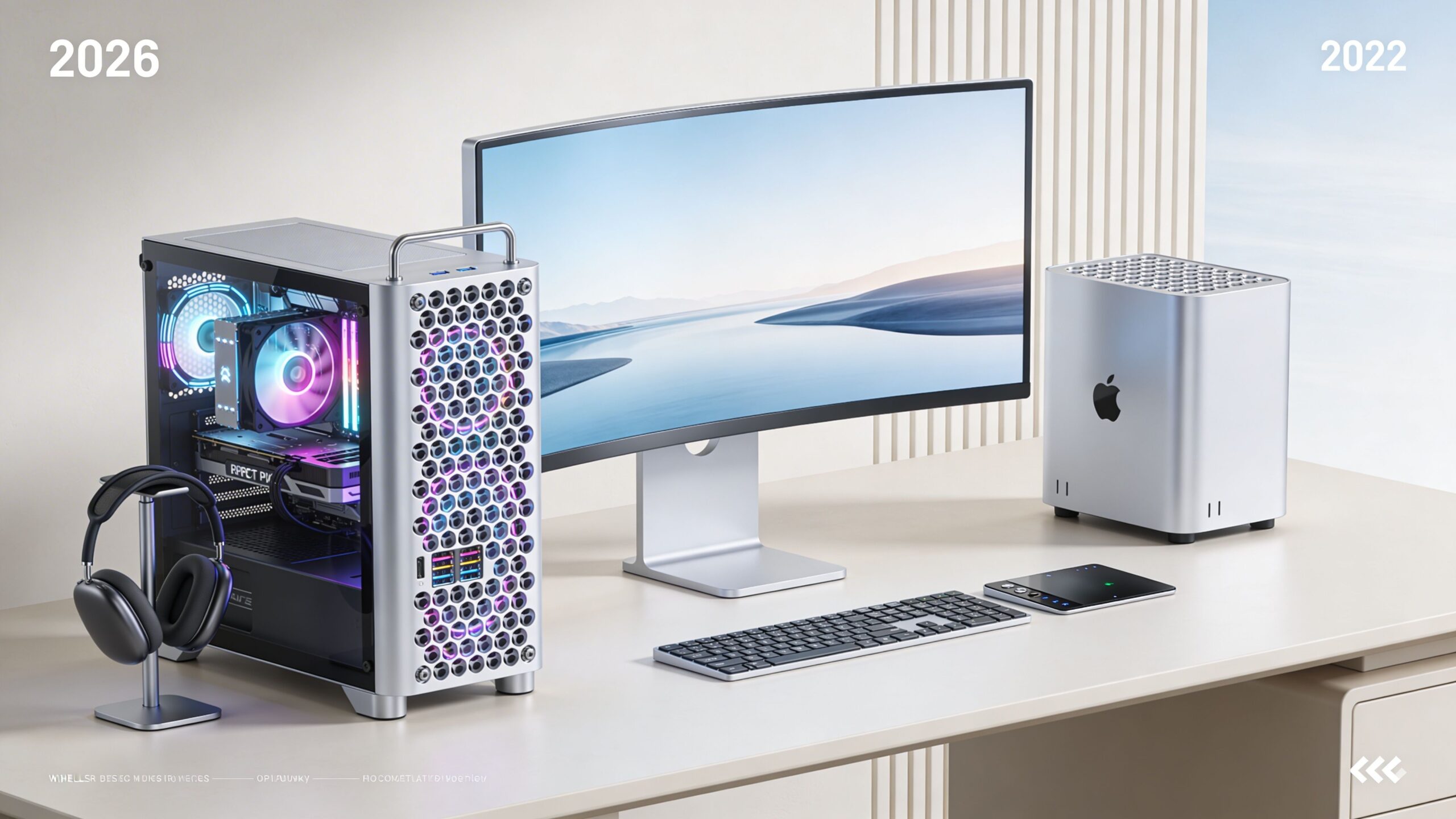
Best tower for most home offices
The standout pick is the Dell Tower Plus (EBT2250).
This is the kind of business desktop I’d put in front of a small business owner who wants one machine to handle office work now and more demanding tasks later. According to TechRadar’s business desktop roundup, the Dell Tower Plus stands out for home office use because it delivered strong results across productivity work, Adobe Premiere Pro, Blender, and light gaming, while staying responsive under load.
The numbers matter here because they back up the recommendation. TechRadar reports Cinebench R23 multi-core scores above 25,000, with the system beating comparably priced rivals like the HP Z2 Tower by 15 to 20% in multi-threaded tasks, and keeping noise to 38dB under load. That’s a strong mix for owners who need speed without turning the office into a wind tunnel.
It also gets the practical details right. Configurations include Intel Core Ultra 7 265 processors up to 5.3GHz turbo, 16GB DDR5-5600 RAM expandable to 128GB, a 1TB PCIe 4.0 NVMe SSD, optional NVIDIA RTX A2000 graphics, 2x Thunderbolt 4, 4x USB-A 3.2, HDMI 2.1, 2.5GbE LAN, and support for up to four 4K displays. For buyers thinking long term, the tool-less 32L chassis and room for upgrades up to RTX 4070 Ti matter almost as much as the benchmark score.
Windows Central also names it the best overall non-gaming desktop for 2026 in the same cited roundup, with a starting price from $1,499 and attention to future-facing AI workloads.
What works:
- Excellent performance range for office, creative, and technical workloads
- Low noise for a shared workspace
- Real upgrade path instead of sealed-box limitations
- Strong port selection for multi-display and peripheral-heavy desks
What doesn’t:
- It’s still a tower. You need floor or desk space.
- Buyers who only need light admin work may be paying for headroom they won’t use.
| Pros | Cons |
|---|---|
| Strong benchmarked multi-core performance | Larger footprint than mini PCs or AIOs |
| Quiet under load | More machine than basic office users need |
| Excellent expandability | Not the neatest option visually |
| Broad port selection and multi-display support | Separate monitor required |
For people comparing alternatives, the HP Z2 Tower is the obvious competitor. It’s a serious business desktop, but the Dell Tower Plus has the stronger evidence-backed case on performance and acoustics in the available testing.
Best all-in-one for clean setups
For an all-in-one, the recommendation is less about benchmark aggression and more about discipline. Buy one only if the integrated display, reduced cable clutter, and simple setup solve a real problem in your office.
A good AIO works well for consultants, administrators, front-desk environments, or home offices that share space with family living areas. It keeps the desk tidy and cuts setup friction. That matters more than enthusiasts like to admit.
The trade-off is longevity. If the display ages poorly, if internal heat becomes an issue, or if your needs shift, the machine gives you fewer exit ramps than a tower. That doesn’t make AIOs bad. It makes them purpose-built.
The best all-in-one is the one you won’t outgrow too quickly. Buy more memory and storage up front because you may not get a second chance later.
When comparing AIOs, I’d focus on display quality, webcam quality, port placement, and service support before obsessing over peak performance. A nice screen and dependable call quality affect your day more than a small gain in synthetic speed.
If you want to browse more category-level options beyond this shortlist, this desktop coverage section is a good place to continue your comparison.
AIO buyers should avoid two mistakes. Don’t use one as a stealth workstation replacement, and don’t buy a budget model with a display you’ll stare at all day if the panel quality is mediocre.
This section is a good visual companion before you keep comparing:
Best mini PC for tight spaces
The best mini PC is the one that stays within its lane. For admin work, browser-based business tools, communication apps, invoicing, and light multitasking, a mini PC can be a smart and elegant solution.
I recommend them most often for:
- Secondary offices
- Reception desks
- Home offices built into small rooms
- Users who want the computer mounted out of sight
Their strengths are simplicity, low visual impact, and often quieter day-to-day operation. Their weaknesses are expansion limits, fewer ports on some models, and less thermal margin once workloads climb.
Mini PCs are poor choices for anyone who expects to add heavier creative work later. They’re excellent for buyers whose work is stable and clearly defined.
When a workstation makes sense
A workstation is not the same thing as “a fast desktop.” It’s a desktop intended for specialized work where sustained performance and component choices matter more than elegance or cost efficiency.
If you work in CAD, 3D modeling, technical visualization, or large project files, you may need one. If your work is accounting, project management, document creation, and online services, you almost certainly don’t.
The mistake here is ego buying. Plenty of small business owners buy like they’re outfitting a post-production house. Most would be better served by a capable tower with a sane upgrade path.
Protecting Your Business with a Secure Desktop
The security side of desktop buying gets ignored far too often. That’s a problem, because the desktop sitting in your home office may hold client files, invoices, contracts, password managers, browser sessions, cloud drives, and access to every core business service you use.

Security should change the buying decision
One of the most important facts in this entire buying process is that a 2025 Verizon DBIR reported that 74% of breaches in small businesses stem from exploited desktop vulnerabilities, as summarized in this Consumer Reports desktop buying page. That same source notes that standard reviews often miss risks tied to pre-installed bloatware, while secure platforms such as Intel Core Ultra’s vPro and systems with TPM 2.0 modules can reduce attack surfaces significantly.
That should change how you shop.
The old buying model was simple. Pick the fastest computer you can afford. The smarter model is different. Buy a desktop that is fast enough, cleanly configured, easy to update, and built on hardware security features you’ll use.
Watch out for these common weak points:
- Pre-installed software clutter: Trialware and unnecessary vendor tools can create risk and confusion.
- Poor update habits: If firmware and driver updates are buried in bad vendor software, users skip them.
- Weak admin setup: Too many home offices still run daily work from an overprivileged local account.
- Phishing exposure: The desktop is where users open email, click links, download files, and enter credentials.
What to check before you approve the purchase
You don’t need to be an IT department to make a safer choice. You do need a checklist.
Start with hardware-backed protections. If the model offers TPM 2.0, that’s useful for platform security and modern operating system protections. If you’re considering Intel business hardware, look closely at vPro support and whether the seller clearly explains what features are enabled in the exact configuration you’re buying.
Then evaluate the machine as shipped.
A secure desktop isn’t just about the silicon. It’s also about how much cleanup and configuration work the owner must do before the machine is trustworthy.
My practical buying checklist looks like this:
- Confirm security features in the exact SKU. Product families vary by configuration.
- Expect a cleanup pass on day one. Remove vendor extras you don’t need.
- Use a standard user account for daily work. Keep administrator access separate.
- Turn on full-device protections offered by the platform.
- Plan endpoint protection before the machine arrives. Don’t wait until after first login.
If you’re tightening that part of your setup, this guide to the best antivirus software for small business is a useful next step.
There’s also a form-factor angle. Mini PCs can be appealing from a security perspective because they tend to expose less internal hardware and encourage a simpler deployment. Towers, on the other hand, give you more room for upgrades and more complexity to manage. Neither is automatically “secure.” The safer option is the one you can configure, maintain, and monitor properly over time.
Ergonomics Peripherals and Future-Proofing
The desktop box is only part of the purchase. The workday happens at the desk, across the monitor, keyboard, mouse, webcam, speakers, lighting, and cables you use every hour.
That’s why the best desktop computers for home office setups should be chosen as part of a whole workstation plan, not as a standalone object.
Build around the screen not the box
Users often experience computer fatigue through the monitor first. Poor height, weak brightness, bad panel quality, and awkward viewing angles create more daily discomfort than a processor choice ever will.
A better approach is to start with the display position and posture. Put the top portion of the screen at a comfortable viewing height. Use a monitor arm if the desk is shallow or shared. If you spend your day in spreadsheets, email, and web apps, a second display often improves workflow more than an expensive jump in raw CPU power.
Good ergonomics usually come from simple changes:
- Raise the display so you’re not looking down all day.
- Use a separate keyboard and mouse even if your screen setup is compact.
- Keep the camera at eye level for client and team calls.
- Choose a chair and desk height that let your shoulders stay relaxed.
Spend on the accessories that remove friction
Peripheral buying should be ruthless. Spend where the accessory affects every hour of work. Save where it doesn’t.
Worth paying for:
- Keyboard comfort: You use it constantly.
- A reliable mouse: Precision matters more than fancy branding.
- A good webcam and microphone: Calls are part of your business presence.
- A dock or hub if your setup depends on many accessories: Fewer cable problems, easier resets.
Safe places to save:
- Decorative speakers if you mostly use a headset
- Flashy RGB accessories
- Premium bundles that look cohesive but don’t improve usability
The best accessory purchase is the one that removes a daily annoyance you’ve stopped noticing.
Future-proofing without overspending
Future-proofing gets abused as a sales term. In practice, it means buying enough headroom that the machine still feels competent after your software stack gets heavier, your files get larger, and your work habits shift.
For towers, future-proofing often means accessible memory and storage upgrades, decent cooling, and enough ports that you won’t need a complete desk reset later. For all-in-ones, it means buying the right configuration at the start because expansion may be limited. For mini PCs, it means being honest about whether the role will stay light.
Think in business terms:
- Will you add a second monitor later
- Will file storage grow quickly
- Will video become part of your workflow
- Will this machine move from solo use to shared business use
If the answer is yes to several of those, buy with more headroom now. Replacing the wrong desktop early is more expensive than buying the right one once.
Frequently Asked Questions About Home Office PCs
Should you build your own office desktop
Usually, no.
A custom-built PC can be excellent in the right hands, but it’s rarely the best first major hardware purchase for a small business owner. The issue isn’t performance. It’s support. When something breaks, you become the integrator, warranty coordinator, and troubleshooter.
A business desktop should be easy to service, simple to document, and tied to one clear support path. That’s why prebuilt business systems make more sense for most home offices.
Are refurbished business desktops worth it
They can be. Refurbished business desktops are often better purchases than brand-new low-end consumer models.
The key is to buy them for the right role. A refurbished office tower can be great for admin work, invoicing, browser-based tasks, and backup workstations. It’s a weaker fit if you need modern creative performance, specialized security features in current platforms, or many years of runway with no compromises.
Check the condition, warranty terms, port selection, and whether storage and memory were updated professionally. Refurbished can be smart. Random used can become expensive fast.
Mac or Windows for a home office
For most small business owners, this comes down to software compatibility, support comfort, and workflow preference.
Choose Windows if you want the widest desktop hardware choice, easier internal upgrades in tower systems, and broader compatibility with business peripherals and legacy tools. It’s usually the practical default.
Choose Mac if your work already centers on macOS software, you value a tightly integrated setup, and you’re comfortable with Apple’s approach to upgrades and repairs. It can be an excellent fit, especially in clean, design-oriented workspaces.
The mistake is switching platforms casually. If your accounting software, file workflow, staff habits, or support options lean heavily one way, respect that. The best system is the one your business can use without friction.
A good home office desktop should feel boring in the best way. It should start fast, stay quiet, run your real workload without strain, and not introduce security risks you only discover after rollout. If you’re still deciding between a tower, all-in-one, or mini PC, the right answer usually comes from your workflow and risk profile, not the prettiest spec sheet.
If you want more no-nonsense buying guides, security advice, and product verdicts before you spend, visit Tech Verdict. What kind of work does your home office desktop need to handle every day?