
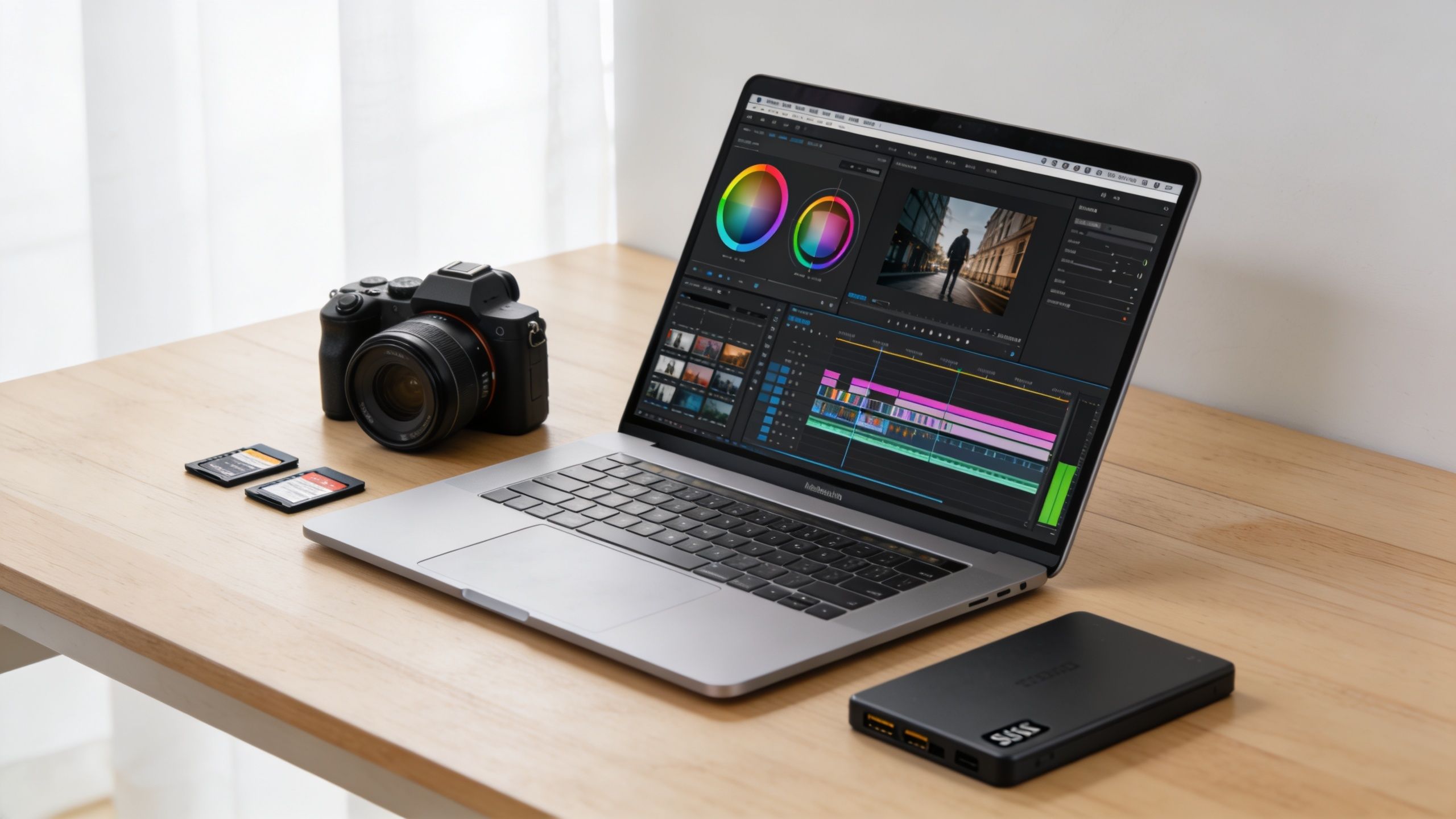
Your current laptop usually tells you it’s time to upgrade before you do. Playback starts dropping frames the moment you stack color correction on a few clips. Background proxies take forever. An export that should feel routine suddenly becomes the part of the day you plan around.
That’s why buying one of the best laptops for video editing isn’t really about chasing the loudest marketing spec. It’s about finding the machine that matches your footage, your software, and the way you work when a deadline is close and the timeline is messy.
Table of Contents
- The Best Video Editing Laptops at a Glance
- The Four Pillars of a Video Editing Laptop
- Matching Your Laptop to Your Editing Workflow
- Crucial Features Beyond Core Performance
- In-Depth Verdicts on the Best Editing Laptops
- Choosing Your Platform The macOS vs Windows Debate
- Your Final Verdict Finding the Right Editing Partner
- Frequently Asked Questions About Video Editing Laptops
The Best Video Editing Laptops at a Glance
If you need the short version first, here it is. The best laptop is the one that stays fast after an hour of editing, not just the one that looks great on a product page. Real editing punishes weak cooling, limited VRAM, cramped RAM, and mediocre screens much faster than casual office work ever will.
Some editors need one machine that handles everything from rough cuts to final exports. Others need a mobile station for field work, then hand off heavy finishing to a desktop. Those are very different buying decisions, and that’s where most “top 10” lists fall apart.
Tech Verdict’s Top Picks for Video Editing Laptops 2026
| Category | Laptop Model | Why We Picked It |
|---|---|---|
| Best Overall | Apple MacBook Pro 14 (2024 with M5 Max) | It’s the most complete editing laptop for demanding work because performance, display quality, and sustained thermals line up instead of fighting each other. |
| Best for Professionals | Asus ProArt P16 | It’s the strongest fit for editors who live in Premiere Pro or DaVinci Resolve and want creator-focused Windows hardware with serious GPU muscle. |
| Best Value | Dell XPS 17 | It usually makes sense for editors who want a cleaner design, a larger canvas, and strong all-around capability without going all in on a bulkier gaming chassis. |
Buying rule: If your laptop can’t hold smooth playback once grading, effects, and background tasks pile up, it’s not a pro tool. It’s a compromise you’ll feel every day.
The picks above aren’t about brand loyalty. They’re about workflow fit.
The MacBook Pro 14 with M5 Max is the most convincing choice for editors who need consistent export speed, excellent display quality, and a machine that doesn’t feel fragile under heavy sessions. The Asus ProArt P16 makes more sense if your software stack leans Windows and you highly value discrete GPU performance. The Dell XPS 17 lands in a practical middle ground. It’s often the laptop people buy when they want creator styling, a larger screen, and fewer gamer cues in client-facing environments.
If you’re deciding between these categories, don’t start with the logo. Start with your footage type, your codec mix, and how often you edit away from a desk.
The Four Pillars of a Video Editing Laptop
Specs only matter when you understand what each part is doing during an actual edit. Video editing isn’t one task. It’s decoding footage, managing a timeline, caching previews, applying effects, grading color, exporting, and often running other apps at the same time.
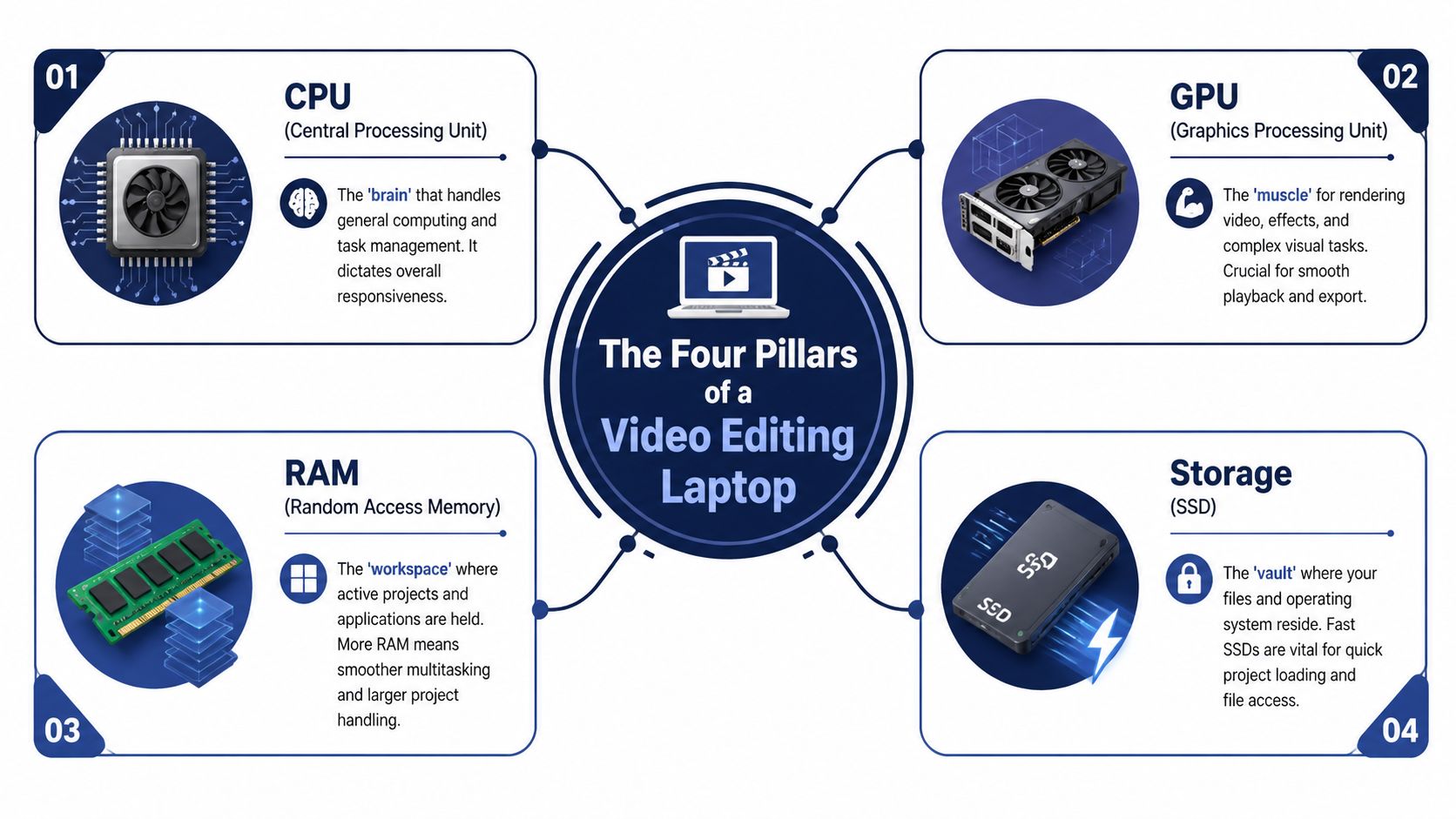
That’s why I always reduce a video editing laptop to four parts: CPU, GPU, RAM, and storage. Get one wrong, and the whole machine feels off balance.
CPU is the brain of the edit
The CPU handles the logic of the job. It manages timeline responsiveness, codec handling, general application behavior, and all the little interactions that make editing feel fluid or frustrating.
If the CPU is weak, the entire system feels hesitant. Scrubbing feels sticky. The interface lags. Background tasks trip over active work. You don’t always notice CPU limits in a single benchmark. You feel them over hours of editing.
For readers comparing mobile systems across brands, the broader laptop coverage at Tech Verdict is useful for spotting how different chassis and processor classes behave in real use.
GPU is the muscle that saves your timeline
The GPU matters most when your timeline gets demanding. Color work, effects, noise reduction, stabilization, multicam playback, and exports all lean heavily on it in modern editing apps.
This is the part too many buyers still underestimate. According to Creative Bloq’s guide to laptop specs for video editing, a minimum of 8GB VRAM and 5000+ CUDA or Stream processors is required for 4K workflows to offload rendering from the CPU. The same source notes that in Adobe Premiere Pro, an Nvidia RTX 4070 can render a 4K multi-cam timeline 35% faster than a 6GB RTX 4060 because of higher memory bandwidth.
That gap matters in practical use. More GPU headroom usually means fewer dropped frames once Lumetri grades, layered effects, or heavier timelines start stacking up.
A laptop can look powerful on paper and still fail in edit work if the GPU is underfed on VRAM or boxed into a weak thermal design.
RAM is your workbench
Think of RAM as the desk surface where the active project lives. The larger the desk, the less often you have to clear space while working.
For lighter editing, modest RAM can be workable. For complex edits, multicam timelines, large assets, and motion graphics, more RAM changes how calm the machine feels. Apps stay open without becoming a liability. Caches behave better. You spend less time waiting for the system to shuffle active data around.
The practical mistake is buying a fast CPU and GPU, then starving the machine with too little RAM. That creates a laptop that looks premium in the spec sheet but feels cramped in an actual project.
Storage is the warehouse
Storage doesn’t render your timeline for you, but it controls how quickly footage, cache files, apps, and project assets move in and out of reach.
A fast SSD keeps the machine responsive when loading projects, pulling media, building caches, and juggling large libraries. Slow storage creates friction everywhere. It rarely shows up as one dramatic failure. Instead, every routine task feels a bit slower than it should.
For video editors, internal storage also affects how independent the laptop can be on location. If you’re constantly tethered to an external drive because the internal drive is too small, that’s not fatal. But it changes how mobile the system really is.
Matching Your Laptop to Your Editing Workflow
The biggest buying mistake is overbuying for ego or underbuying for future pain. A YouTube editor cutting talking-head clips doesn’t need the same machine as someone finishing 8K RAW footage in Resolve. Treating those workflows as identical is how people waste money or hit avoidable bottlenecks.
For 1080p and light 4K creators
This group includes YouTube editors, social teams, podcasters, event shooters, and anyone mostly cutting short-form work with moderate effects.
What matters most:
- Prioritize a balanced CPU and RAM setup so the system stays responsive while your editor, browser, music app, and asset folders are all open.
- Choose a competent GPU, not the cheapest one available if you’re doing regular 4K work or multicam edits.
- Buy for portability if you travel often because this tier often benefits more from weight, battery behavior, and decent ports than from chasing the biggest graphics chip.
This is also the range where some people should consider whether a desktop would stretch their budget better. If you mostly edit at one desk, a guide to the best desktop computers for home office use can help clarify whether mobility is worth the trade-offs.
For professional 4K and 6K editors
This is the serious working tier. Think multicam interviews, commercial work, regular color grading, client revisions, layered timelines, and frequent exports.
The shopping priorities shift fast here:
| Workflow need | What to emphasize |
|---|---|
| Long timelines with effects | Strong discrete GPU and cooling |
| Multitasking with creative apps | More RAM and a stable CPU |
| Client-facing color work | High-quality display with good gamut coverage |
| Fast turnaround edits | Media engine support, fast SSD, better sustained performance |
A creator-class Windows machine or a higher-end MacBook starts making much more sense here. This is also where thermals become decisive. A system that starts strong but fades under load will waste your time every day.
For 8K RAW and finishing work
At this level, you’re not really asking for “a nice laptop.” You’re asking for a mobile workstation.
You need a machine that can survive brutal codecs, layered grades, advanced effects, and sustained exports without becoming unstable or painfully slow. That often means accepting a thicker chassis, more fan noise, or less elegant design. Thinness stops being impressive once the render starts.
Field truth: If your workflow includes 8K RAW, the best laptop is often the one that makes the fewest compromises, even if it’s heavier and less stylish.
For this tier, build your shortlist around three questions:
- Can the cooling system hold performance under sustained load?
- Does the display support serious grading decisions, or is it just sharp-looking?
- Is the port selection good enough for fast media, external monitors, and on-set work?
If the answer to any of those is shaky, keep looking.
Crucial Features Beyond Core Performance
A lot of bad buying advice stops at CPU, GPU, and RAM. That’s not enough. Editing on a laptop is shaped just as much by the screen you trust, the heat the chassis can remove, and the ports you use every day.
Display quality affects the final image
Editors often get distracted by refresh rate and resolution, then ignore the thing that matters more for finishing work. Color accuracy and brightness.
If you grade footage, deliver client work, or touch HDR at all, a merely decent panel isn’t enough. You need a display that gives you confidence in shadows, highlights, skin tones, and saturation. That’s why wide gamut coverage and strong brightness matter more than gamer-friendly specs.
If you work with Apple laptops and want a better sense of external display pairing, this guide to the best monitor for Mac is worth a look.
Thermals decide whether specs mean anything
Thermal design is where hype usually dies. A laptop with excellent internal parts can still underperform if it can’t dump heat fast enough.
That’s especially important on hybrid devices that promise to be both gaming rigs and creator machines. Adobe’s discussion of video editing laptops notes that a Lenovo Legion 9i can outperform a MacBook Pro 16 in pure GPU rendering in DaVinci Resolve by 20-30%, but many guides don’t test integrated workloads like editing while a VPN runs or while other creative apps stay open. The same source also notes throttling can reduce performance by 25% on some models in those multitasking scenarios.
That’s the kind of trade-off buyers need to pay attention to. A machine can be brilliant for short benchmark bursts and still become annoying during a real afternoon of editing.
Don’t trust peak performance alone. Trust performance after the fans have been loud for a while.
Ports and build quality shape the workday
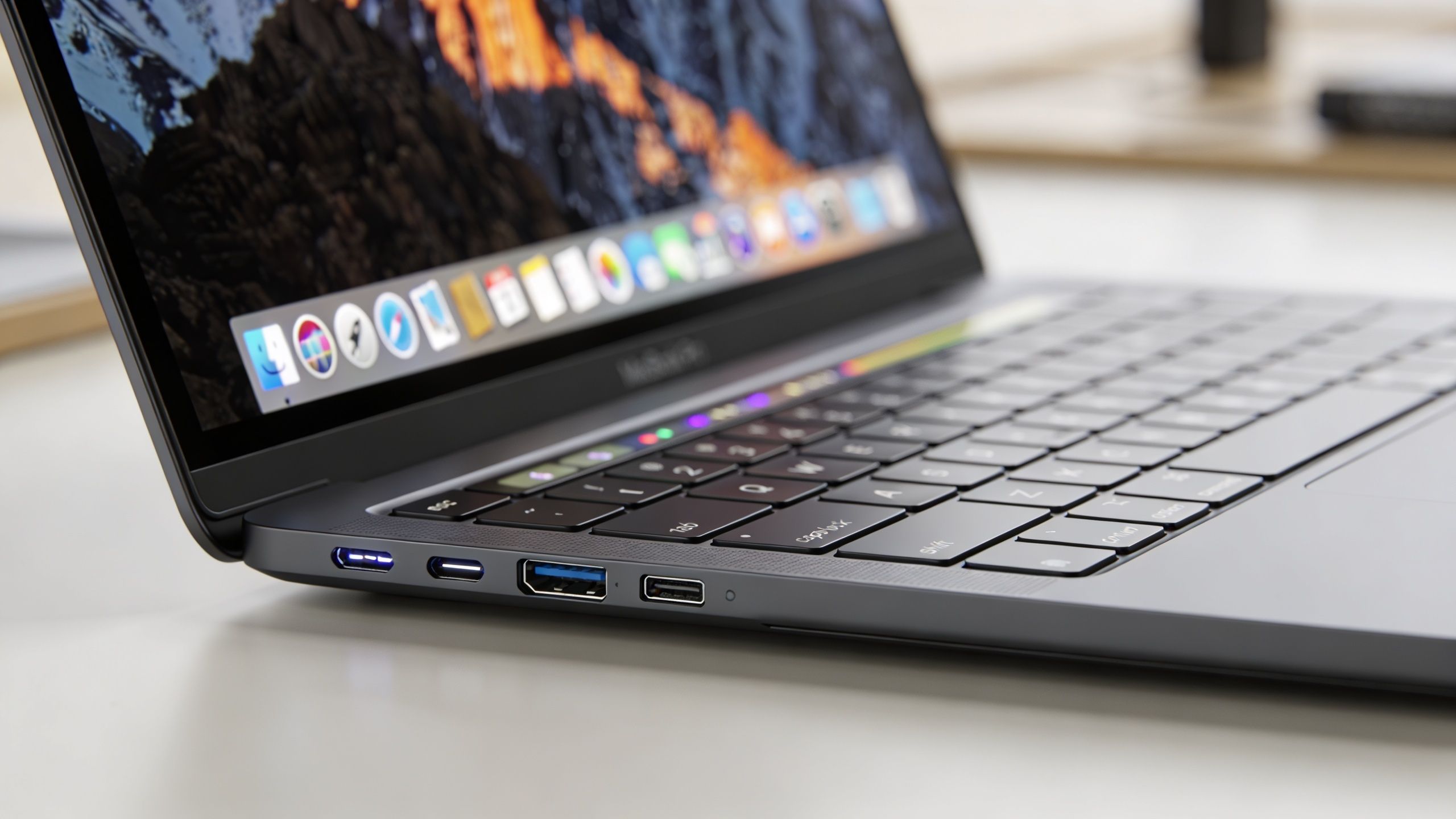
Port selection sounds boring until you don’t have what you need. Editors move footage constantly. They connect external SSDs, media readers, monitors, interfaces, chargers, and sometimes Ethernet adapters or capture gear. A laptop with weak I/O creates friction every single day.
The same goes for build quality. If you travel for shoots, client meetings, or remote edits, chassis rigidity matters. Hinge stability matters. Keyboard comfort matters. A flimsy machine can be fast and still feel wrong for professional use.
Three practical checks help here:
- Look for fast external connectivity if you edit from external SSDs or dock into larger displays.
- Check whether the power brick and thermal profile fit your real mobility needs because some “portable” workstations are only portable in theory.
- Treat SD slots and full-size ports as workflow tools, not bonus features if you ingest media directly on location.
In-Depth Verdicts on the Best Editing Laptops
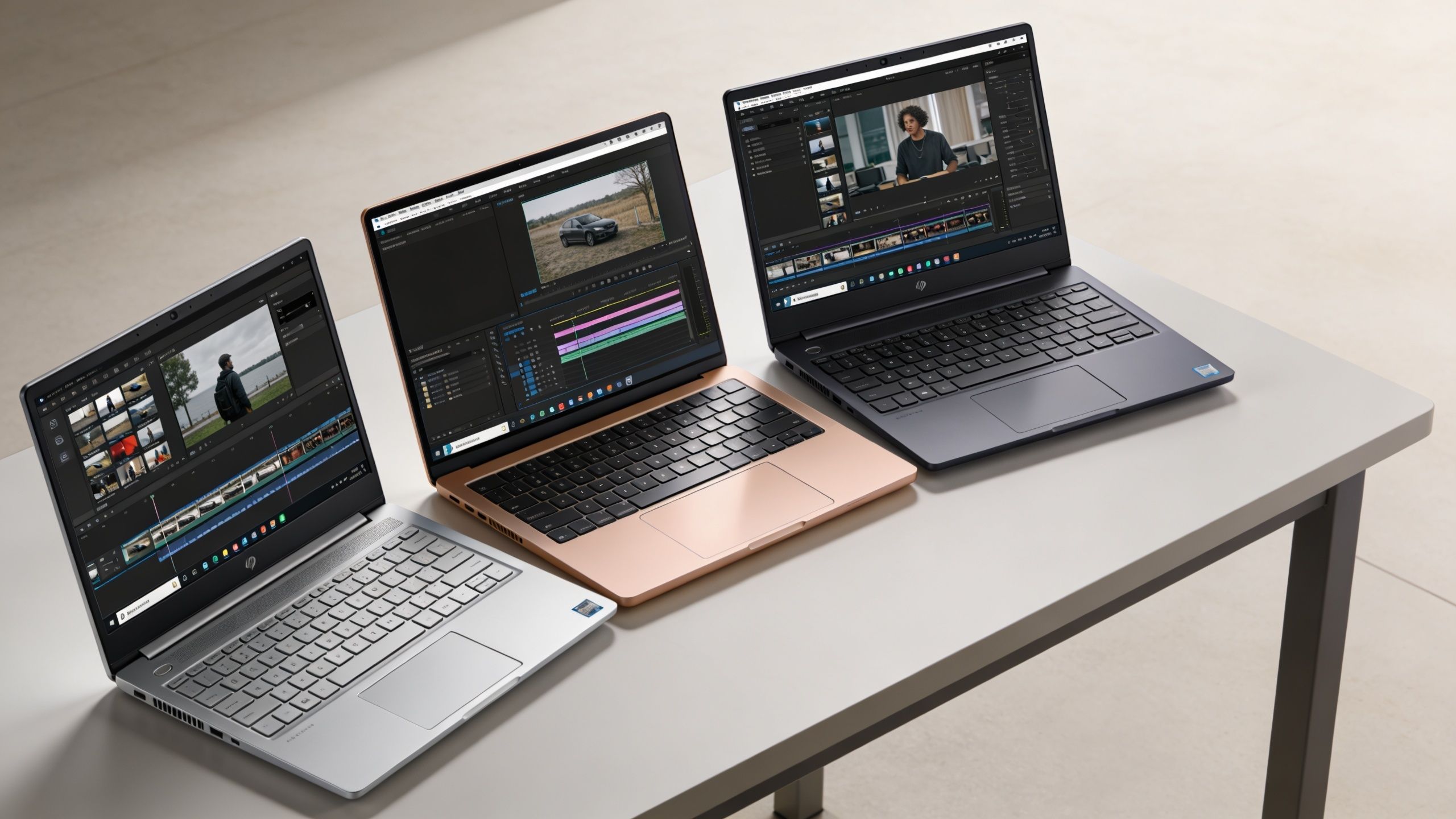
The best laptops for video editing separate into two camps fast. Some are optimized, polished, and predictable. Others are raw-performance machines that ask you to accept more size, more heat, or more noise in exchange for more headroom.
Apple MacBook Pro 14 with M5 Max
This is the laptop I’d point most serious editors toward first, especially if they value consistency more than spec-sheet theater.
According to RTINGS’ best laptops for video editing guide, the Apple MacBook Pro 14 with an M5 Max chip and up to 128GB of unified RAM can reduce 4K H.265 export times by 40-50% compared to equivalent Intel or AMD systems. The same source attributes that to the unified memory architecture eliminating CPU-to-GPU data transfer bottlenecks, while the dedicated media engine can process up to 8 simultaneous 8K streams without thermal throttling.
That’s the kind of result that matters in real editing. It’s not just “fast.” It’s efficient in the specific ways that modern edit workflows punish weak designs.
Who it’s for:
- Final Cut Pro users who want the cleanest hardware-software integration
- Resolve and Premiere editors who care about export speed and stable long-session behavior
- Traveling professionals who need a compact chassis that still behaves like a serious workstation
Its biggest advantage is balance. The machine doesn’t ask you to choose between display quality, thermals, and portability in the way many Windows systems do.
Asus ProArt P16
If you live in Windows and want a creator-focused machine rather than a flashy gaming laptop, the ProArt P16 is one of the smartest buys in the category.
Its value comes from how well the parts line up with editing reality. The GPU is strong enough to matter. The design language is professional. And unlike many gaming machines, it doesn’t feel like it’s apologizing for being used in a studio or client room.
This is also where broader product news matters. Asus has clearly been leaning into creator hardware, and coverage of the Asus ProArt GoPro Edition PX13 launch shows how aggressively that lineup is targeting mobile creative workflows.
Pros & Cons
| Pros | Cons |
|---|---|
| Creator-first design that fits professional environments | Usually less raw GPU aggression than top gaming alternatives |
| Strong fit for Premiere Pro and DaVinci Resolve users | Can still run hot under sustained heavy loads depending on configuration |
| Better port and workflow focus than many thin premium laptops | Often costs enough that buyers should compare carefully against Apple and gaming-class rivals |
For editors who need Windows compatibility and a machine that feels designed for creative work first, the ProArt line makes a lot of sense.
Here’s a useful visual walkthrough before you narrow your shortlist:
Lenovo Legion 9i
The Legion 9i is the machine for editors who don’t mind a gaming-laptop identity if the payoff is major GPU horsepower.
Its appeal is simple. In GPU-heavy applications, especially DaVinci Resolve, this class of laptop can be brutally effective. If your work leans hard into effects, heavy grades, or render-heavy tasks, a premium gaming chassis can outperform more restrained creator laptops.
But the caveat matters. Hybrid systems like this need to be judged as systems, not isolated benchmark scores. Fan noise, battery behavior, thermal fade, and multitasking stability all matter more on a deadline than one spectacular benchmark chart.
Verdict call: Buy a high-end gaming laptop for editing only if you’re comfortable with its compromises. If you want elegance, silence, and consistency first, look elsewhere.
Dell XPS 17
The XPS 17 remains attractive for buyers who want a large screen, clean industrial design, and creator-friendly aesthetics without moving into full gaming-laptop territory.
I like this kind of machine for editors who split time between editing, office work, presentations, and travel. It doesn’t shout “workstation,” and that can be valuable in itself. It also gives you more screen real estate than compact creator laptops, which helps on long timeline sessions.
Its weakness is familiar. These slim premium designs can become compromise machines if you expect them to behave like thicker performance rigs all day long. They’re excellent when your workflow fits their design intent. They’re less convincing if you treat them like mobile render boxes.
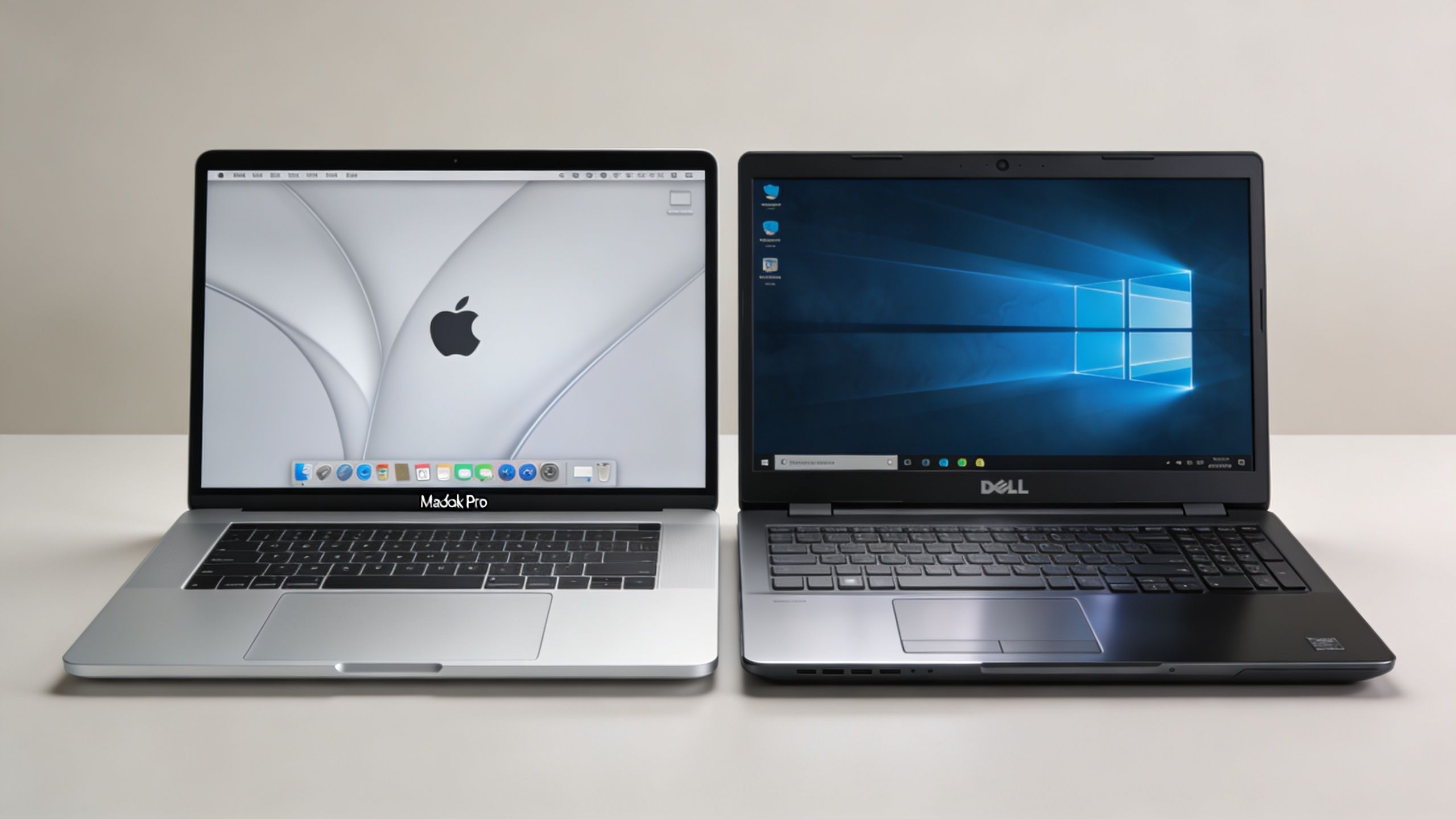
Choosing Your Platform The macOS vs Windows Debate
The platform question matters because software and hardware are tied together more tightly in editing than in general computing. This isn’t just preference. It’s workflow strategy.
Choose macOS when software integration matters most
If you edit in Final Cut Pro, the decision is easy. You’re buying a Mac.
Even beyond Final Cut, macOS has a real advantage when Apple’s hardware, media engines, display quality, and software optimization all line up. That tends to create a smoother overall experience, especially for editors who want fewer variables and less tinkering.
macOS also tends to suit editors who value consistency. You usually know what you’re getting. Fewer model variations. Fewer weird chassis decisions. Fewer surprises around battery and thermal behavior.
Choose Windows when hardware choice matters more
Windows wins on variety. You can buy a creator laptop, a mobile workstation, or a gaming machine that doubles as an editing rig. That flexibility is a real strength, especially for Premiere Pro and DaVinci Resolve users who want stronger discrete GPU options.
It also gives you more freedom to target specific priorities:
- More GPU-heavy performance if Resolve is central to your work
- More screen-size options if you want a larger editing canvas
- More price and design variation across creator and gaming categories
The downside is that Windows buyers have to be much more careful. Two laptops with similar headline specs can behave very differently once heat, power limits, fan tuning, and display quality enter the picture.
The practical decision
If your workflow is Apple-centric, your phone and tablet matter to your process, or you want the least-friction editing laptop, macOS is usually the easier recommendation.
If your software stack is cross-platform, your projects lean GPU-heavy, or you want more hardware choice, Windows is often the smarter buy.
Neither platform wins every category. The right one is the one that fits your editing software, your tolerance for troubleshooting, and the kind of trade-offs you’re willing to live with.
Your Final Verdict Finding the Right Editing Partner
The right video editing laptop isn’t the one with the biggest headline spec. It’s the one that fits your footage, your software, and the way you work under pressure.
Start with your actual workflow. Light 1080p and occasional 4K editing need balance more than brute force. Professional multicam and grading work demand better thermals, stronger GPUs, and a display you can trust. High-end RAW workflows require a machine that acts like a workstation, not a fashion object.
That’s also why broad buying guides can miss the point. A student, a freelance editor, and a production-house finisher shouldn’t shop the same way. If your needs are more mixed-use, this roundup of the best laptops for students can be a useful contrast, because it shows how different priorities become once editing isn’t the primary job.
Buy the laptop that removes bottlenecks you already feel. Ignore hype around specs you’ll never use.
What’s the one bottleneck in your current setup that you’re trying to fix with your next editing laptop?
Frequently Asked Questions About Video Editing Laptops
Is a gaming laptop good for video editing
Yes, sometimes. A strong gaming laptop can be excellent for video editing, especially in GPU-heavy workflows. The catch is that many gaming machines are designed around peak bursts, not always around creator-friendly thermals, acoustics, display priorities, or port layouts.
If you’re considering one, check three things first:
- How it behaves under sustained load
- Whether the display is good enough for serious color work
- Whether you can live with the size, noise, and design
How much RAM do I really need for editing
The practical answer depends on project complexity, not just resolution. Light cuts can survive with less. Heavy timelines, multicam work, motion graphics, and large assets benefit from more.
RAM helps most when your workflow gets messy. If you keep multiple apps open, work with demanding footage, or hate system slowdowns during revisions, more RAM usually improves the editing experience more than buyers expect.
More RAM doesn’t make every export faster, but it often makes the whole laptop feel less strained.
Do I need a color-accurate display on the laptop itself
If you’re doing real color work, yes. If you’re only making rough cuts on the road and finishing on a calibrated external monitor later, maybe not.
The laptop display matters most when you make color decisions away from your desk. In that case, a wide-gamut, bright, trustworthy panel is part of the tool, not a luxury add-on.
Should I buy a thin laptop or a thicker workstation
Thin laptops are easier to carry and often nicer to live with. Thicker systems usually handle sustained performance better.
The right answer depends on whether your laptop is your main editing machine or your mobile companion. If it’s the main machine, I’d lean toward thermal headroom and practical I/O over thinness every time.
Can external drives be part of a serious editing setup
Absolutely. Many professional editors rely on external SSDs for active projects, archives, or media transfers. The key is making sure your laptop has the right ports and enough stability for that workflow to feel smooth.
What you want to avoid is buying a laptop that forces external-drive dependence because the internal storage is too limited, then discovering the port selection or desk setup makes that annoying every single day.
If you want more buying guides, hardware verdicts, and practical comparisons before you commit, visit Tech Verdict for the latest laptop coverage and hands-on recommendations.